
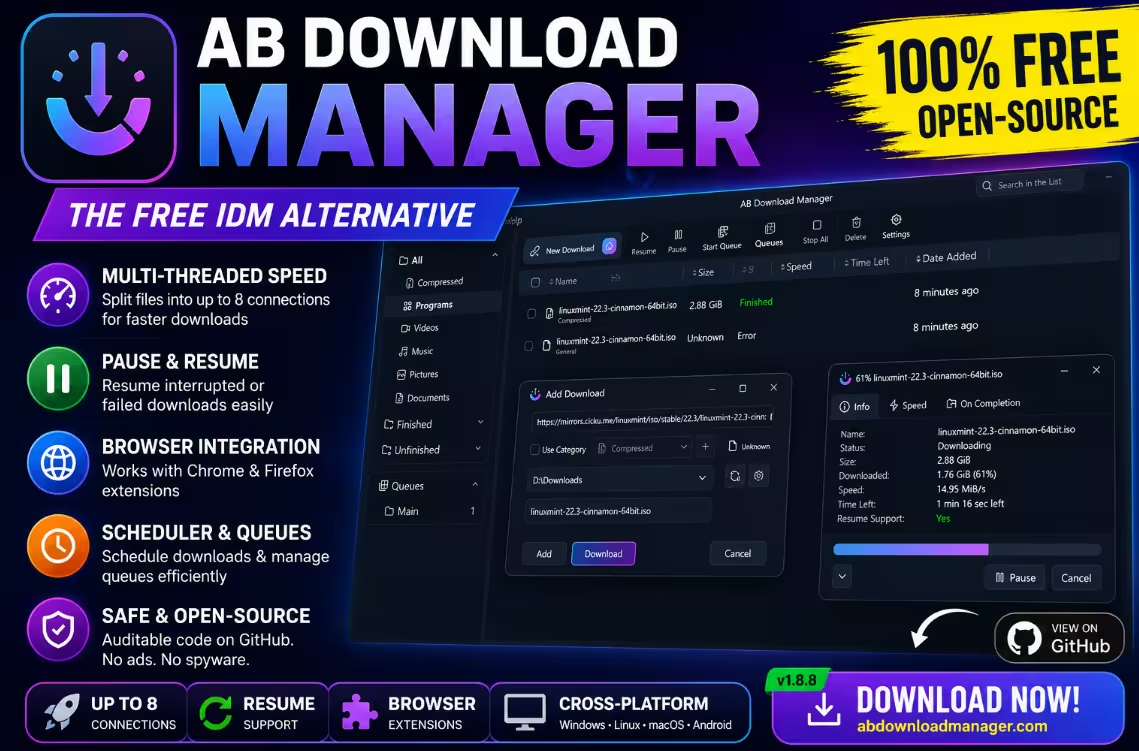
AB Download Manager: The Free Open-Source IDM Alternative Worth Switching For
A modern, multi-threaded download accelerator with queues, scheduling, browser integration and a slick dark UI — all for free, on Windows, Linux, macOS and Android.
⚡ Quick Read
⏱️ 4 min read
- ✅ Free, open-source download manager with a clean dark-mode interface
- ✅ Up to 8 simultaneous threads per download for faster speeds
- ✅ Queues, scheduler, batch URLs and wildcard pattern downloads
- ✅ Built-in checksum verification (MD5, SHA-1, SHA-256, SHA-512)
- ✅ Chrome & Firefox extensions, plus Winget/Scoop install support
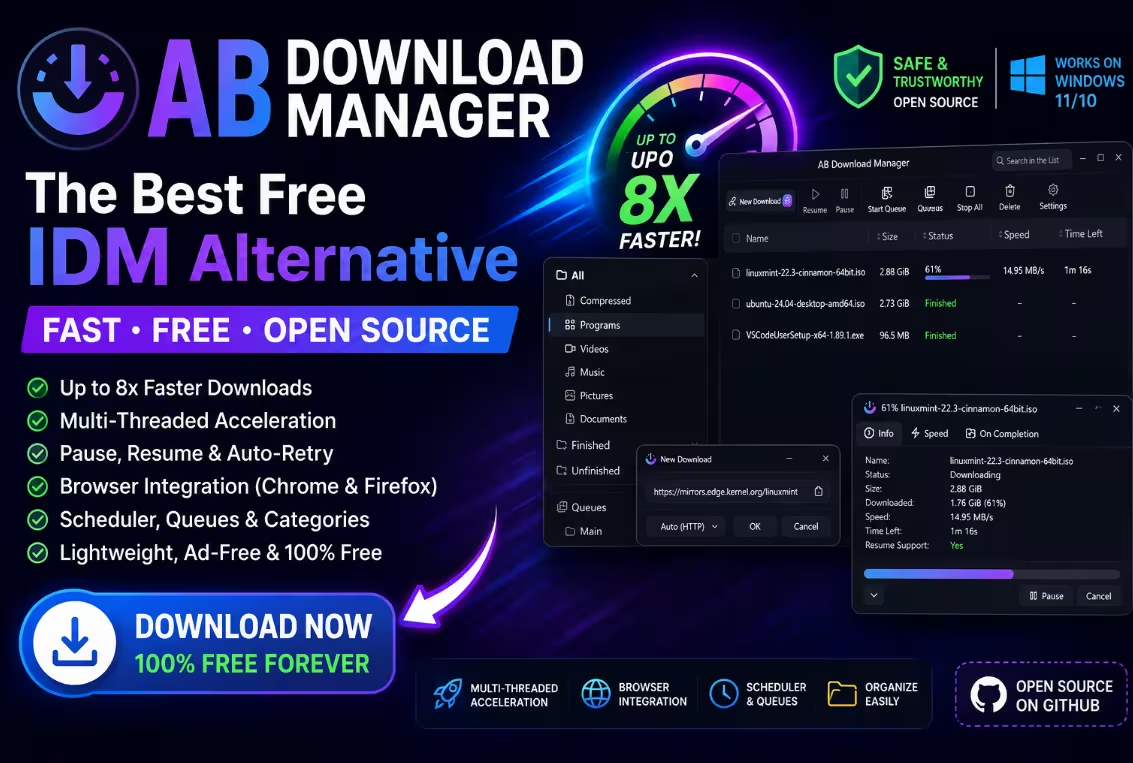
Why a dedicated download manager still matters in 2026
Most people just hit “Save As” in Chrome and call it a day. That works fine for a 5 MB document — but the moment you start grabbing 4 GB ISO files, Linux distributions or large software bundles, the limits of a single-threaded browser download become painfully obvious. One flaky connection and you’re starting over from zero.
That’s where AB Download Manager steps in. Built by independent developer AmirHossein Abdolmotallebi and distributed as free and open-source software, it’s a modern take on the classic download accelerator. Think of it as a polished, ad-free alternative to Internet Download Manager (IDM) — without the licence key.
I installed it on my Windows machine, ran it through a bunch of large downloads, and came away genuinely impressed. Here’s a complete walkthrough of what it does, how fast it really is, and whether it deserves a spot in your toolkit.
A genuinely modern interface (and yes, dark mode is excellent)
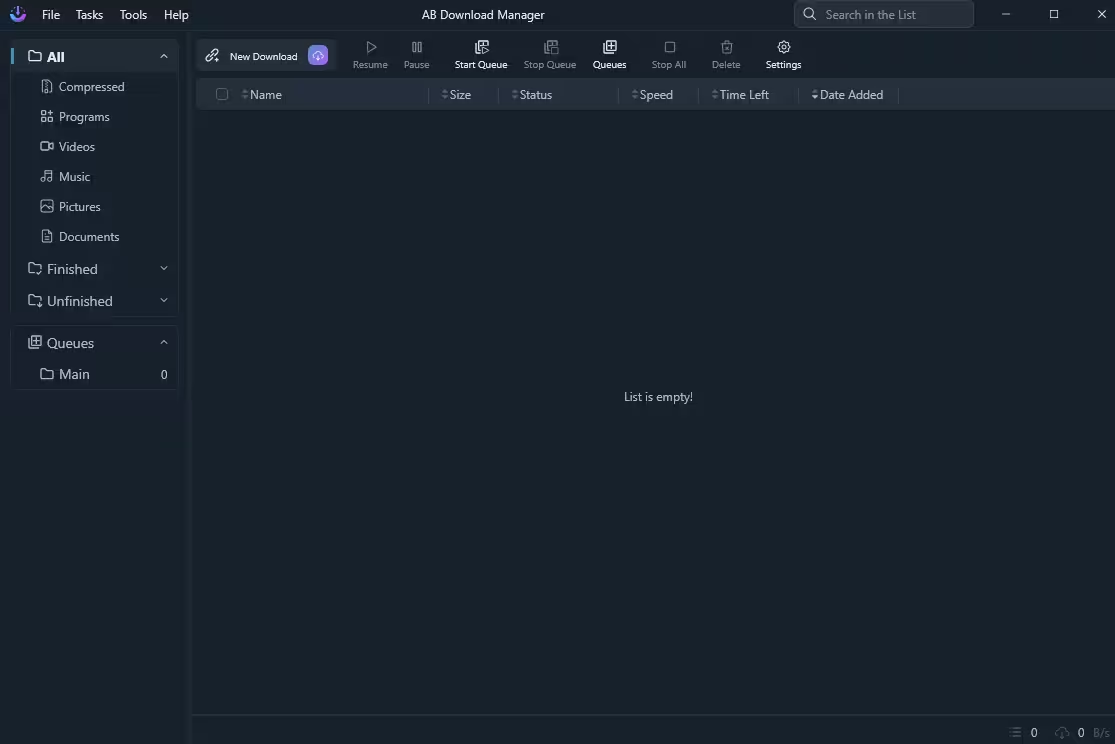
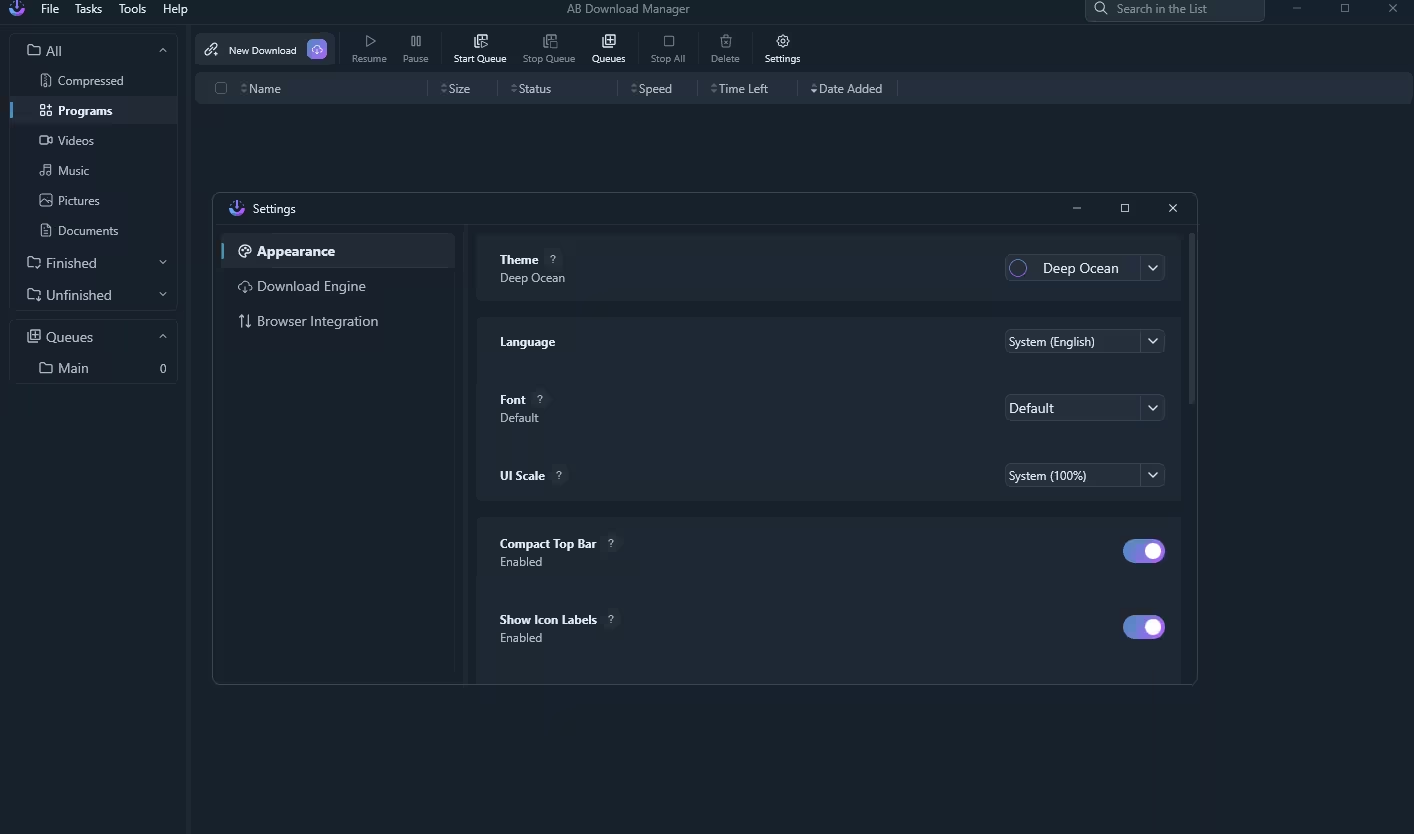
First impressions count, and AB Download Manager nails them. The interface looks like a 2026 app, not a relic from the IDM era. Everything sits behind a clean dark theme with subtle purple accents — and there’s a “Deep Ocean” theme variant if you want a bit more colour.
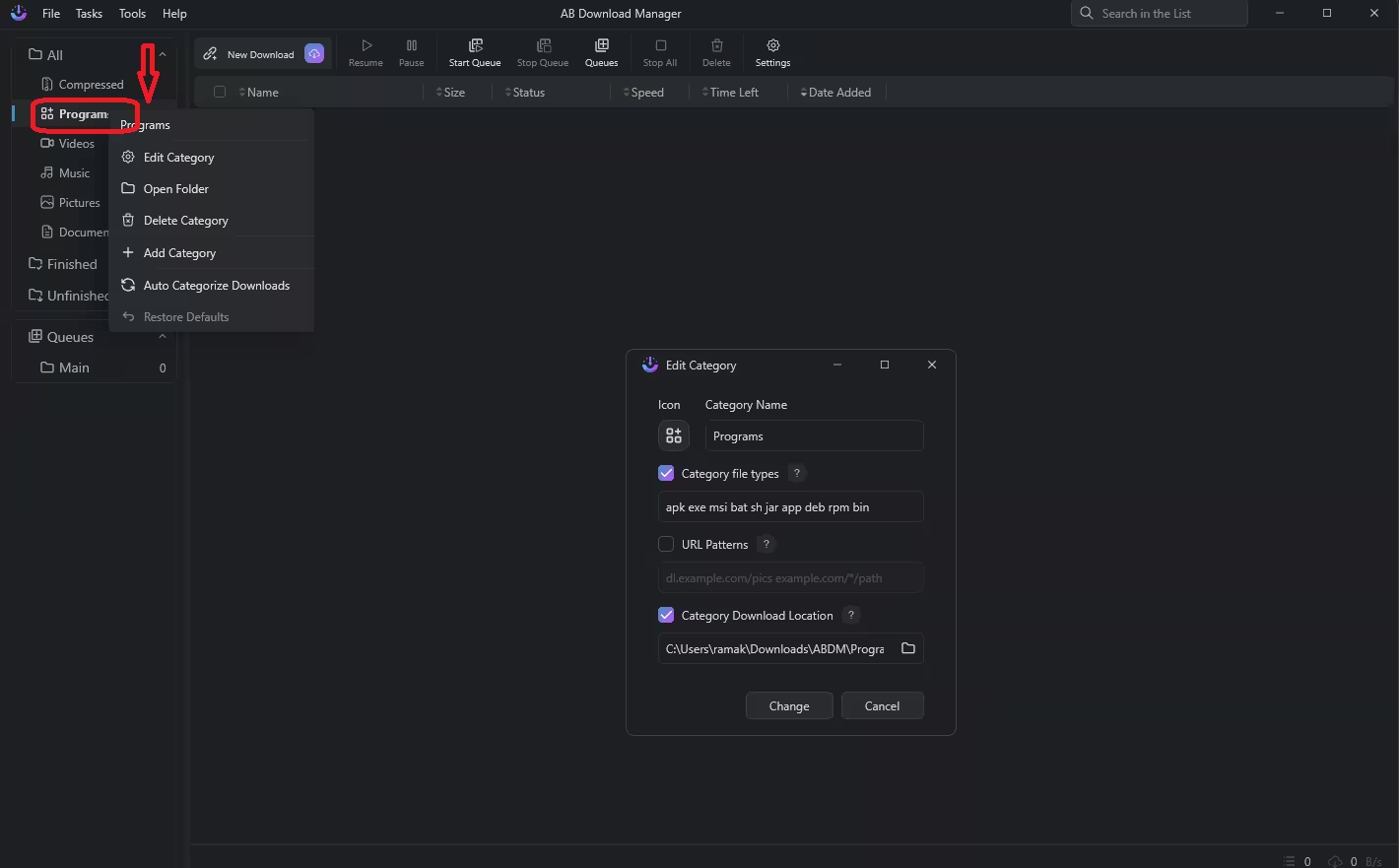
The left sidebar groups downloads into smart categories: Compressed, Programs, Videos, Music, Pictures and Documents. Below those, you’ll find Finished and Unfinished filters, plus a dedicated Queues section. Files are auto-sorted into the right category based on extension, but you can rename categories, swap their icons, change destination folders, or create your own — all from a tidy right-click menu.
The top toolbar keeps things minimal: New Download, Resume, Pause, Start Queue, Stop Queue, Queues, Stop All, Delete and Settings. A “Compact Top Bar” toggle exists if you want a tighter layout, and a global search box on the right helps you sift through long download histories.
Customisation without the clutter
Head into Settings → Appearance and you can change the theme, switch the system language, pick a custom font, tweak UI scale and decide whether icon labels should be visible. It’s the kind of thoughtful polish you’d expect from a paid product.
Multi-threaded downloads: how fast does it actually go?
The headline feature is multi-connection (multi-threaded) downloading. Instead of pulling a file through one connection like a browser does, AB Download Manager splits it into segments and downloads them in parallel. The official site advertises “up to 5x faster” speeds — that’s a best-case marketing number, but in practice the gains are real on servers that support range requests.
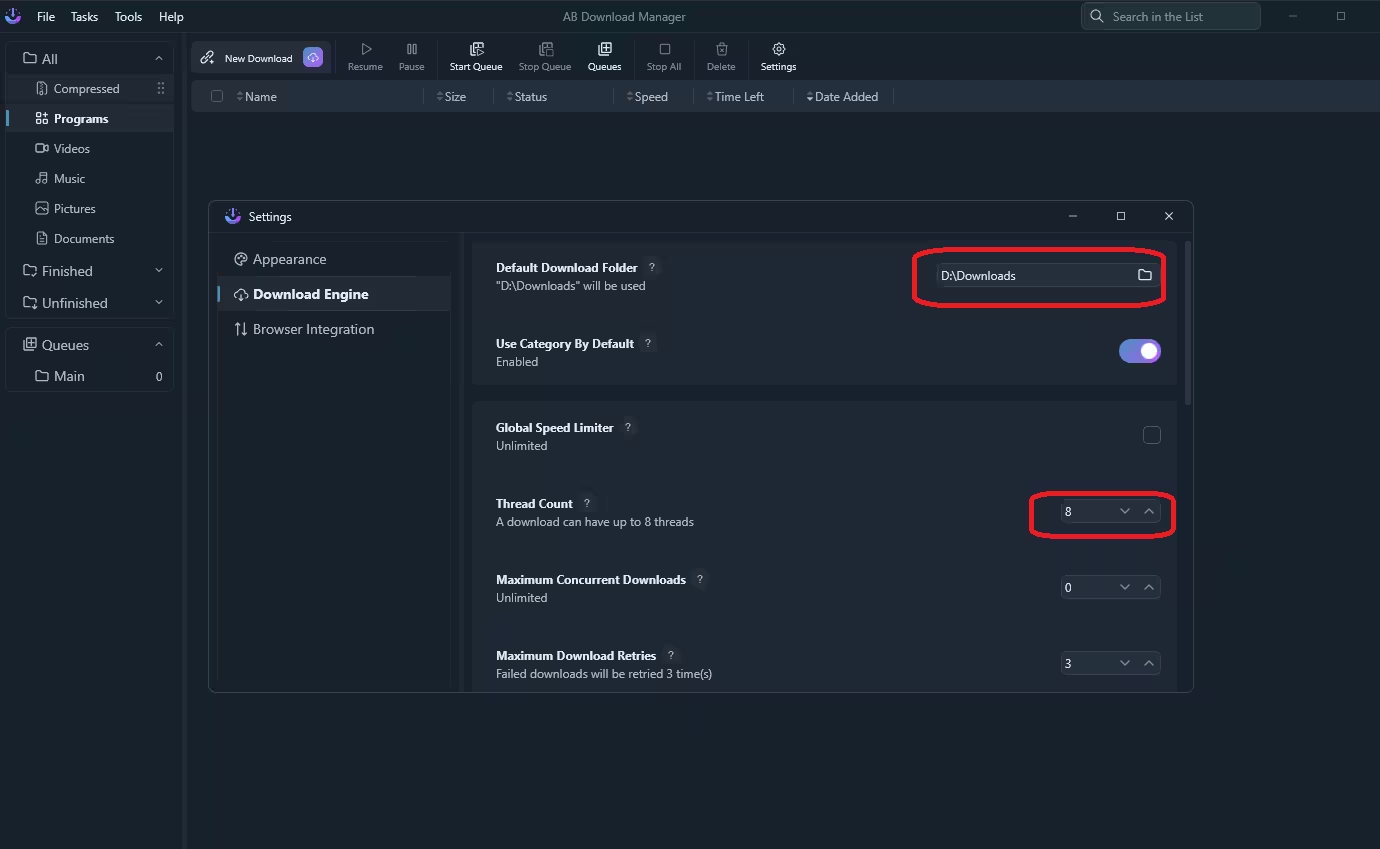
You can dial the number of threads from 1 to 8 per download under Settings → Download Engine → Thread Count. I tested it against several large ISO mirrors (Linux Mint 22.3 Cinnamon, around 2.88 GB) and consistently saw better throughput than a plain Chrome download — touching 15 MiB/s on a fast mirror with eight threads enabled.
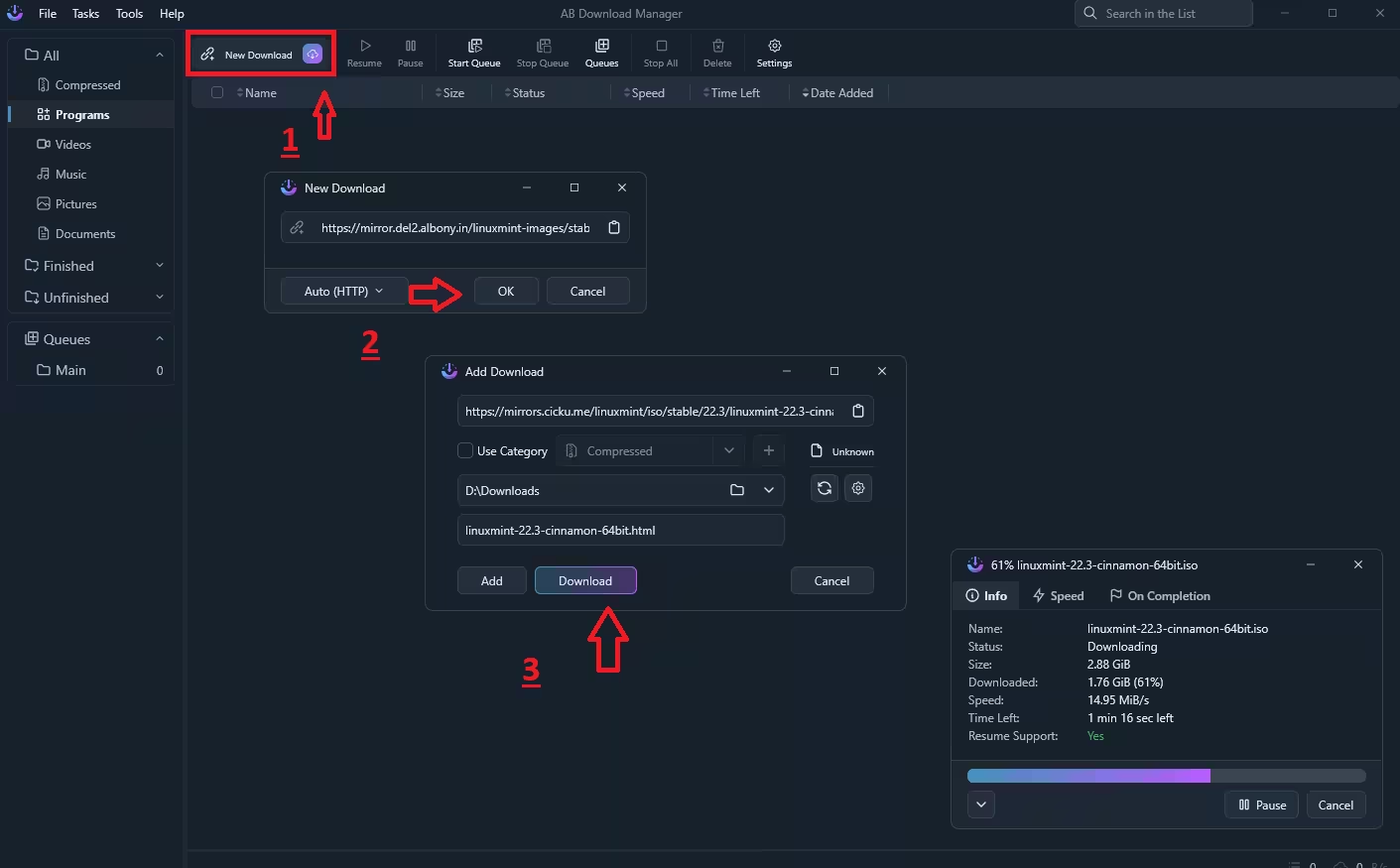
The progress panel is information-dense in a good way: filename, status, file size, downloaded bytes, current speed, time remaining and even whether the server supports resuming. Pause and resume genuinely work — I yanked my Wi-Fi mid-download and the file picked up exactly where it left off.
Granular speed and retry controls
The Download Engine settings page exposes everything I want from a power tool:
- Default Download Folder — pick one master location for everything
- Use Category By Default — auto-route files by type into subfolders
- Global Speed Limiter — throttle the app so it doesn’t hog your bandwidth
- Thread Count — up to 8 connections per file
- Maximum Concurrent Downloads — cap how many run at once
- Maximum Download Retries — default is 3, configurable
You can also override these per-download — handy if a single huge file needs more aggressive settings or, conversely, when you want to limit a giant download so it doesn’t kill your Zoom call.
Queues, scheduler and batch downloads done right
Power users will love the queue system. Create as many queues as you need, drop downloads into them, and start or pause each queue independently. Pair this with the built-in scheduler and you can automate a queue to fire off overnight when your ISP isn’t congested — perfect for hammering bandwidth-heavy ISO mirrors at 2 AM.
The batch download feature is a small thing that punches above its weight. Paste a clipboard full of URLs and AB Download Manager parses them, fetches file sizes, and lets you tick exactly which ones to grab. There’s also a pattern-based downloader: drop in a URL like example.com/files/img-*.jpg, define a number range, and the app expands the wildcard into every matching link automatically. Brilliant for downloading numbered sequences without hand-typing every URL.
Built-in checksum verification (a feature most apps skip)
This one impressed me. Right-click a finished download and you’ll see a checksum option that supports MD5, SHA-1, SHA-256 and SHA-512. Pick the algorithm, run the calculation, and the hash appears in the same window so you can compare it against the value published on the source page.
You won’t appreciate it until you’ve downloaded a corrupt Ubuntu ISO at 3 AM. For security-conscious users grabbing OS images, firmware, or signed binaries, having integrity verification built into the download manager itself — no terminal, no PowerShell, no third-party utility — is a genuine quality-of-life win.
Browser integration: Chrome & Firefox extensions
Out of the box, AB Download Manager hooks into your browser through dedicated extensions for Chrome and Firefox. Once installed, any download link you click gets handed off to the desktop app instead of the browser’s built-in downloader. No more copy-pasting URLs.
The setup is refreshingly simple: open Settings → Browser Integration, toggle the feature on, and you’re done. The listening port defaults to 15151 but can be changed if it clashes with anything else on your system.
How to download and install AB Download Manager
AB Download Manager is available across all major desktop and mobile platforms, though Windows gets the most polished build.
On Windows (recommended)
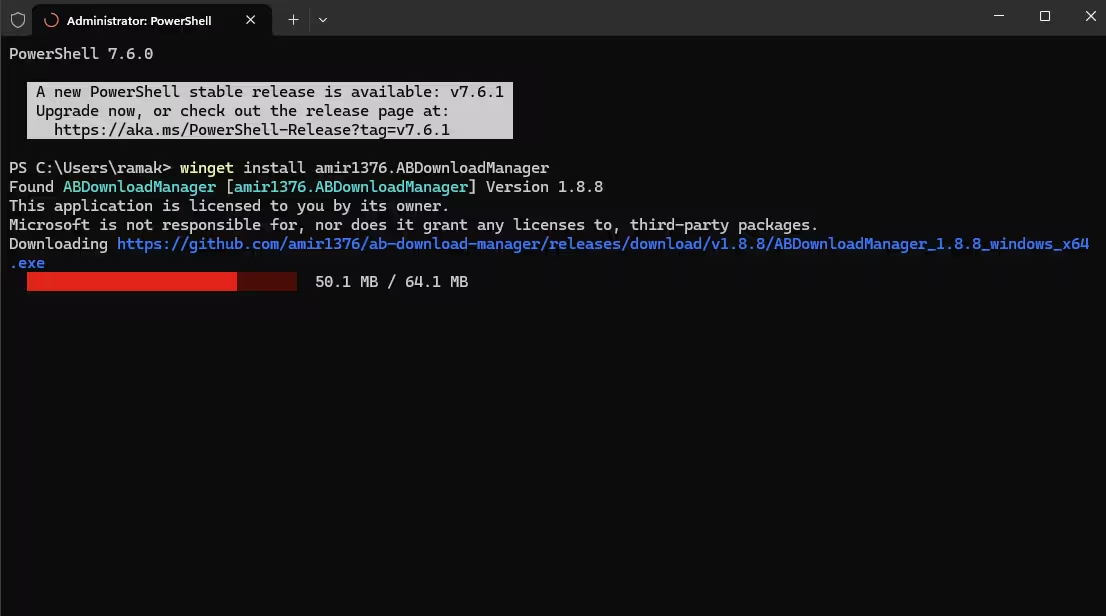
The Windows version is the most complete and ships as both an .exe installer and a portable .zip archive, with builds for x64 and ARM-64. The fastest installation path for terminal-friendly users is Winget:
winget install amir1376.ABDownloadManager
Or via Scoop:
scoop install extras/abdownloadmanager
On Linux, macOS and Android
Linux users get .tar.gz archives for x64 and ARM-64, plus an installation script you can pipe into bash. macOS has .dmg and .tar.gz builds compatible with both Apple Silicon and Intel. Android is delivered as a universal APK from the official site. Note that the Linux and macOS builds are still flagged as experimental — most features work, but expect occasional rough edges.
The official source is abdownloadmanager.com, and you can always grab the latest builds straight from the GitHub releases page.
What I liked and what I didn’t
After several days of daily use, AB Download Manager has quietly replaced my old workflow. The interface is the highlight — it’s the first download manager in years that doesn’t feel like a Windows 7 throwback. Multi-threading delivers real speed gains on supported servers, and small touches like built-in checksums and pattern downloads make it feel mature beyond its years.
If I had to nitpick: the macOS and Linux builds aren’t yet on the same footing as Windows, and the default category labels remain in English even when the rest of the UI is translated. Neither is a dealbreaker.
Frequently Asked Questions
Is AB Download Manager really free to use?
Yes. AB Download Manager is completely free and open-source. There are no premium tiers, no ads, and no hidden costs. The source code is publicly hosted on GitHub, and you can install it from the official website or through Winget and Scoop on Windows.
How much faster are downloads compared to a browser?
AB Download Manager can split a file into up to 8 simultaneous connections, which significantly improves speed on servers that support range requests. Real-world gains depend on your bandwidth and the server’s policy, but ISO files and large binaries typically finish noticeably faster than a single-stream browser download.
Does AB Download Manager work with Chrome and Firefox?
Yes. Official browser extensions are available for both Chrome and Firefox. Once installed, the extension intercepts download links and forwards them to the desktop app. You can enable or disable integration in Settings, and the listener defaults to port 15151.
Can it resume interrupted or failed downloads?
Yes, provided the source server supports resumable transfers. AB Download Manager can pause, resume and automatically retry failed downloads — the default retry count is three attempts and can be raised in Settings.
Is AB Download Manager safe and trustworthy?
It’s open-source with publicly auditable code on GitHub, developed by independent developer AmirHossein Abdolmotallebi and distributed via the official website, GitHub releases, Winget and Scoop. Stick to those channels and you’re on solid ground.
🏆 Our Verdict
A genuinely impressive open-source download manager that rivals paid tools like IDM in look, feel and feature set. The Windows build is rock solid, and the multi-threaded engine delivers real performance gains on large files.
👍 Pros
- Free & open-source
- Modern dark UI
- Up to 8 threads per download
- Built-in checksum verification
- Queues, scheduler & batch URLs
👎 Cons
- macOS / Linux builds still experimental
- Category labels not localised
- No built-in video sniffer (yet)
If you regularly download large files and want to ditch browser limitations without paying for IDM — install this today.
Found this guide helpful? Bookmark Techno360.in and follow us for more free software discoveries, deep-dive reviews and Windows productivity guides every week. Got questions or want to share your own experience with AB Download Manager? Drop a comment below — we read every one.


Discover more from Techno360
Subscribe to get the latest posts sent to your email.
You must be logged in to post a comment.