
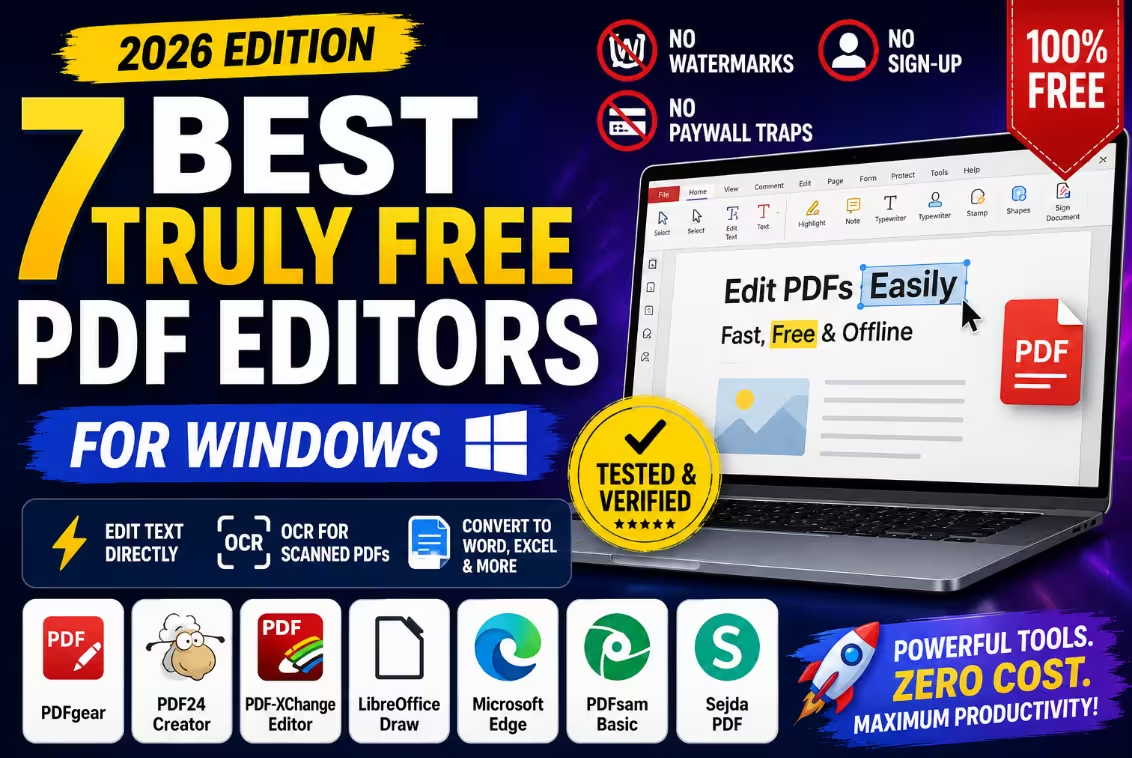
🧪 Tested & Verified — June 2026
7 Best Truly Free PDF Editors for Windows — No Watermarks, No Sign-Up, No Paywall Traps
You edit the PDF, hit Save… and a giant watermark appears across every page. Sound familiar? We tested every major “free” PDF editor on Windows 11 — these 7 actually keep their promise.
⚡ Quick Read — The 30-Second Answer
- Best overall: PDFgear — full text editing, OCR & conversion. 100% free, zero watermark, no account.
- Best toolbox: PDF24 Creator — 30+ PDF tools in one free offline app.
- Most powerful: PDF-XChange Editor — pro-grade editing, free core features.
- Already installed: Microsoft Edge — annotate & fill forms with nothing to download.
Here’s the trap almost every “free PDF editor” pulls in 2026: the download is free, the editing looks free — and then you hit Save. Suddenly there’s a watermark stamped across your resume, or a popup demanding $23/month for Adobe Acrobat Pro, or a “create an account to download your file” wall.
It’s the same bait-and-switch we exposed in our free data recovery software guide — tools that show you exactly what you want, then charge you to actually get it.
So we set three non-negotiable rules and tested every major PDF editor on a Windows 11 24H2 machine:
✅ Our 3-Rule Test (a tool fails = it’s out)
- It must edit existing text — not just draw boxes over it.
- It must save with no watermark on its core features.
- It must work with no account and no credit card.
Big names like Smallpdf, iLovePDF (with free tier limits), Sejda’s desktop full mode, and EaseUS PDF Editor all failed at least one rule. Microsoft Edge earns a special recommendation because it’s already installed on every Windows PC and handles annotation and form filling exceptionally well.
Four editors fully passed all three rules. Three additional tools earned spots because they excel in specific PDF tasks without watermarks or subscriptions. Let’s rank them.
Free PDF Editors Compared (2026)
| Tool | Edits Text? | Watermark | OCR | Works Offline | Best For |
|---|---|---|---|---|---|
| PDFgear 🏆 | ✅ Full | ❌ None | ✅ Yes | ✅ Yes | Everyone — best all-rounder |
| PDF24 Creator | ✅ Yes | ❌ None | ✅ Yes | ✅ Yes | Swiss-army toolbox |
| PDF-XChange Editor | ✅ Full | ⚠️ Only on PRO features | ✅ Yes | ✅ Yes | Power users |
| LibreOffice Draw | ✅ Deep | ❌ None | ❌ No | ✅ Yes | Heavy layout edits |
| Microsoft Edge | ⚠️ Annotate only | ❌ None | ❌ No | ✅ Yes | Zero-install markup |
| PDFsam Basic | ❌ Pages only | ❌ None | ❌ No | ✅ Yes | Merge / split / rotate |
| Sejda (free tier) | ✅ Yes | ❌ None | ✅ Limited | ⚠️ Web/desktop | Occasional quick edits |
1. PDFgear — Best Free PDF Editor Overall 🏆
✅ Full text editing · ✅ OCR · ✅ Convert to Word/Excel · ❌ No watermark · ❌ No account
PDFgear is the closest thing to a completely free Adobe Acrobat replacement on Windows right now — and we kept waiting for the catch that never came.
Click any line of text in a PDF and retype it directly, with fonts and layout preserved. Convert PDFs to Word, Excel, PowerPoint, or images with no file-size limits. Run OCR on a scanned document and it becomes searchable, selectable text. Merge, split, compress, sign — it’s all there, and all of it saves with zero watermark.
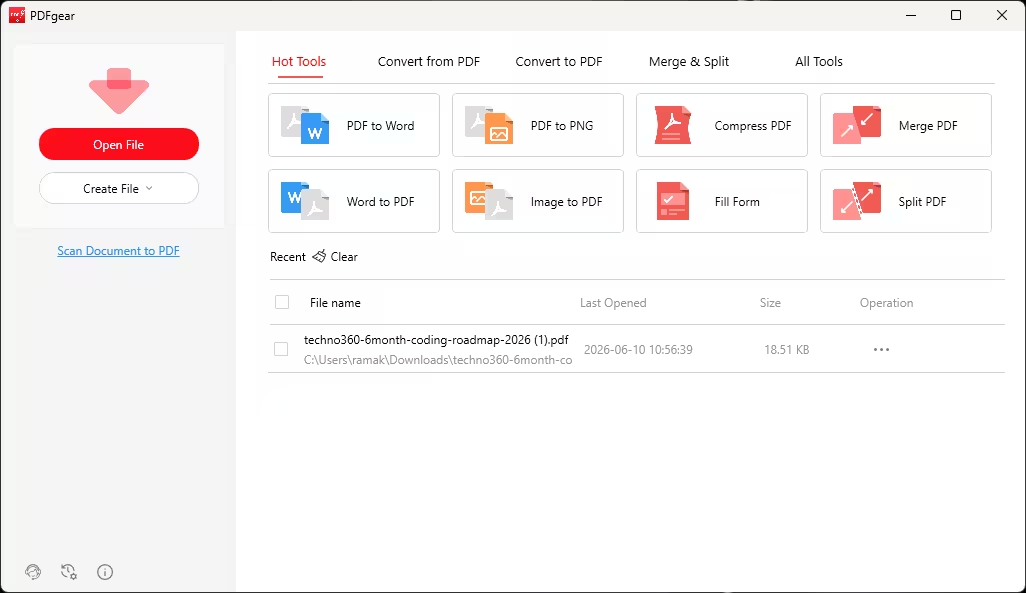
There’s even a built-in AI assistant. PDFgear currently includes AI-powered document assistance features for summarizing and searching long PDFs.
What we’d improve: the interface can feel slightly busy on first launch, and the AI features need an internet connection (the editing itself works fully offline).
💚 Verdict: If you install only one tool from this list, make it PDFgear. It passed our 3-rule test with the highest marks — full editing, no watermark, no sign-up, works offline.
Download: Official website (pdfgear.com)
2. PDF24 Creator — Best Free PDF Toolbox
✅ 30+ tools · ✅ OCR · ✅ Virtual PDF printer · ❌ No watermark · 100% free forever
PDF24 Creator is a German-made suite of 30+ PDF tools in one lightweight desktop app — and unlike nearly every competitor, there is no paid version at all. The entire app is free, funded by the (entirely ignorable) web version’s ads.
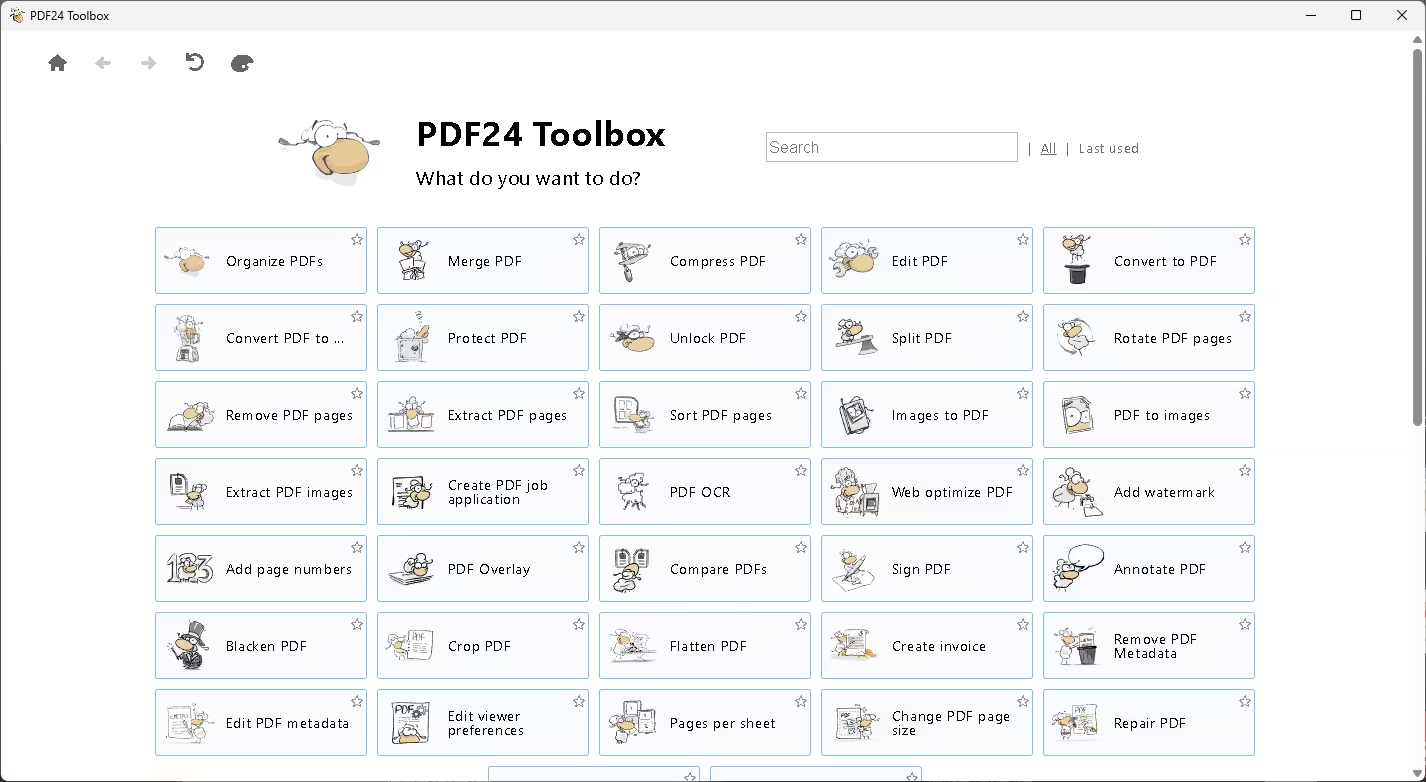
Merge, split, compress, rotate, password-protect, remove pages, add page numbers, OCR scanned files, and edit content. Its killer feature is the virtual PDF printer: any Windows app that can print — Chrome, Word, Excel, anything — can “print” straight to a polished PDF.
What we’d improve: direct text editing is more basic than PDFgear’s; it’s better at page-level operations than rewriting paragraphs.
💚 Verdict: The Swiss-army knife of PDF tools. Install it alongside PDFgear and you’ll genuinely never need a paid PDF app again.
Download: Official website (pdf24.org) or Microsoft Store ~50 MB
3. PDF-XChange Editor — Most Powerful Free Editor
✅ Pro-grade editing · ✅ OCR · ✅ Lightning fast · ⚠️ Watermark ONLY on PRO features
PDF-XChange Editor is the most feature-rich free desktop PDF editor for Windows — the kind of tool office power users swear by. Text editing, annotations, form filling, page management, and OCR are all genuinely free with no watermark.
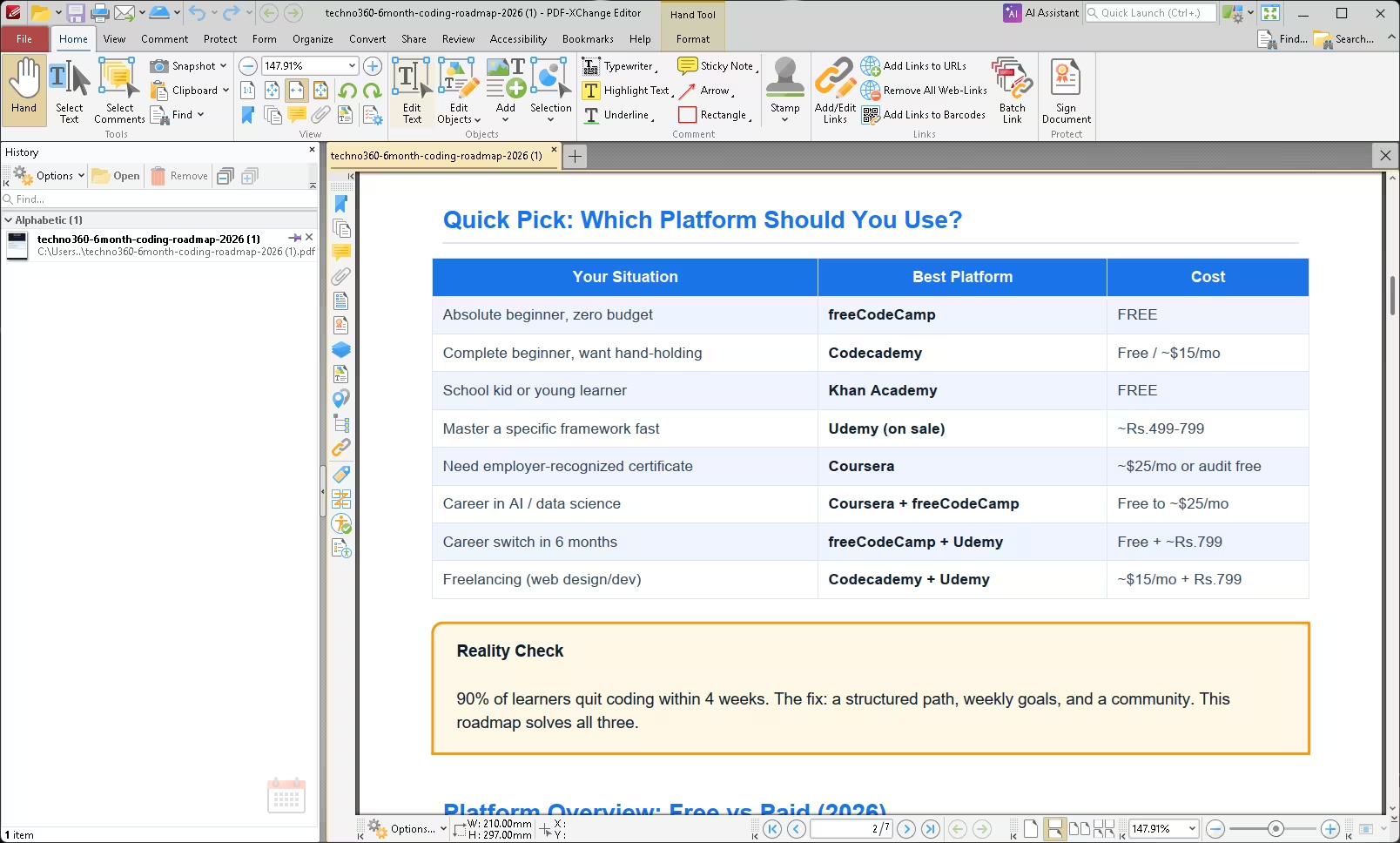
One honest warning, because this is where people get burned: the free version also shows the paid PRO features. Use one of those clearly-marked PRO tools and your saved file gets stamped with a watermark. Stick to the free toolset and your documents stay 100% clean. Every PRO feature is labelled, so it’s easy to avoid.
It’s also remarkably fast — it opens massive PDFs that make Adobe Reader crawl.
💚 Verdict: The deepest free feature set on Windows — just stay inside the free toolset. Perfect for users who annotate and edit PDFs daily.
Download: Official website (pdf-xchange.com) · Windows only
4. LibreOffice Draw — Best for Deep Layout Editing
✅ Open source · ✅ Edit anything on the page · ❌ No watermark · ❌ No OCR
Here’s a trick most people don’t know: LibreOffice Draw opens PDFs as fully editable documents. Every text block, image, and shape becomes an object you can rewrite, move, resize, or delete — the closest free experience to rebuilding a PDF from the inside.
How to do it: open LibreOffice Draw → File → Open → select your PDF. Edit anything, then File → Export as PDF.
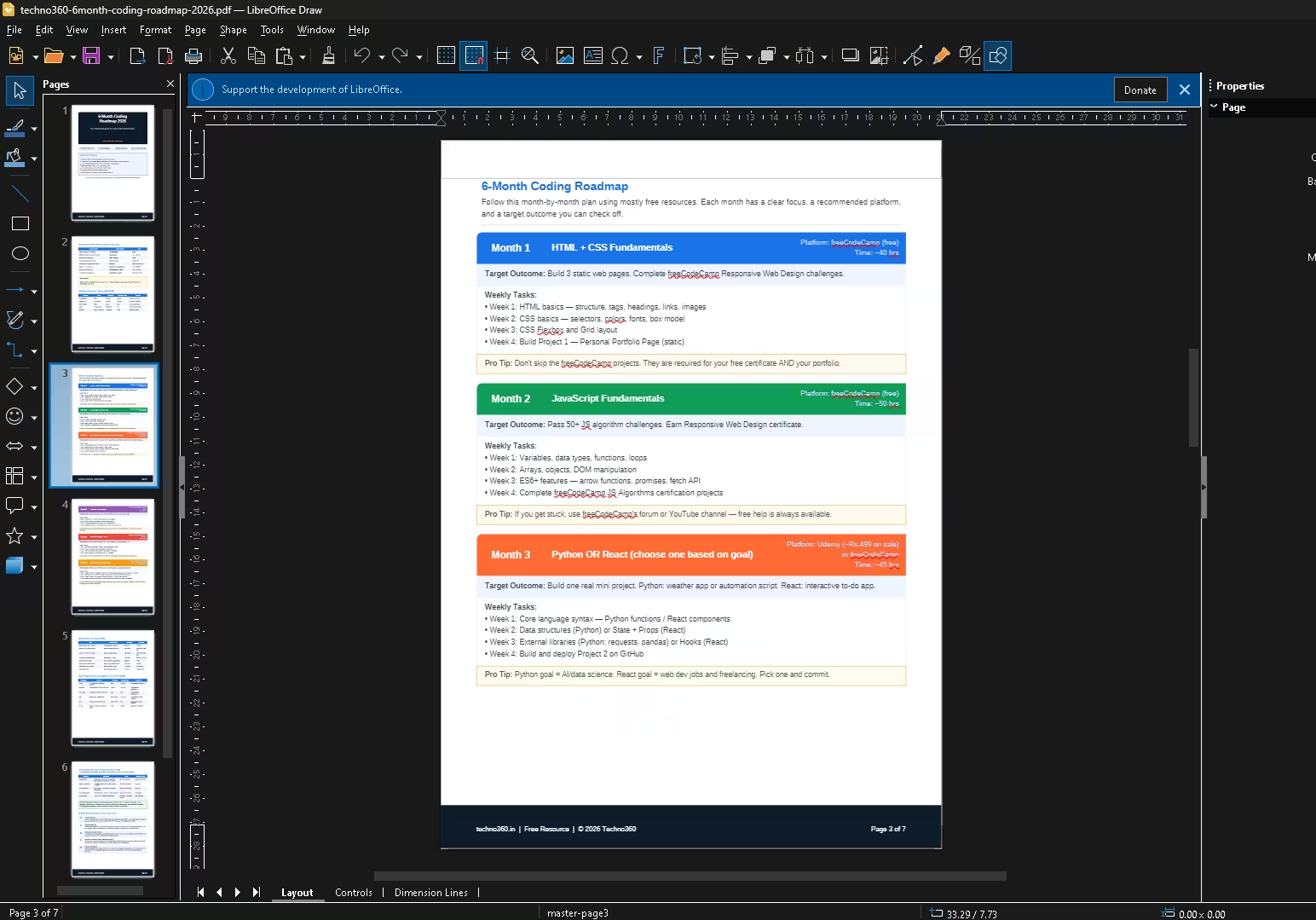
What we’d improve: complex PDFs with unusual fonts can shift slightly on import, and there’s no OCR — scanned PDFs open as flat images. Best for text-based documents you need to restructure heavily.
💚 Verdict: Unmatched for heavy restructuring — and it’s fully open source. Pair it with PDFgear (for OCR) and you’re covered for everything.
Download: libreoffice.org · Windows, Mac & Linux
5. Microsoft Edge — The Editor Already on Your PC
✅ Preinstalled on Windows · ✅ Fill forms & sign · ⚠️ Annotation, not text rewriting
Before you install anything, try this: right-click any PDF → Open with → Microsoft Edge. A surprisingly capable toolbar appears — add text boxes, highlight, draw, fill form fields, and add your signature. For everyday tasks like signing a form or marking up a document, you may need nothing else.
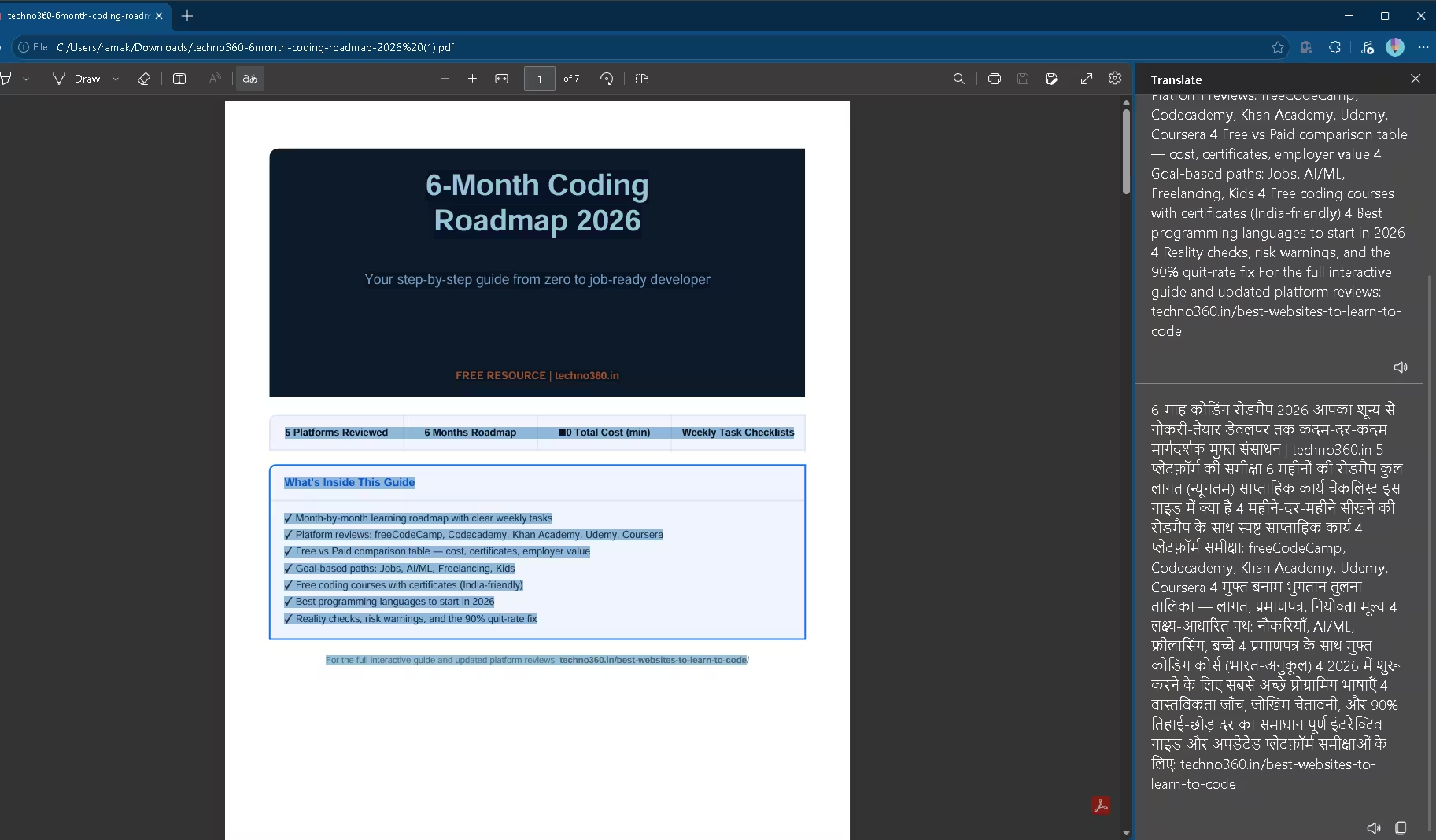
The limit: Edge annotates on top of the PDF — it can’t rewrite the existing text underneath. For that, you need PDFgear or PDF-XChange above.
💚 Verdict: The fastest answer to “I just need to sign this and send it back” — zero downloads, zero risk, already on every Windows 11 PC.
6. PDFsam Basic — Best for Merge, Split & Rotate
✅ Open source · ✅ Unlimited merging/splitting · ❌ No watermark · ❌ No text editing
PDFsam Basic does one job category brilliantly: page surgery. Merge unlimited PDFs, split by page ranges or bookmarks, extract pages, rotate, and mix alternate pages from two documents — all offline, all open source, all genuinely unlimited.
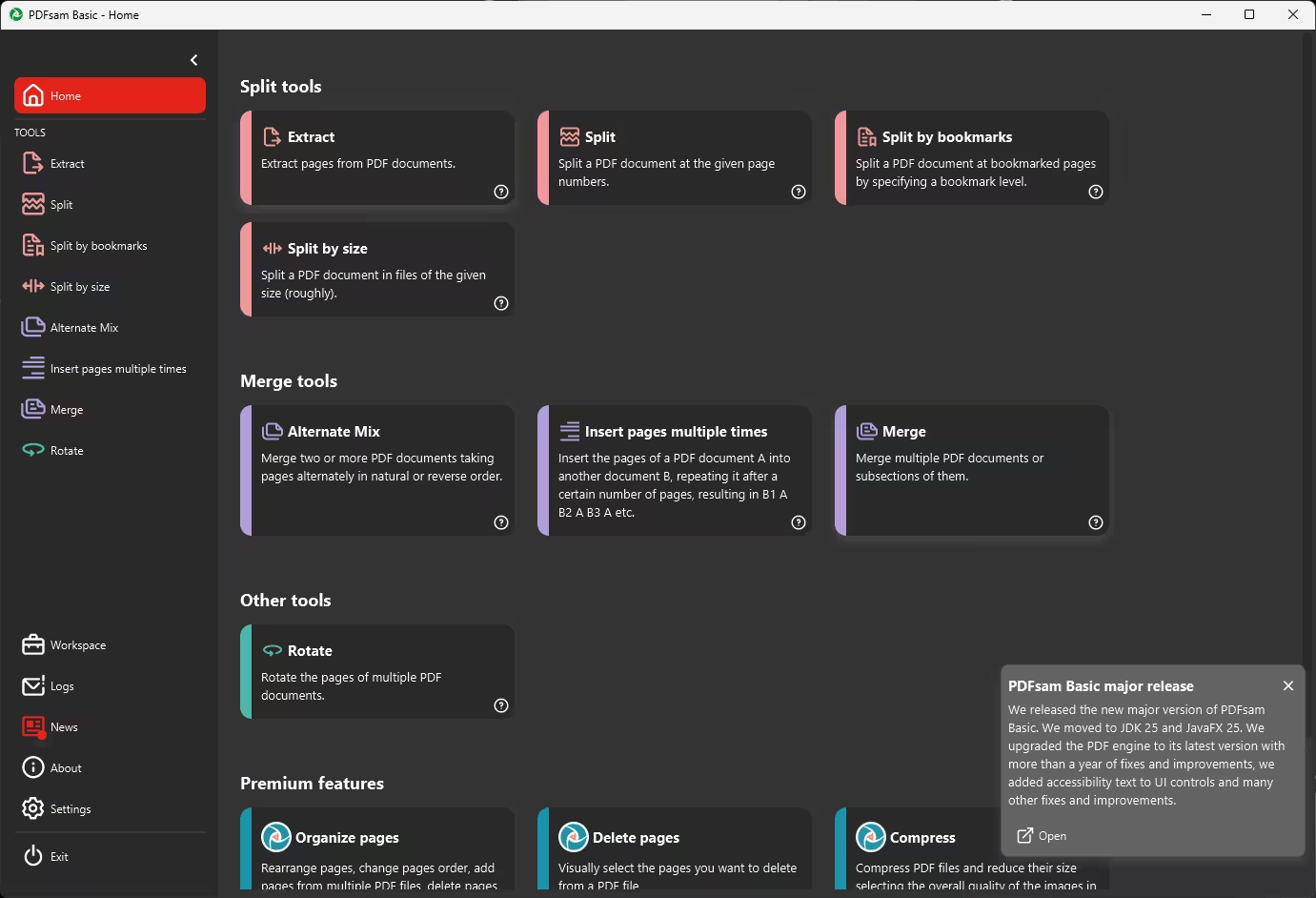
Online merge tools cap your file size or count and upload your documents to their servers. PDFsam does it locally on your PC with no limits at all — which is exactly why it belongs on this list even though it doesn’t edit text.
💚 Verdict: The definitive free tool for combining and splitting PDFs — private, offline, and unlimited.
Download: pdfsam.org (choose Basic — it’s the free open-source one) · Windows, Mac & Linux
7. Sejda PDF — Best for Occasional Quick Edits
✅ True text editing · ❌ No watermark · ⚠️ Free tier: limited tasks per day & file-size caps
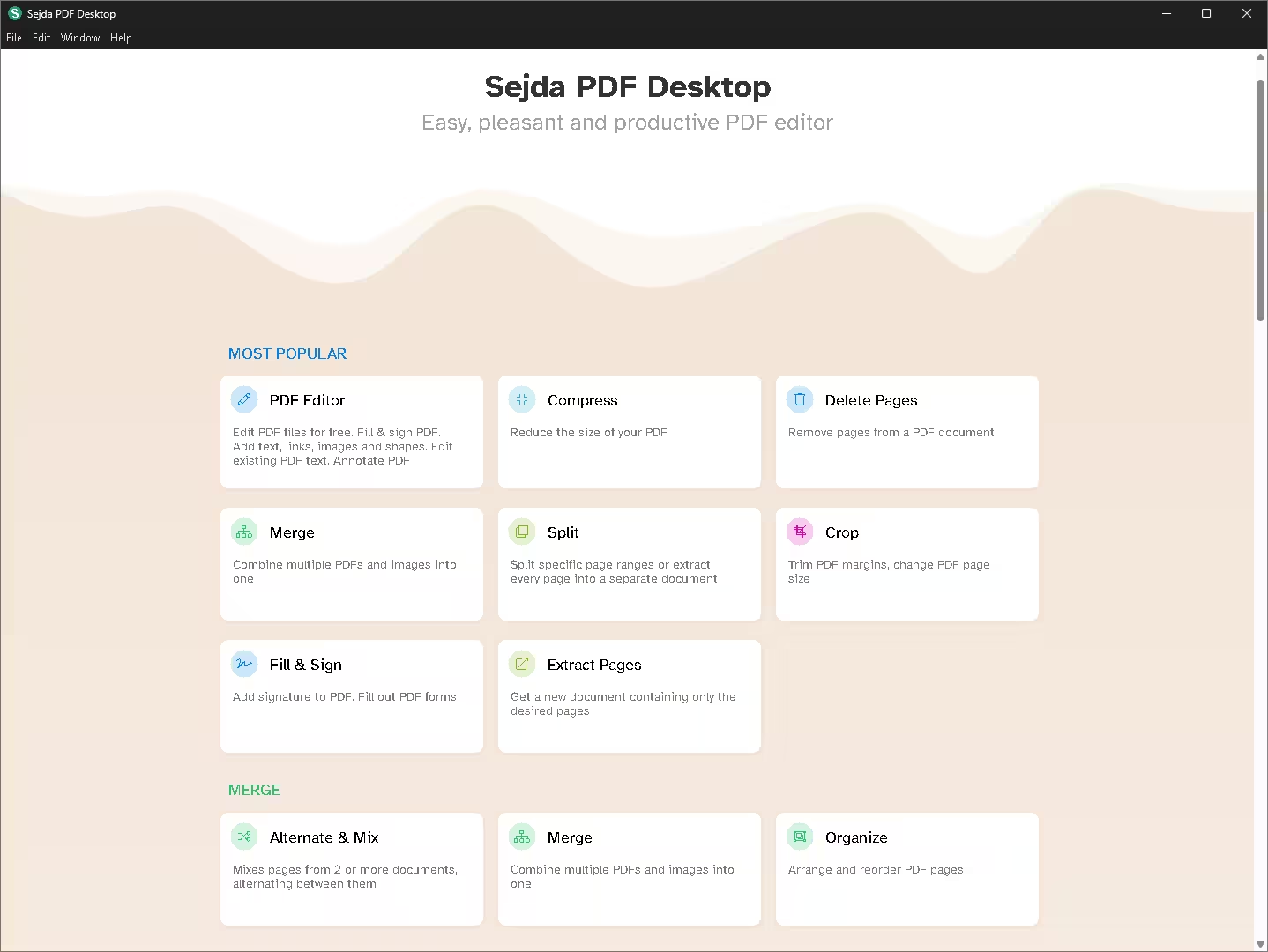
Sejda earns the last spot with an asterisk. Its editor genuinely rewrites PDF text and saves without a watermark — but the free tier limits how many tasks you can run per day and caps document size. Within those limits, it’s honest about what’s free, which is more than most rivals can say.
It’s ideal as a backup: a quick one-off edit on a machine where you can’t install software. For anything regular, the desktop tools above are better.
💚 Verdict: A clean, honest free tier for the occasional edit — just know the daily limits before you rely on it.
Access: sejda.com (web) or Sejda Desktop · ⚠️ Avoid uploading confidential documents to any online tool
⚠️ Popular “Free” PDF Editors That Failed Our Test
- Smallpdf / iLovePDF: Slick websites, but the free tiers limit daily tasks and push hard toward subscriptions — and your files travel to their servers.
- EaseUS PDF Editor: The free trial restricts saving/exporting — the same conversion funnel as their data recovery tool.
- Most “Free PDF Editor” apps in search ads: Many stamp watermarks on save or bundle adware. Always download from the official developer site — never from ad results.
- Adobe Acrobat Reader: Great free reader and form-filler, but actual editing requires the $23/month Pro subscription.
Which One Should You Pick?
- “I want one app that does everything” → PDFgear
- “I merge/split/compress PDFs all day” → PDF24 Creator or PDFsam Basic
- “I annotate documents professionally” → PDF-XChange Editor
- “I need to rebuild a PDF’s layout” → LibreOffice Draw
- “I just need to sign one form right now” → Microsoft Edge (it’s already installed)
All seven are safe when downloaded from their official sites. For maximum coverage, our test PC now runs just two of them: PDFgear + PDF24 Creator — together they replace every function of Adobe Acrobat Pro for ₹0.
Frequently Asked Questions
What is the best completely free PDF editor for Windows with no watermark?
PDFgear. It edits text directly, converts to Word/Excel, runs OCR on scans, and saves with no watermark — no account, no paid tier hiding the core features.
Can I edit a PDF for free without Adobe Acrobat?
Yes — PDFgear, PDF24 Creator, and LibreOffice Draw all edit PDF text without an Acrobat subscription, and Microsoft Edge handles annotation and form-filling with nothing to install.
Does PDF-XChange Editor add a watermark?
Not on its free core features (editing, annotation, forms, OCR, page management). A watermark only appears if you use the clearly-labelled PRO tools in the free version — avoid those and your files stay clean.
Is there a built-in PDF editor in Windows 11?
Not a full editor, but Microsoft Edge (preinstalled) opens any PDF and lets you add text, highlight, draw, sign, and fill forms.
Are online PDF editors safe for confidential documents?
Treat them with caution — your file is uploaded to a third-party server. For contracts, IDs, or financial documents, stick to offline desktop tools like PDFgear, PDF24, or LibreOffice Draw that process everything locally.
🏆 Final Verdict
In 2026 you do not need to pay for PDF editing on Windows — you just need to dodge the watermark traps. PDFgear is the one to install first: full text editing, OCR, conversion, and zero strings attached. Add PDF24 Creator for its 30-tool toolbox, and keep Microsoft Edge in mind for instant sign-and-send jobs.
Bookmark this page — we re-test these tools and update the rankings whenever a “free” tier quietly changes.


Discover more from Techno360
Subscribe to get the latest posts sent to your email.
You must be logged in to post a comment.