
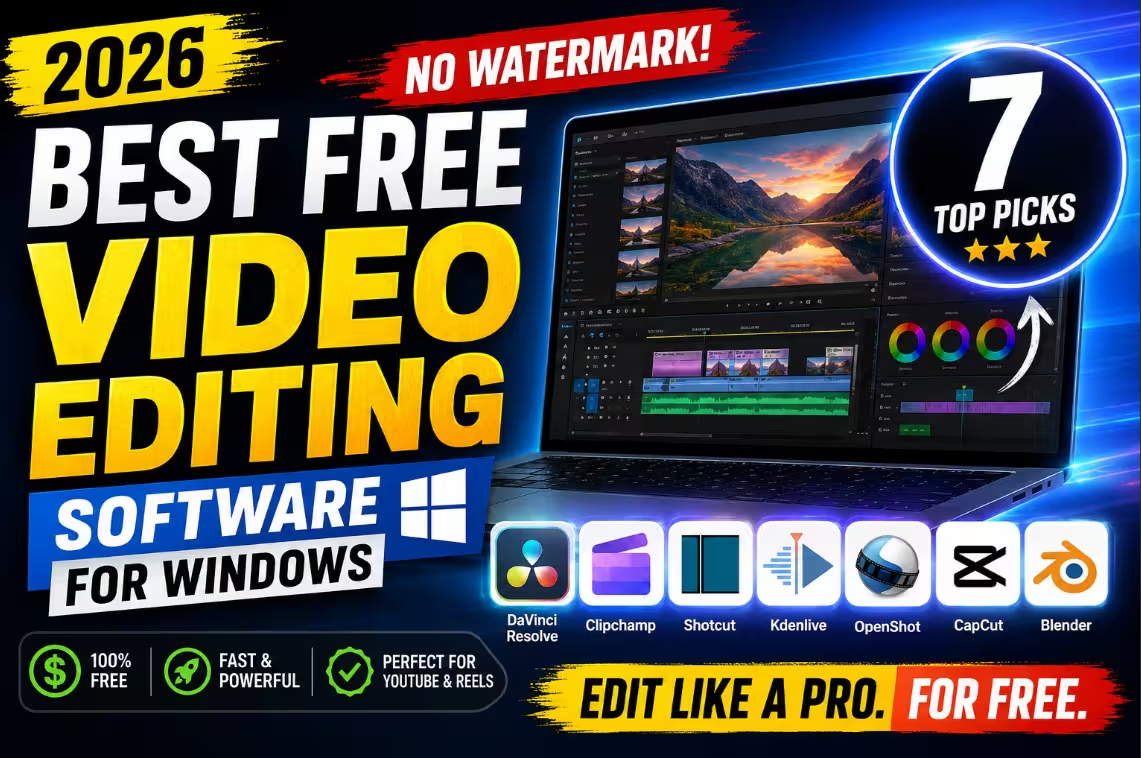
⚡ 2026 Tested & Updated
Best Free Video Editing Software for Windows (2026)
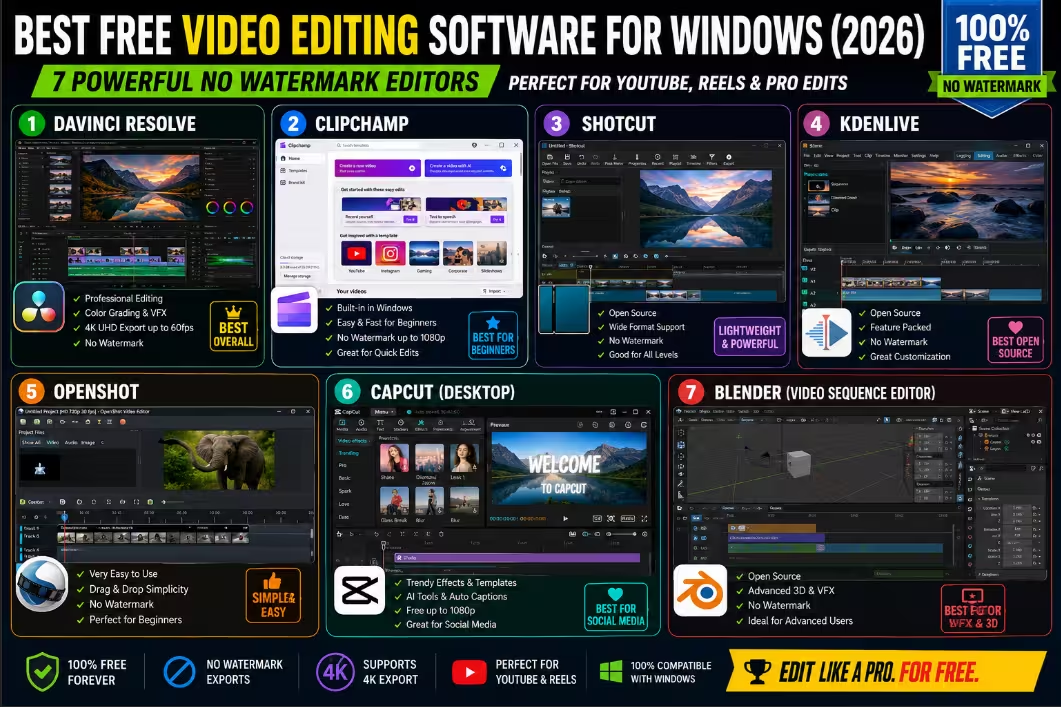
No watermarks. No 7-day trials. No “gotcha” paywalls. We put 7 genuinely free editors through real YouTube, reels, and color-grading workflows so you can stop searching and start cutting today.
🚫 No-Watermark Picks
🪟 Windows 10 & 11
💸 ₹0 Forever
Let’s be honest — “free video editor” usually means one of two things: a watermark slapped across your hard work, or a 720p export wall that begs you to pull out a credit card. The good news? In 2026, that stereotype is finally dead.
Free editors have grown up. You can now grade a short film, cut a 4K YouTube video, or pump out a week of reels without spending a single rupee — and without a logo ruining the corner of every frame. The catch is knowing which tool fits your workflow, because the “best” editor for a beginner is wildly different from the best one for a colorist.
So we did the legwork. Below is the shortlist, a quick-glance comparison table, deep-dive reviews, and a no-nonsense verdict. Grab a coffee — your next editor is on this page.
The 30-Second Version
Quick Read
- Best overall: DaVinci Resolve — Hollywood-grade editing, color & VFX, totally free, no watermark. Top Pick
- Best for beginners: Microsoft Clipchamp — built into Windows, dead-simple, watermark-free 1080p.
- Best open-source all-rounder: Shotcut — opens any format, exports 4K, runs on modest PCs.
- Best for low-spec laptops: OpenShot — friendly, lightweight, zero learning curve.
- Best for 3D & VFX: Blender — the free animation & effects powerhouse.
- Heads-up: CapCut is no longer fully free in 2026 — it’s freemium now. We explain exactly what’s locked. Read This
Quick Comparison: Free Windows Video Editors at a Glance
| Editor | Best For | Max Free Export | Watermark? | Platforms | Price |
|---|---|---|---|---|---|
| DaVinci Resolve | Pro editing, color & VFX | 4K UHD @ 60fps | None | Win · Mac · Linux | Free (Studio $295 one-time) |
| Clipchamp | Beginners & quick edits | 1080p | None | Win · Web | Free (Premium ~$11.99/mo) |
| Shotcut | Open-source all-rounder | 4K | None | Win · Mac · Linux | Free |
| Kdenlive | Multi-track editing | 4K+ | None | Win · Mac · Linux | Free |
| OpenShot | Absolute beginners | 4K | None | Win · Mac · Linux | Free |
| CapCut | Social / short-form | 1080p (free tier) | On some exports | Win · Mac · Web · Mobile | Freemium |
| Blender | 3D, VFX & animation | Unlimited | None | Win · Mac · Linux | Free |
How We Picked These Editors
We didn’t just count features on a spec sheet. Every tool here had to clear three bars: it must be genuinely free (not a disguised trial), it must export without a forced watermark on its free tier (CapCut is the one flagged exception), and it must actually run well on a normal Windows PC. We weighed real-world editing — timeline responsiveness, export quality, format support, and how steep the learning curve is for everyday creators. Now, the deep dives.
🥇 #1 · Best Overall
DaVinci Resolve — The Pro Suite That Happens to Be Free
⭐ Best for: serious YouTubers, filmmakers & colorists
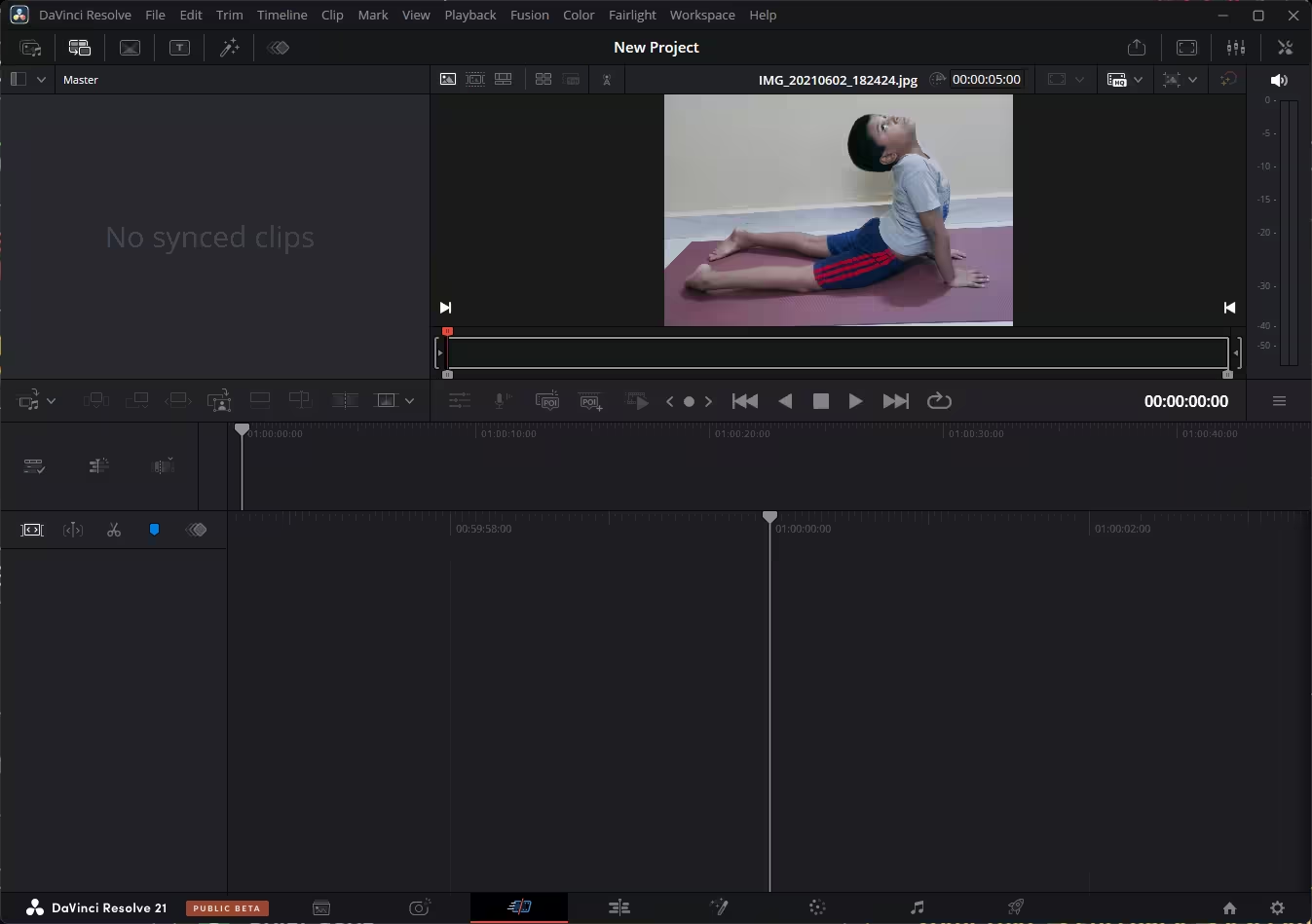
If a single tool could win this list outright, it’s DaVinci Resolve. The same software used to grade Hollywood films has a free version that never expires and adds zero watermark. You get a full editing page, the legendary Color page for grading, Fusion for VFX and motion graphics, and Fairlight for audio mixing — all in one app.
The free version exports up to 4K UHD (3840×2160) at 60fps, supports multicam editing, and gets free major updates (Blackmagic has kept even big version upgrades free). The trade-off is a meatier learning curve and a hunger for hardware — but for anyone serious about quality, nothing else free comes close.
👍 Pros
- Professional editing, color, VFX & audio in one suite
- Free 4K exports, no watermark, no expiry
- Best-in-class color grading tools
👎 Cons
- Steeper learning curve for first-timers
- Wants 16GB+ RAM and a dedicated GPU
- Some AI tools reserved for paid Studio
🖥️ Win · Mac · Linux
📤 4K @ 60fps
🚫 No watermark
🥈 #2 · Best for Beginners
Microsoft Clipchamp — Already Sitting on Your PC
⭐ Best for: beginners, fast social clips & Windows users
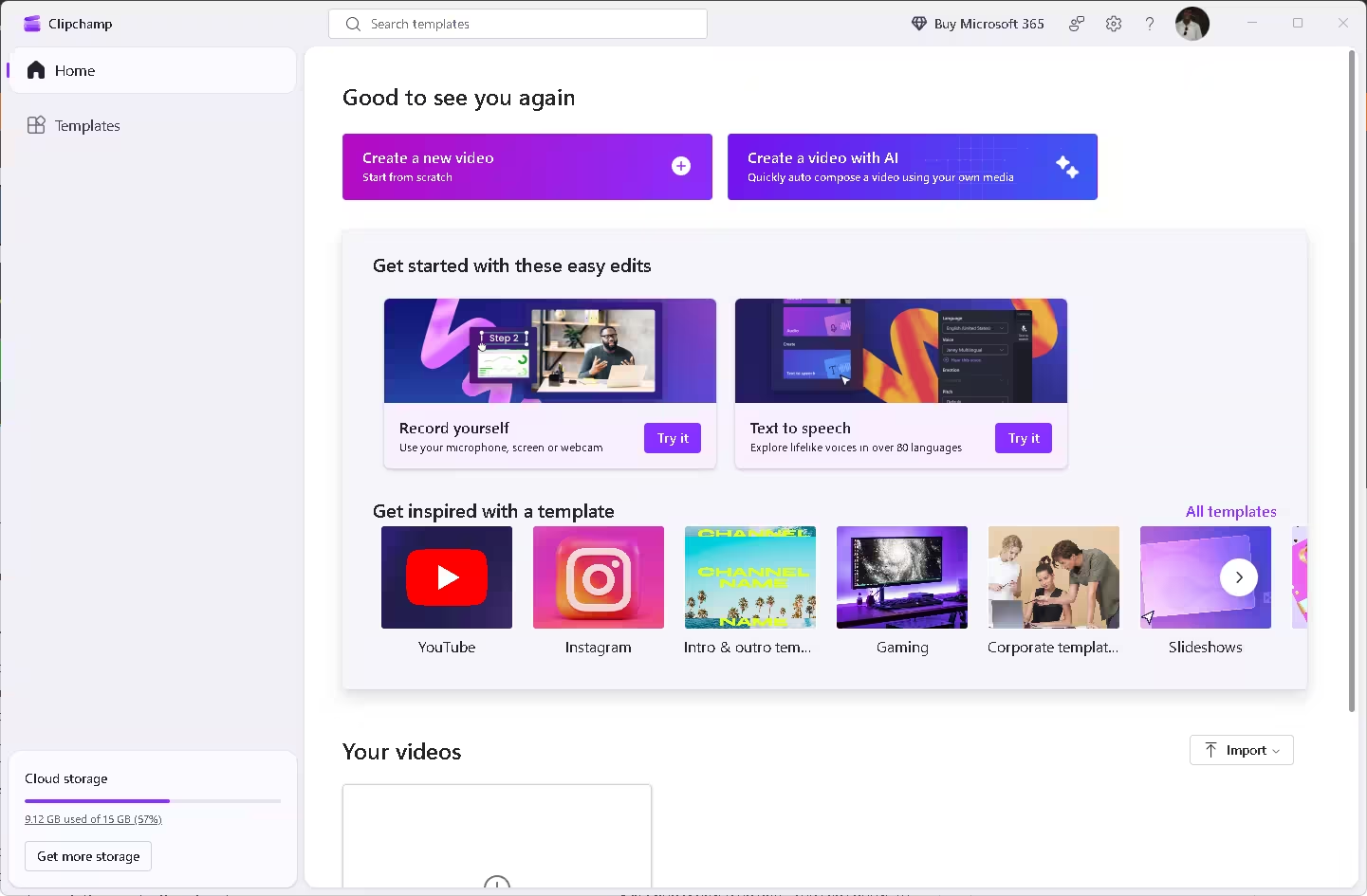
Open your Start menu — there’s a good chance Clipchamp is already there. Microsoft’s editor is the friendliest on-ramp to video editing on Windows, with a clean drag-and-drop timeline, templates, and handy AI extras like auto-captions, text-to-speech voiceovers, and silence removal.
The free plan gives you unlimited, watermark-free exports up to 1080p — perfect for YouTube, Instagram, and Shorts (which cap at 1080p anyway). You only hit a wall if you want 4K or premium stock assets, which require Microsoft 365 or Clipchamp Premium.
👍 Pros
- Zero learning curve — start in minutes
- Watermark-free 1080p, unlimited exports
- Built-in AI captions & voiceovers
👎 Cons
- Free tier caps at 1080p (no 4K)
- Premium stock media is paywalled
- Leans on cloud, so needs internet
🖥️ Win · Web
📤 1080p
🚫 No watermark
🥉 #3 · Best Open-Source All-Rounder
Shotcut — Opens Anything, Exports 4K, Costs Nothing
⭐ Best for: creators who want format freedom & open-source
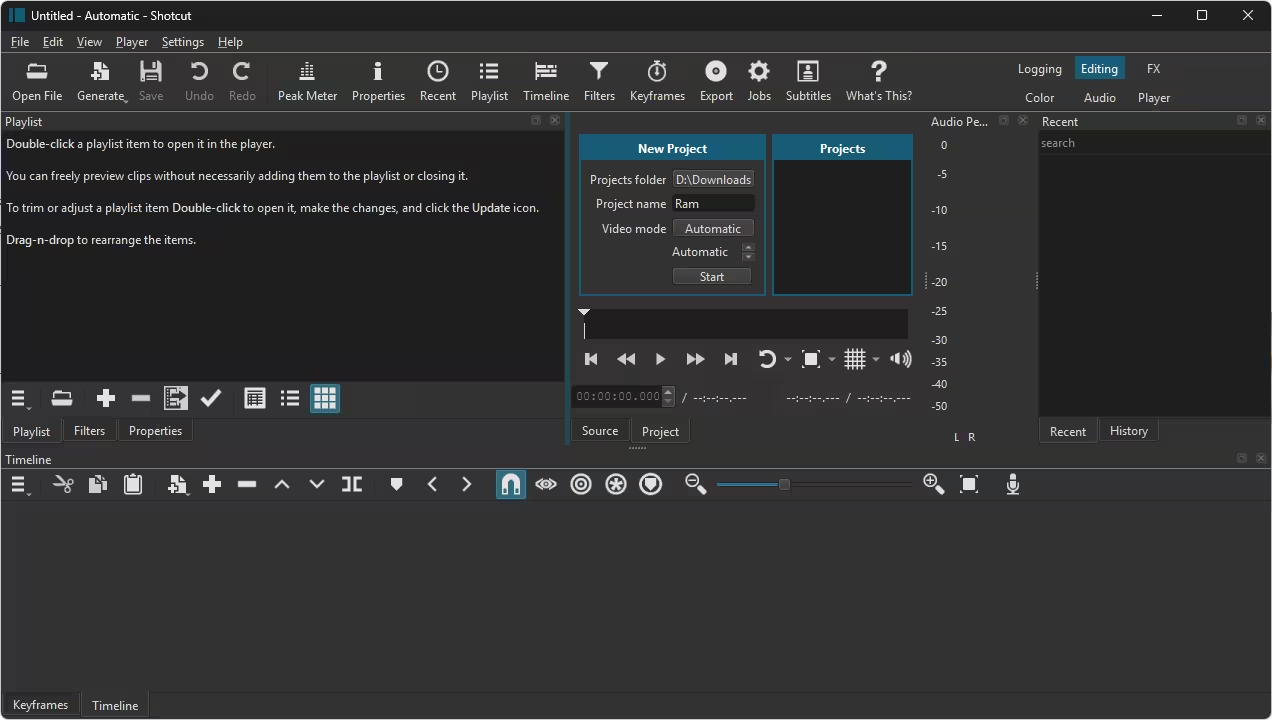
Shotcut is the dependable workhorse. Because it’s built on FFmpeg under the hood, it swallows almost any file format you throw at it without hunting for codecs. It’s free, open-source, watermark-free, and exports up to 4K.
The interface doesn’t mimic Premiere, so there’s a short adjustment period — but once it clicks, you get multi-track timelines, audio filters, and a solid stack of video effects. It also runs happily on modest hardware, making it a great middle ground between “too basic” and “too complex.”
👍 Pros
- Handles virtually any format natively
- Free, open-source & watermark-free 4K
- Light on system resources
👎 Cons
- Unconventional, less polished UI
- Fewer flashy templates/effects
- Occasional quirks on big projects
🖥️ Win · Mac · Linux
📤 4K
🚫 No watermark
#4 · Best Multi-Track Editor
Kdenlive — The Underrated Multi-Track Champion
 “
“⭐ Best for: intermediate editors who outgrew the basics
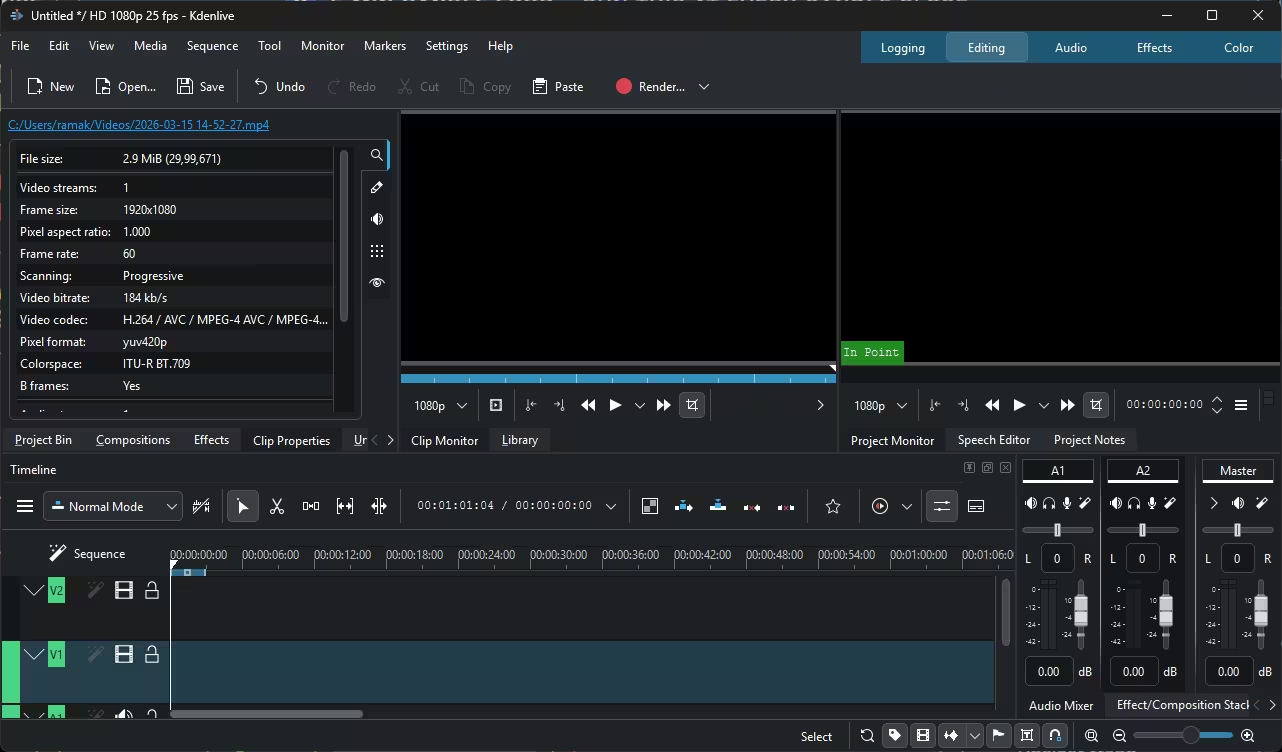
Kdenlive sits in the sweet spot between beginner tools and full pro suites. It’s free, open-source, and built around flexible multi-track editing with unlimited tracks, a deep library of effects and transitions, keyframing, and proxy editing to keep heavy footage smooth.
If OpenShot feels too limiting but DaVinci Resolve feels like overkill, Kdenlive is the natural step up. It’s actively developed, stable, and exports cleanly with no watermark.
👍 Pros
- Unlimited tracks & rich effect library
- Proxy editing for smooth playback
- Free, open-source, watermark-free
👎 Cons
- Interface looks a little dated
- Rare stability hiccups — save often
- No big AI feature set
🖥️ Win · Mac · Linux
📤 4K+
🚫 No watermark
#5 · Best for Absolute Beginners
OpenShot — The Gentlest Place to Start
⭐ Best for: first-time editors & quick simple cuts
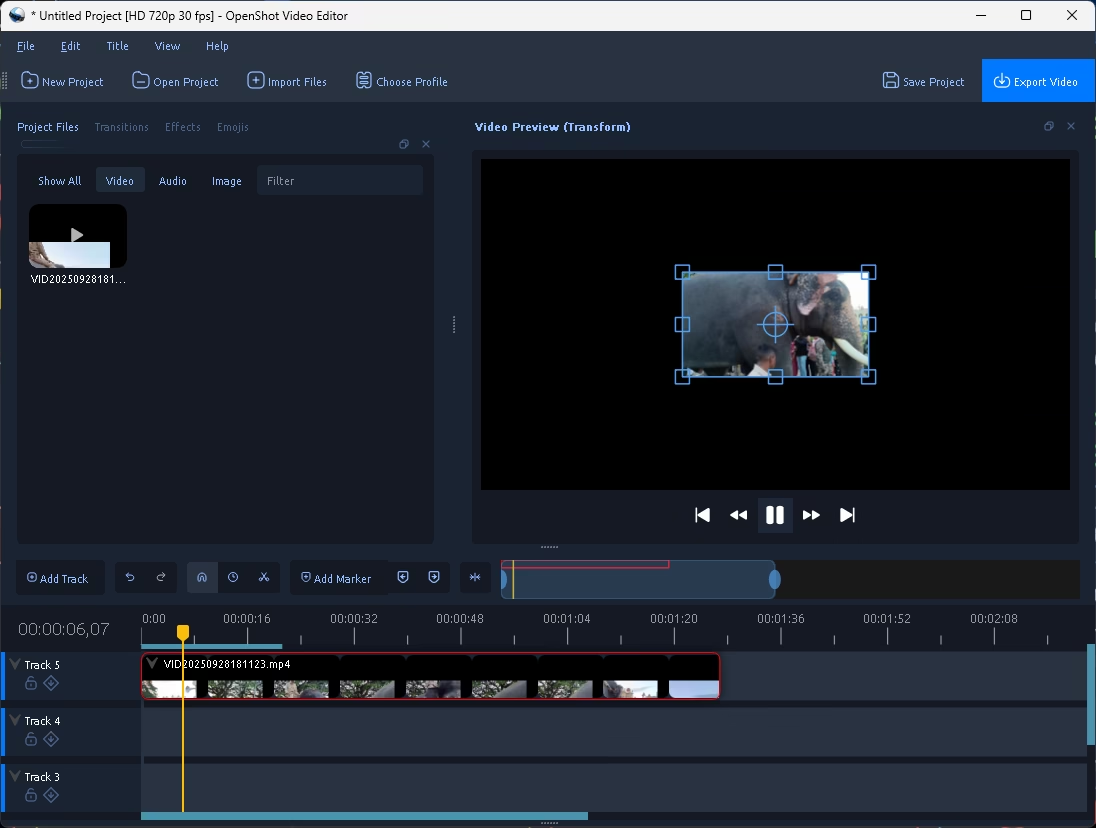
OpenShot earns its place by being refreshingly uncomplicated. The layout is clean, the basics — trimming, transitions, titles, adding music — are obvious within minutes, and there’s nothing nagging you to upgrade. It’s ideal if you just want to cut a clip and get on with your day.
The honest caveat: it can chug on complex 4K projects, so it’s best for lighter edits rather than effects-heavy timelines. As a launchpad into video editing, though, it’s hard to beat.
👍 Pros
- Genuinely easy for newcomers
- Clean, uncluttered interface
- Free, open-source, no watermark
👎 Cons
- Can slow down on heavy 4K projects
- Limited advanced features
- Occasional crashes on big timelines
🖥️ Win · Mac · Linux
📤 4K
🚫 No watermark
#6 · Best for Social (With a Catch)
CapCut — Still Handy, But No Longer Truly Free
⭐ Best for: fast TikTok/Reels edits — if you accept the limits
⚠️
🇮🇳
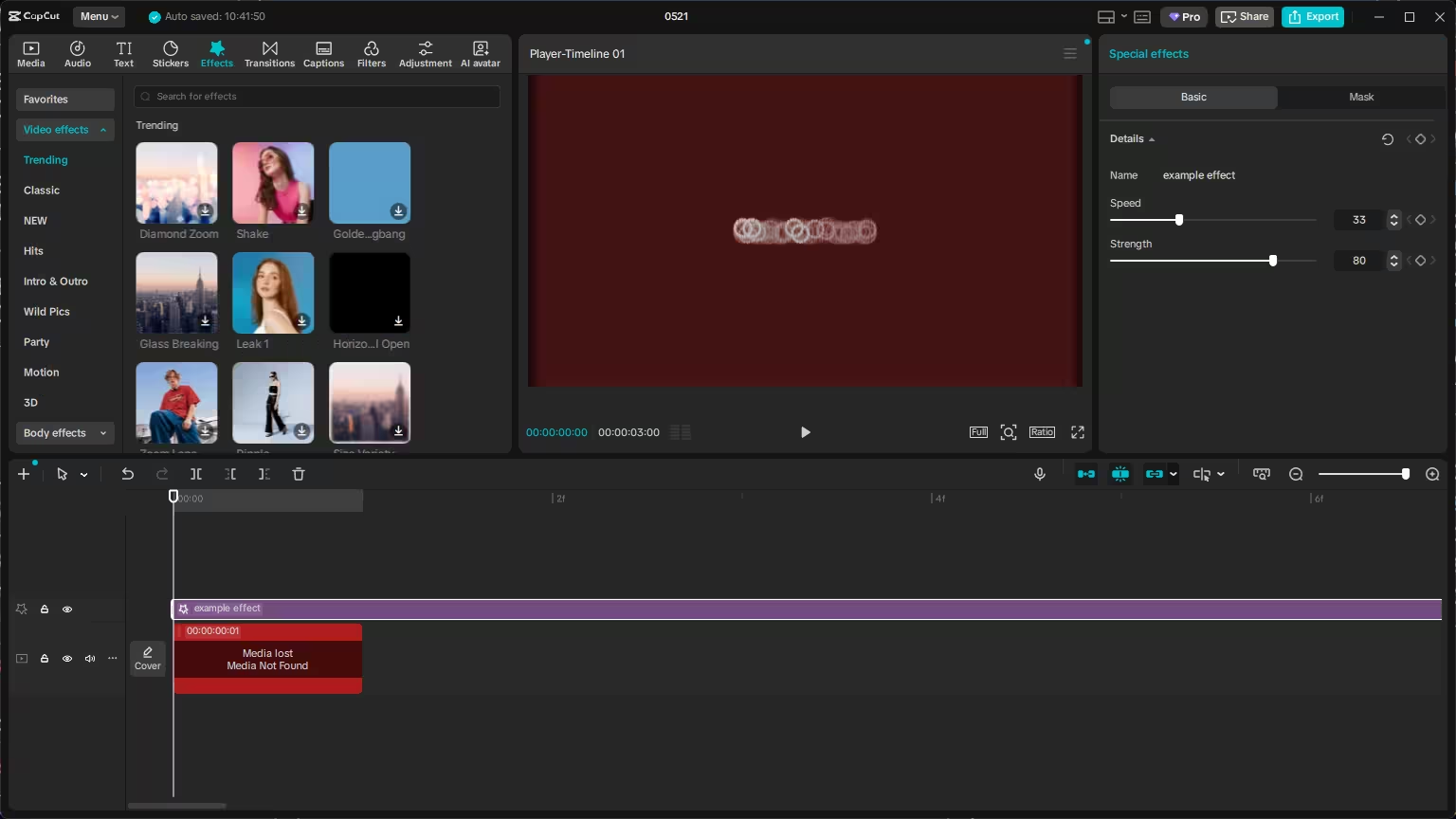
Credit where it’s due: CapCut is still brilliant for speed. Its templates, trendy transitions, auto-captions, and one-tap effects make it the fastest way to turn raw clips into a punchy short-form video. If you live on TikTok, Reels, and Shorts and don’t mind staying inside the free lines, it’s genuinely useful.
But if your goal is fully free, watermark-free, no-strings editing, the open-source picks above will serve you better long-term.
👍 Pros
- Fastest tool for short-form social
- Trendy templates & auto-captions
- Beginner-friendly across all devices
👎 Cons
- Now freemium — key features paywalled
- Free tier capped ~1080p
- Possible watermarks on premium templates
🖥️ Win · Mac · Web · Mobile
📤 1080p (free)
⚠️ Watermark on some exports
#7 · Best for 3D & VFX
Blender — The Free Animation & VFX Powerhouse
⭐ Best for: animators, VFX artists & 3D creators
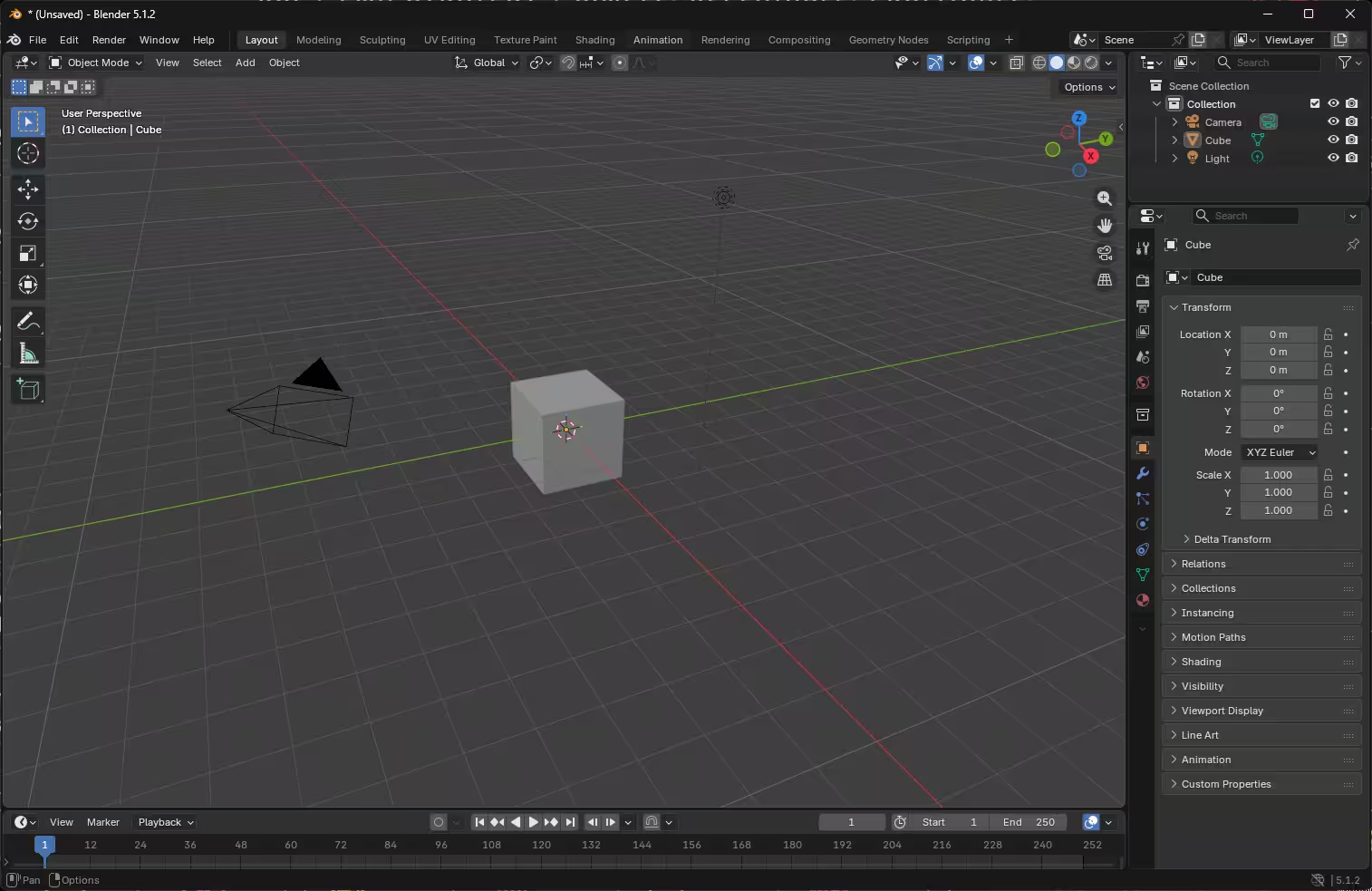
Blender is the wild card. Yes, it’s primarily a world-class 3D modeling, animation, and VFX tool — but it also packs a capable Video Sequence Editor with generous track layering for cutting together footage, images, audio, and effects.
It’s overkill for a simple vlog cut, but if your videos involve 3D, motion graphics, or compositing, nothing free on Windows matches its ceiling. Just budget time for the learning curve and a capable GPU.
👍 Pros
- Unmatched free 3D, animation & VFX
- Built-in video sequence editor
- Free, open-source, no watermark
👎 Cons
- Steep learning curve
- Overkill for basic cuts
- Hardware-hungry for rendering
🖥️ Win · Mac · Linux
📤 Unlimited
🚫 No watermark
How to Choose the Right Free Editor for You
Skip the analysis paralysis — match the tool to your situation:
🎥 “I’m brand new to editing.”
Start with Clipchamp or OpenShot. Both get you from raw clips to a finished video without a manual.
📺 “I make YouTube videos and care about quality.”
Go straight to DaVinci Resolve. The learning curve pays off in pro-level color and 4K output. Want it faster? Shotcut is the lighter alternative.
💻 “My laptop is old/low-spec.”
Stick to Shotcut, OpenShot, or Clipchamp — they won’t choke your machine the way Resolve or Blender can.
📱 “I only make reels and shorts.”
CapCut is the quickest — just respect the freemium limits. For watermark-free freedom, Clipchamp covers 1080p social perfectly.
🎨 “I work with 3D, motion graphics, or VFX.”
Blender is your endgame. Nothing free touches it for 3D and effects.
🏆 The Final Verdict
Our Winner: DaVinci Resolve
For sheer value, DaVinci Resolve is the best free video editing software for Windows in 2026 — full stop. It hands you a Hollywood-grade editing, color, VFX, and audio suite with watermark-free 4K exports and no expiry date. The only “cost” is a learning curve, and that’s an investment that pays you back on every project.
That said, the best editor is the one you’ll actually finish videos in. So if Resolve feels heavy, here’s the cheat sheet:
Whichever you pick, you’re fully covered for $0. Download the one that matches your skill level today, cut your first clip, and upgrade your skills — not your wallet.
💬
Frequently Asked Questions
What is the best free video editing software for Windows in 2026?
Is there a truly free video editor for Windows with no watermark?
Is CapCut still free in 2026?
Which free video editor is best for YouTube videos?
Do I need a powerful PC to edit video for free?
Is DaVinci Resolve really free, or is it a trial?


Discover more from Techno360
Subscribe to get the latest posts sent to your email.
You must be logged in to post a comment.