
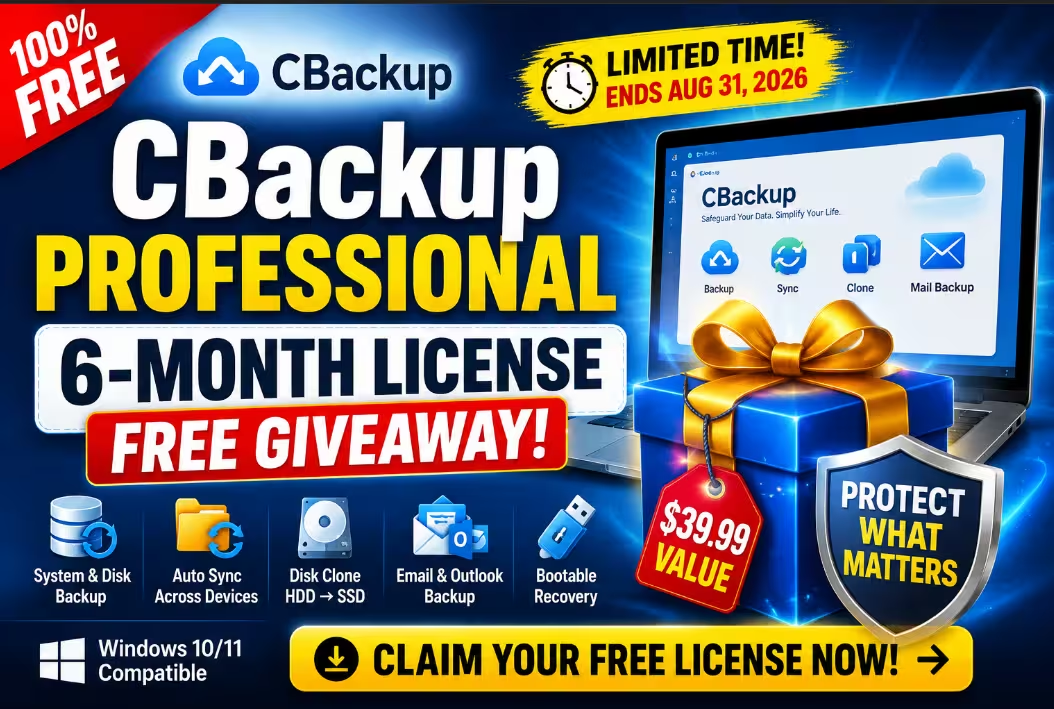
🎁 Limited-Time Giveaway
CBackup Professional Giveaway: Backup, Sync & Clone Your Windows PC Free for 6 Months
One license code. Zero payment. Full Pro features — system backup, file sync, and HDD-to-SSD cloning — unlocked until your data finally feels safe.
Here’s an uncomfortable question: if your laptop refused to boot tomorrow morning, how much would you lose? Family photos? Tax documents? That half-finished project you swore you’d back up “next weekend”?
If that question made you wince, today’s giveaway arrives at exactly the right time. CBackup is giving away its Professional edition completely free — a 6-month license that unlocks full Windows backup, intelligent file sync, and disk cloning. No registration forms, no credit card, no “free trial” trap that bills you later. You copy a code, paste it into the app, and you’re done.
⚡ Quick Read — Claim It in 60 Seconds:
- What you get: CBackup Professional (6-month license) for Windows
- Top features: System, disk, file, email & Outlook backup • auto sync • disk clone (HDD → SSD) • bootable recovery media
- License code:
CBPC-LFZC7-YSY9W-RILVU(universal — works for everyone) - Cost: ₹0 / $0 — no payment details required
- Deadline: Activate before August 31, 2026
What Is CBackup, and Why Should You Care?
CBackup, developed by the team behind AOMEI (the folks who make AOMEI Backupper — a name regular Techno360 readers will recognize from our AOMEI Backupper Pro free 1-year license giveaway), is a data protection suite that works on two fronts at once.
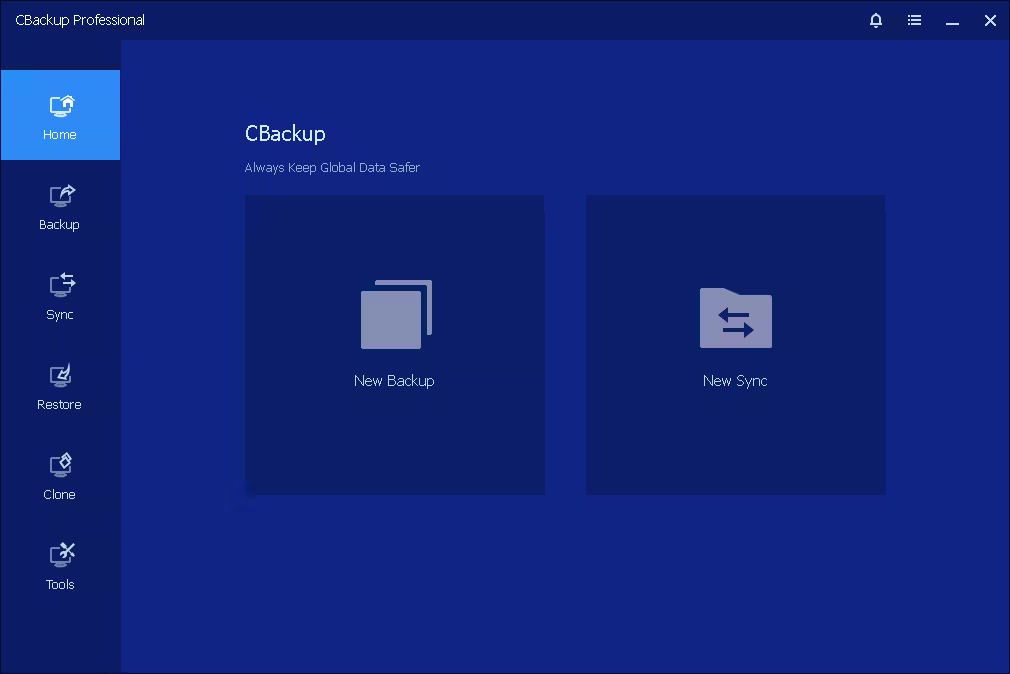
On your PC — and this giveaway is all about the desktop app — it behaves like a full-strength backup suite: it images your entire Windows system, backs up disks, partitions, folders, and even your email and Outlook data, keeps files in sync between locations on a schedule, and clones an old hard drive to a new SSD without reinstalling Windows. It also builds bootable recovery media, so a dead system drive doesn’t mean a dead end.
Separately, CBackup also runs a free web app that connects Google Drive, OneDrive, and Dropbox for cloud-to-cloud transfers — a nice bonus to explore once you’ve signed in, though it’s not what this license unlocks. Today’s giveaway is squarely about the Professional desktop suite.
Security-wise, the platform uses 256-bit AES encrypted transmission, and cloud connections in the web app use OAuth — meaning CBackup never sees or stores your Google or Microsoft password.
What’s Inside the Professional Giveaway?
| Feature | What It Does for You |
|---|---|
| 🖥️ System & Disk Backup | Image your entire Windows installation, full disks, or partitions — restore everything after a crash |
| 📁 File Backup & Sync | Back up folders to an image file and keep locations automatically in sync on a schedule |
| 📧 Email & Outlook Backup | Safeguard mail data from any email account, plus dedicated Outlook app backup |
| 💽 Disk Clone & OS Migration | Move Windows from a tired HDD to a fast SSD — bootable, no reinstall, no lost data |
| 🛟 Bootable Media & Recovery Environment | Create rescue USB media and a recovery environment so you can restore even when Windows won’t start |
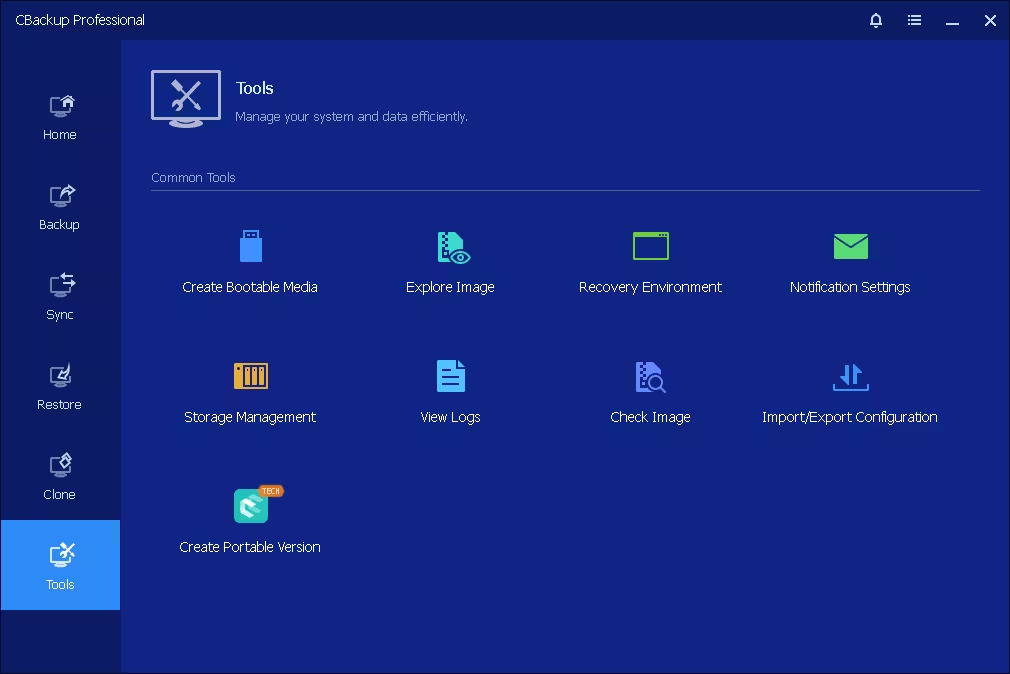
| 🧰 Power-User Tools | Explore/check image files, storage management, portable version creator, import/export of configs |
How to Activate the Free CBackup Professional License
The whole process takes about two minutes — genuinely. Here’s the walkthrough:
- Visit the official giveaway page and download the special giveaway installer (don’t use the regular installer from the homepage — the giveaway build is the one that accepts this code).
- Install and launch CBackup on your Windows PC. Setup is the standard next-next-finish affair.
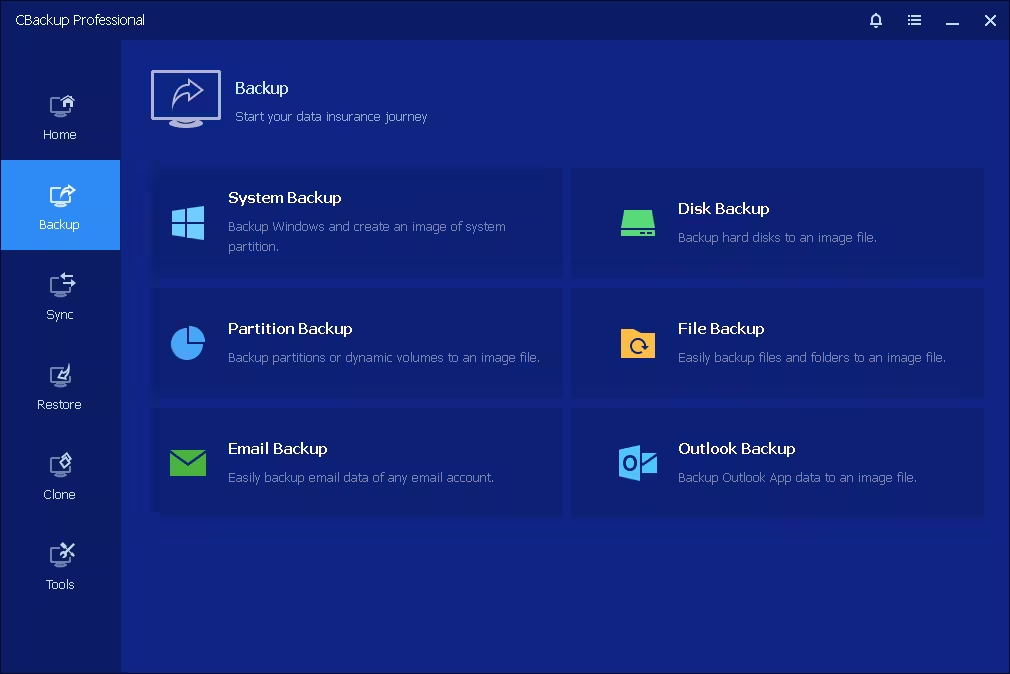
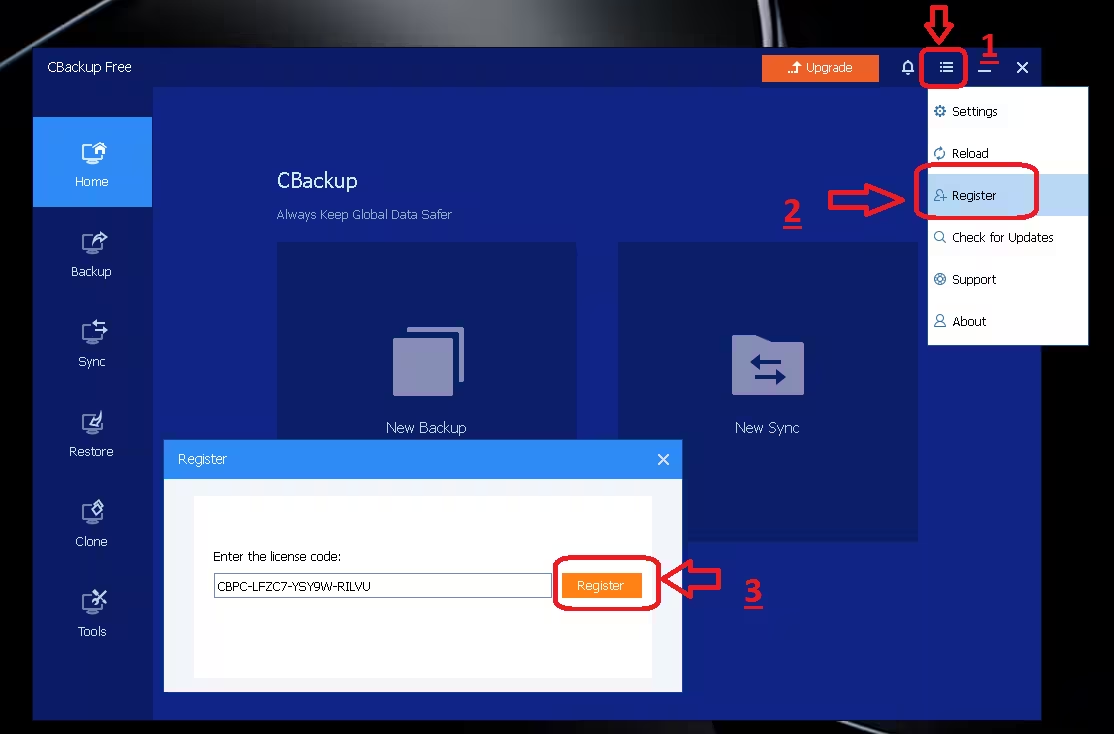
- Click the menu icon (☰) at the top-right of the app window, then select Register from the dropdown.
- Paste the license code and hit Register. The title bar instantly switches from “CBackup Free” to “CBackup Professional” — all premium features unlocked for 6 months.
[OR]
⏳ Heads-up: Giveaway codes occasionally get disabled before the official end date once they spread widely — claiming early is strongly recommended.
🎁 Get CBackup Professional Free →
Free vs. Professional: Is the Upgrade Worth Claiming?
CBackup’s free tier is decent — you get 10 GB of CBackup Cloud storage and the core backup basics. But the Professional license removes the friction in all the right places:
| Capability | Free Version | Professional (This Giveaway) |
|---|---|---|
| File & folder backup | ✅ Basic | ✅ Full, with advanced management |
| System, disk & partition backup | ❌ Limited | ✅ Included |
| Email & Outlook backup | ❌ | ✅ Included |
| Disk clone / OS migration | ❌ Limited | ✅ Included |
| Bootable media & recovery environment | ❌ Limited | ✅ Included |
| Backup & sync speed | Standard | ✅ Accelerated |
| Support | Business hours | ✅ Priority premium support |
| Price | $0 | $0 with this giveaway 🎉 |
Who Should Grab This Giveaway?
SSD upgraders — if you’ve bought a new SSD and dread reinstalling Windows, the clone feature is your weekend saved (also see our guide on cloning an SSD to a larger SSD without data loss). Outlook power users — years of email in one PST file is a disaster waiting to happen, and the dedicated Email and Outlook backup modes finally make protecting it painless. The “I’ll back up later” crowd — set one scheduled backup task today and let it run silently forever. And students and home users who want real system-image protection but have a software budget of exactly zero.
Frequently Asked Questions
Is the CBackup giveaway really free, or is there a catch?
It’s genuinely free. No payment details are requested at any point, and the license activates with the universal code above. After 6 months, the app simply reverts to the free version — it never auto-bills you, because it never had your card to begin with.
How long does the Professional license last?
The giveaway license is valid for 6 months from activation. Make sure you activate before August 31, 2026, while the code is live.
Does CBackup work on Windows 11?
Yes — CBackup supports all modern versions of Windows, including Windows 11 and Windows 10. Note that it’s a Windows-only tool; there’s no macOS or Linux desktop client.
Is CBackup safe to install?
Yes. CBackup comes from AOMEI, an established backup software developer. It uses 256-bit AES encrypted transfers, and cloud accounts connect via OAuth — so your Google/Microsoft passwords are never shared with or stored by CBackup.
What happens to my backups after the license expires?
Your data stays intact. You can keep using the free version, and your existing backups remain accessible. Only the Pro-exclusive features (like accelerated speed and cloning) lock again.
✅ Techno360 Verdict
Backup software giveaways usually come with an asterisk — crippled features, forced signups, or licenses that expire in 30 days. This one doesn’t. Six months of CBackup Professional with full system imaging, email and Outlook backup, bootable recovery media, and a proper disk cloner, activated with one copy-paste? We installed the giveaway build (v3.0.0 at the time of writing) on a Windows 11 PC and successfully activated the Professional license using the code above — the title bar switched to “CBackup Professional” within seconds. That’s the easiest “yes” we’ve recommended this month.
Our advice: claim the code now even if you won’t install today — it expires August 31, 2026, and AOMEI giveaways have a habit of ending early when codes go viral.
Enjoyed this giveaway? Techno360 tracks legitimate software giveaways from IObit, Ashampoo, AOMEI, iTop, and more — like the AOMEI Christmas Carnival with 21 premium tools free. And once your new SSD is cloned and booting, squeeze even more speed out of it with our 12 Windows 11 performance tweaks for 2026. Bookmark our Giveaways section so you never pay for software you could’ve gotten free.


Discover more from Techno360
Subscribe to get the latest posts sent to your email.
You must be logged in to post a comment.