
🎁 FREE UNTIL 31 JAN 2027 ⚡ TESTED ON FIREFOX 160
Firefox’s built-in VPN has no data cap for the holidays, but India is still not on Mozilla’s list
I installed Firefox 160 fresh on Windows in Chennai twice. Once the VPN button never appeared. The second time, it appeared and kept working after I switched my other VPN off. Here is what I did, what Mozilla officially says, and what you can expect.
⚡ QUICK READ
- What’s free: Firefox’s built-in VPN normally gives 50 GB a month. Mozilla has lifted that cap from 10 November 2026 to 31 January 2027.
- What you need: Firefox 149 or later and a free Mozilla account.
- What it covers: Only what you do in Firefox. Other apps on your PC still use your normal connection.
- India: Not on Mozilla’s official list of supported regions. On a normal install in Chennai, the VPN button did not appear.
- My experiment: On a fresh install made while connected to a Singapore VPN server, the button appeared. The Firefox VPN then kept working after I disconnected that VPN. This is an unofficial result, not a confirmed trick, and it may stop working.

What changed: unlimited data until 31 January 2027
Firefox has shipped a free VPN inside the browser since Firefox 149. Mozilla’s support page describes it as a feature that routes your browser traffic through a secure proxy server and hides your IP address. It comes with a 50 GB monthly data limit, and you need a Mozilla account to use it.
On 10 November 2026, Mozilla announced on its blog that the built-in VPN has unlimited data through 31 January 2027. You only need to sign in with a Mozilla account; there’s no subscription. The offer covers Firefox on desktop and Android, and Mozilla says iOS is coming soon.
This is a temporary promotion. Mozilla’s support page still describes the standard 50 GB limit, and the announcement doesn’t say what happens after 31 January. Mozilla ran the same offer over the summer, and the cap came back on 1 September, so expect the same pattern.
| Detail | What I found | Source |
|---|---|---|
| Normal data limit | 50 GB per calendar month | Mozilla support page |
| Unlimited period | 10 Nov 2026 to 31 Jan 2027 (desktop and Android) | Mozilla blog announcement |
| Requirements | Firefox 149+, Mozilla account, “remote improvements” turned on | Mozilla support page |
| What it protects | Firefox traffic only, not other apps | Mozilla support page |
| India | Not listed | Mozilla region list |
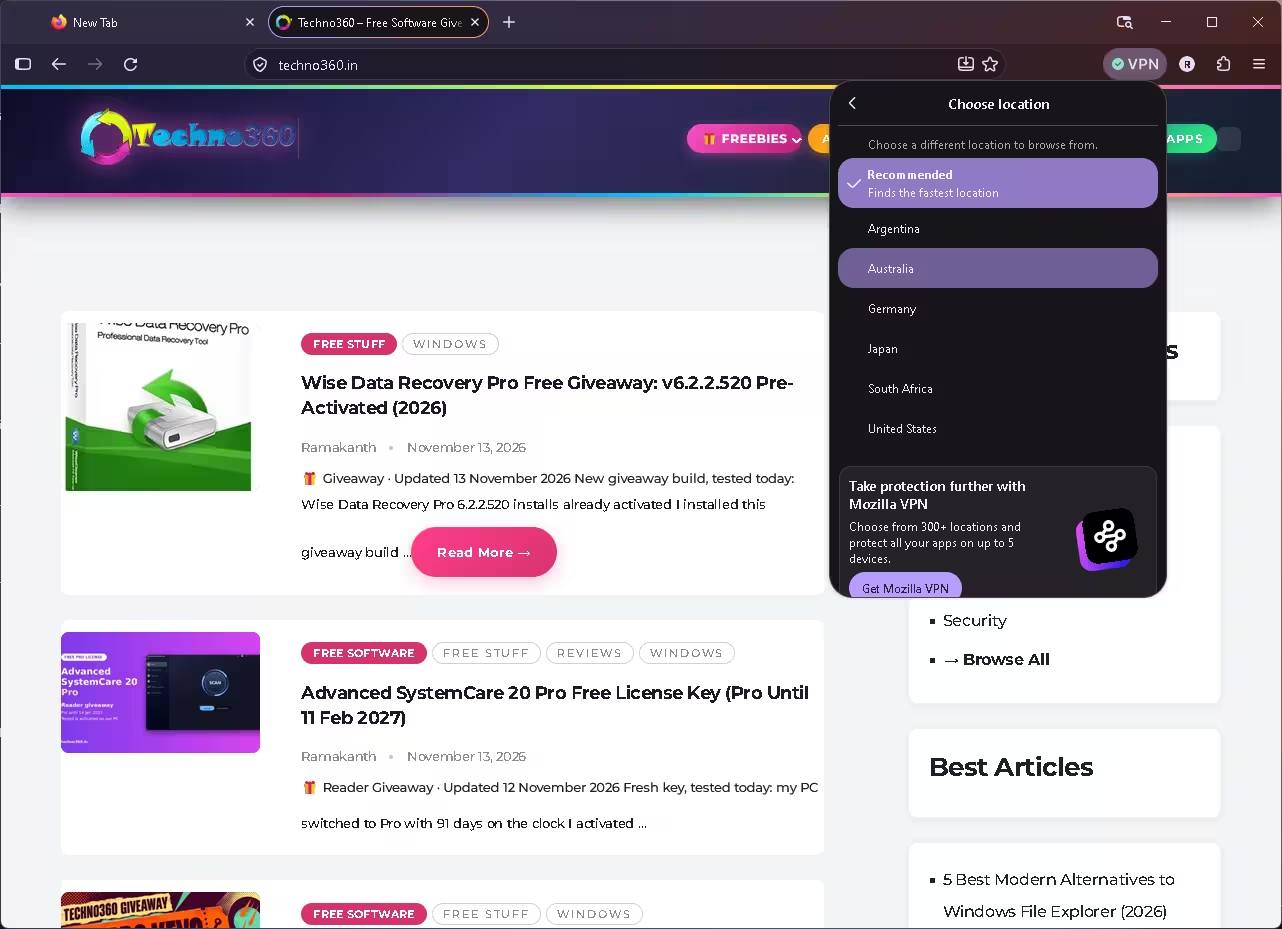
| Locations offered | Recommended, Argentina, Australia, Germany, Japan, South Africa, United States | My Firefox 160 test (screenshot) |
Is Firefox’s free VPN available in India?
Officially, no. Mozilla keeps a list of regions where the built-in VPN is rolling out. It now covers a long list of countries, including neighbours such as Bangladesh, Bhutan, Nepal, Sri Lanka, the Maldives and Singapore. India is not on it. Mozilla also says that even in a listed country, the staged rollout may not have reached you yet.
My India experiment: two fresh installs and a follow-up VPN test
I tested Firefox 160 on the same Windows PC in Chennai, on the same Jio connection. I did two fresh installs, then a separate check to see whether Firefox’s built-in VPN kept working after I disconnected Proton VPN. The table sums up the results; the details follow.
| Test | Windows location | Proton VPN | Result |
|---|---|---|---|
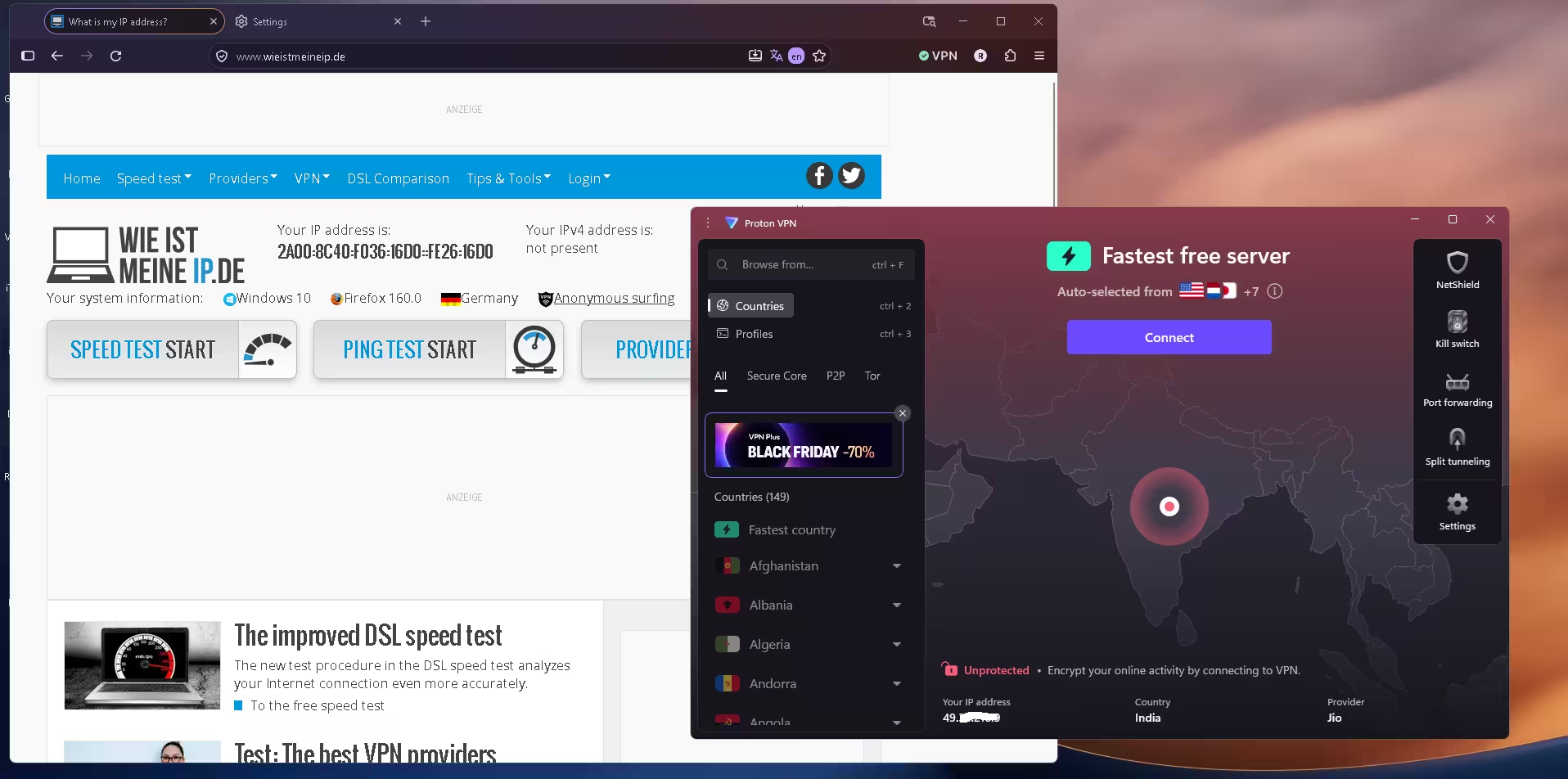
| A | On | Off (India, Jio) | No VPN button |
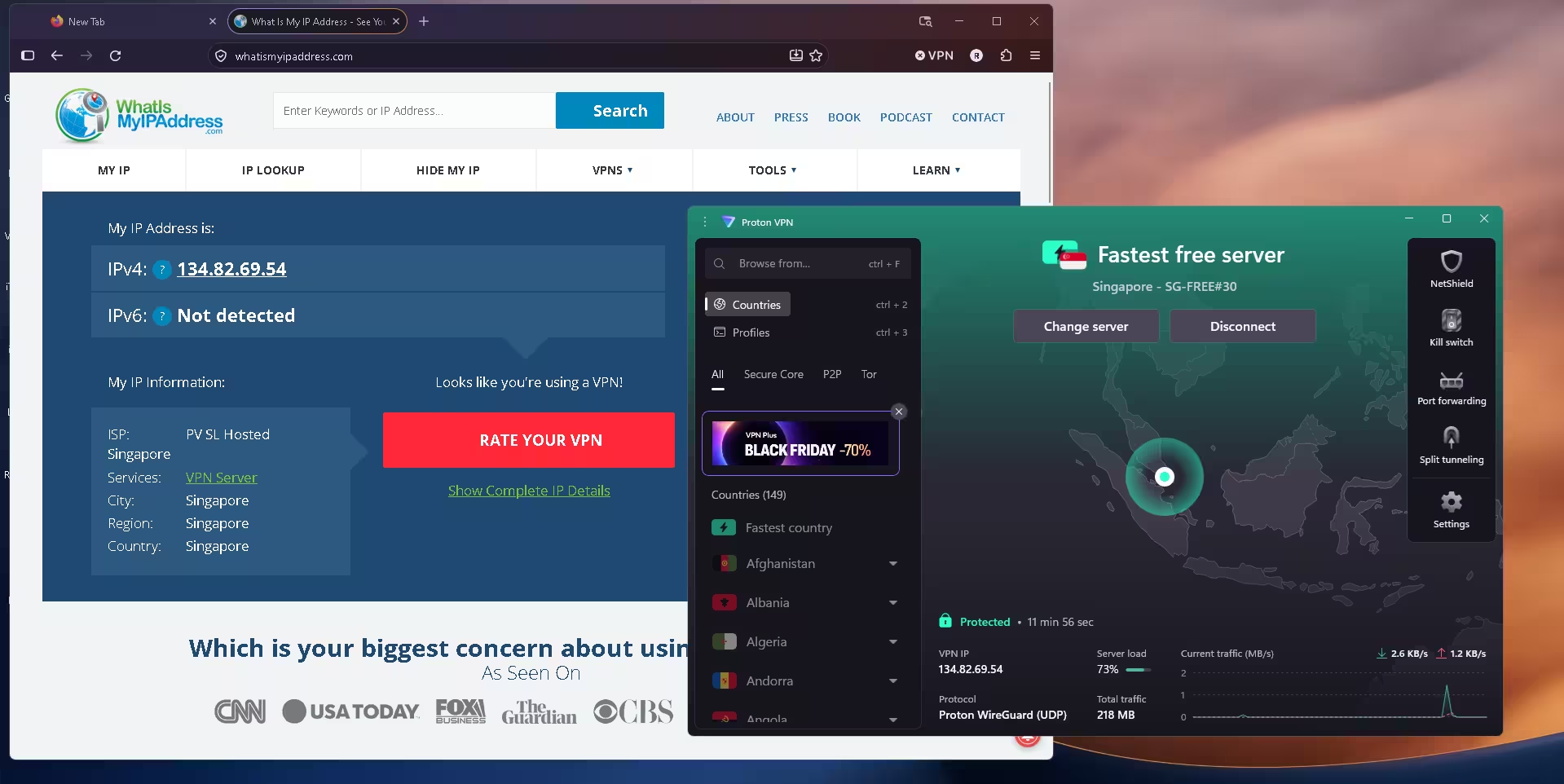
| B | Off | On (Singapore) | VPN button appeared; VPN turned on |
| C | Off | Disconnected after test B | Firefox VPN still working (German IP) |
With Windows location services on and no other VPN running, Firefox picked up my city straight away (the weather widget showed Chennai). There was no VPN button in the toolbar.
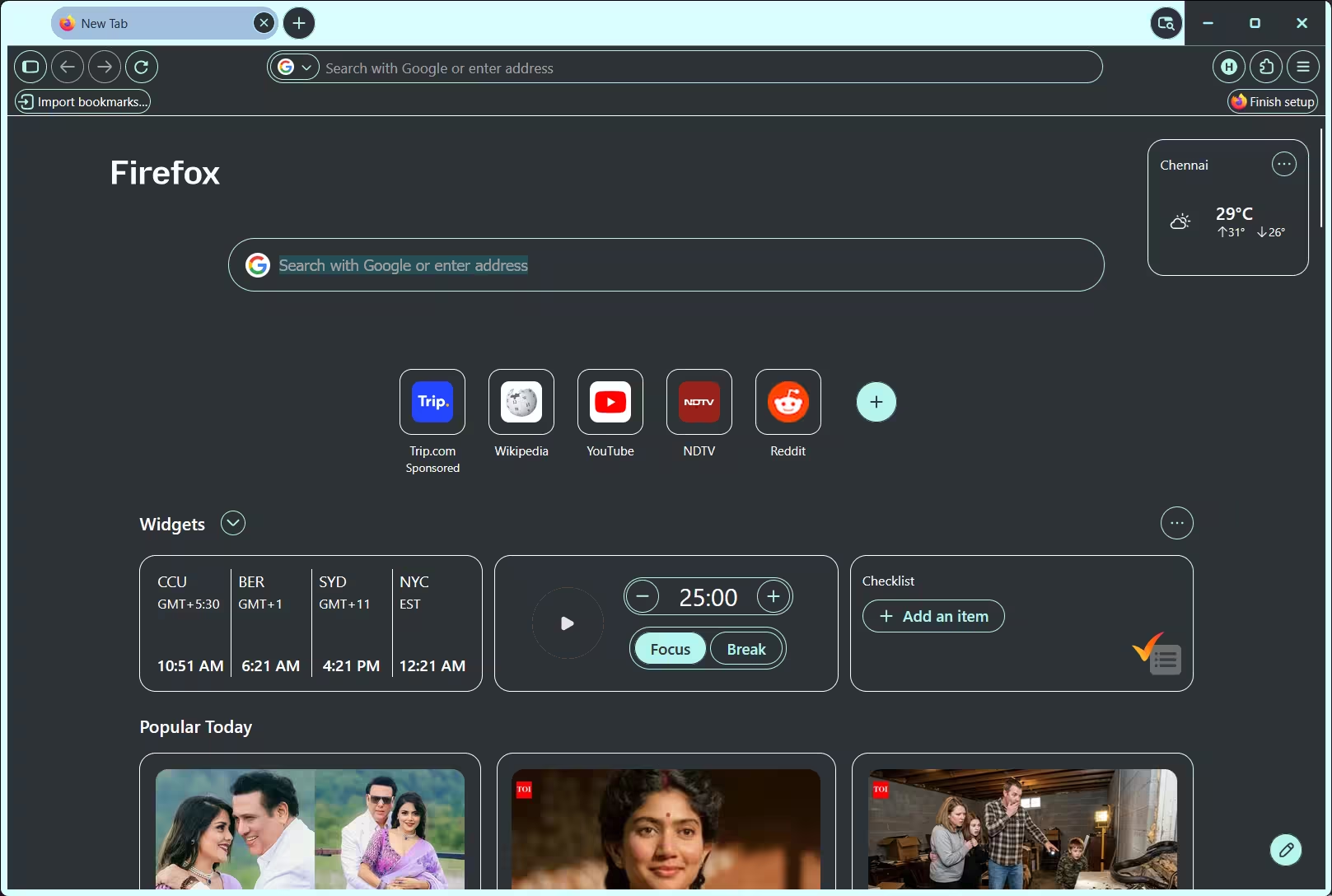
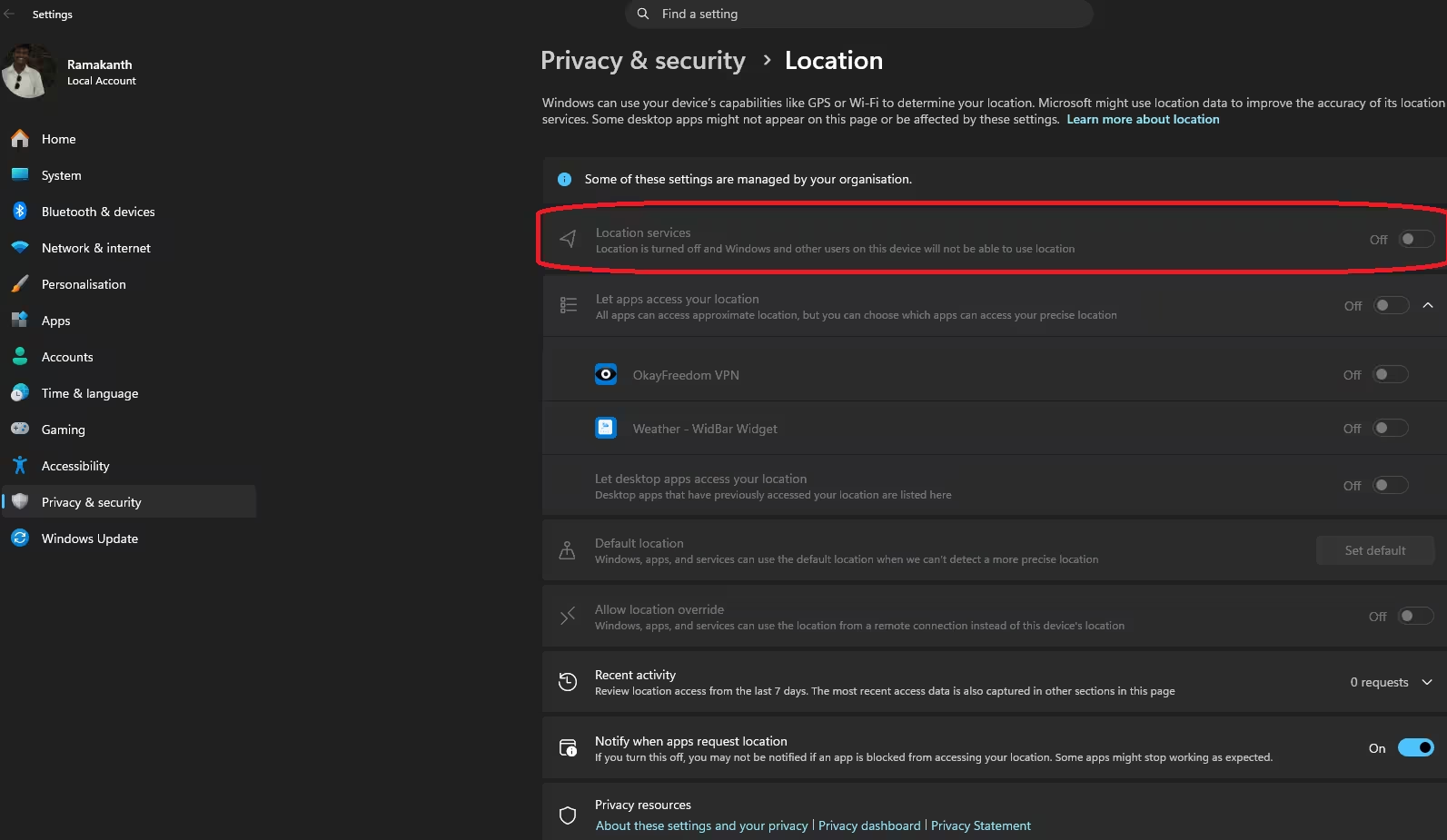
I uninstalled Firefox and changed two things before installing it again:
- I turned off Windows location services (Settings > Privacy & security > Location).
- I connected Proton VPN to its free Singapore server. Singapore is on Mozilla’s list.
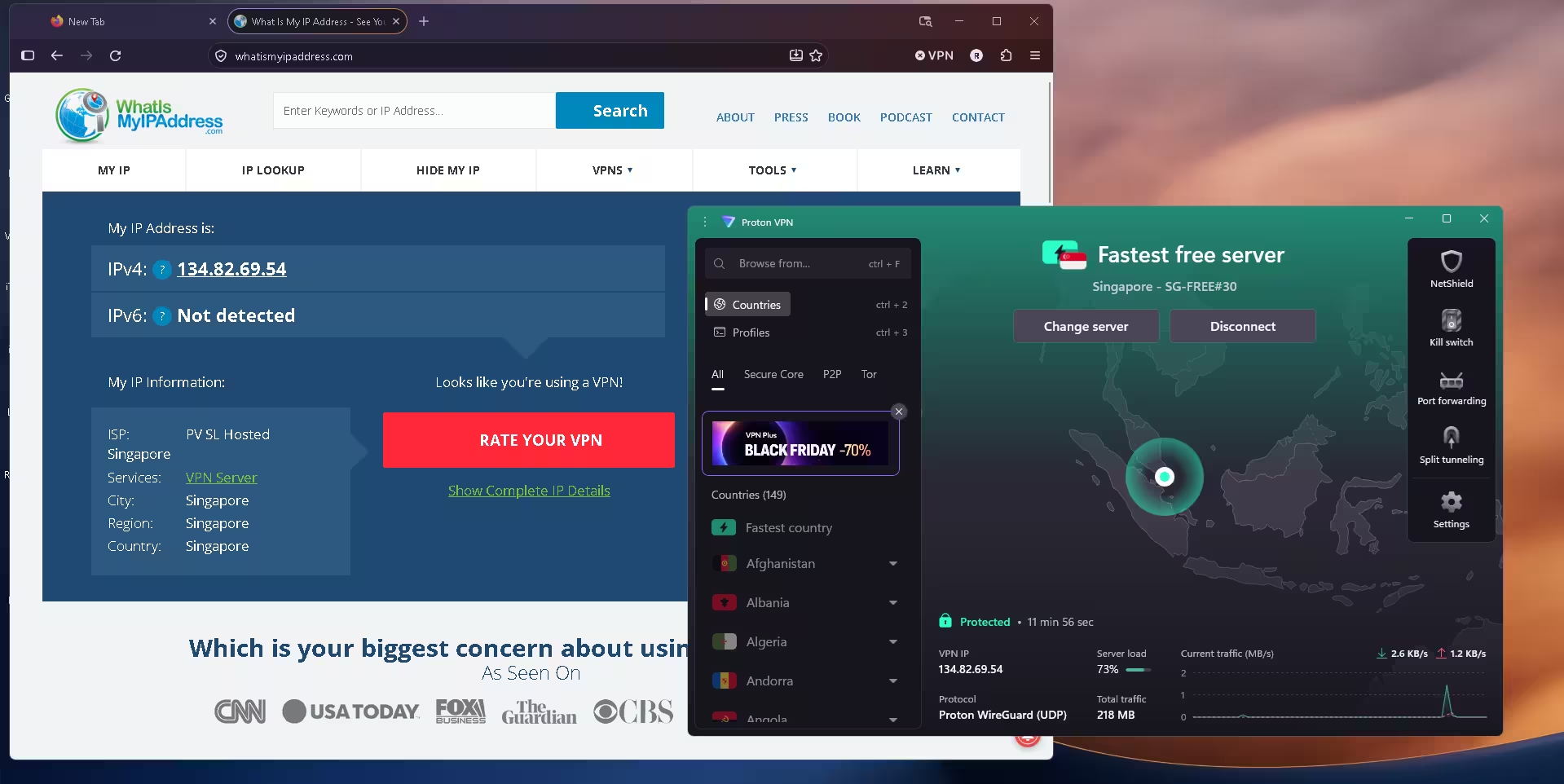
After the install, the VPN button was in the toolbar. Firefox didn’t show a city this time; its weather widget asked me to choose a location instead. I signed in with my Mozilla account and turned the VPN on.
Test C: Proton VPN disconnected, Firefox VPN still works
This is the key result. I disconnected Proton VPN completely. Proton showed “Unprotected”, and my connection was back on Jio in India. Firefox’s built-in VPN stayed on, and an IP-check site reported Germany as my location. Once it was turned on, Firefox’s VPN worked on its own; I didn’t need to keep Proton running.
What these results do and don’t prove
They show that Firefox’s built-in VPN can be switched on from India and keep working without another VPN. They don’t show why. Between test A and test B I changed two things at once: the Windows location setting and the connection Firefox saw during the install. So I can’t tell you which one made the difference, or whether both were needed.
The two settings are also different mechanisms. Windows location services give apps your device’s location from signals such as Wi-Fi. A VPN changes the public IP address that websites and services see. My guess is that Firefox checks eligibility from the IP address it sees at install or first run, which would explain why a Singapore connection helped. But Mozilla doesn’t document this, so treat it as a likely explanation, not a fact. I don’t recommend turning off Windows location just for this, since it hasn’t been shown to be needed.
⚠️ Important: this is an experiment, not an official method
These results come from my own tests on one PC in India with Firefox 160. Mozilla doesn’t list India as a supported region. Connecting through a supported country before installing Firefox appeared to help, but it isn’t a guaranteed way to get the feature. Mozilla can change its region checks or rollout at any time, and the VPN could disappear in a later update. Use it for everyday browsing privacy, not anything you can’t afford to lose.
How to turn on Firefox’s built-in VPN
These steps are the same everywhere the feature is available. In India the button won’t normally appear; see my experiment above, and remember it isn’t an official method.
Step 1: Update to Firefox 149 or later
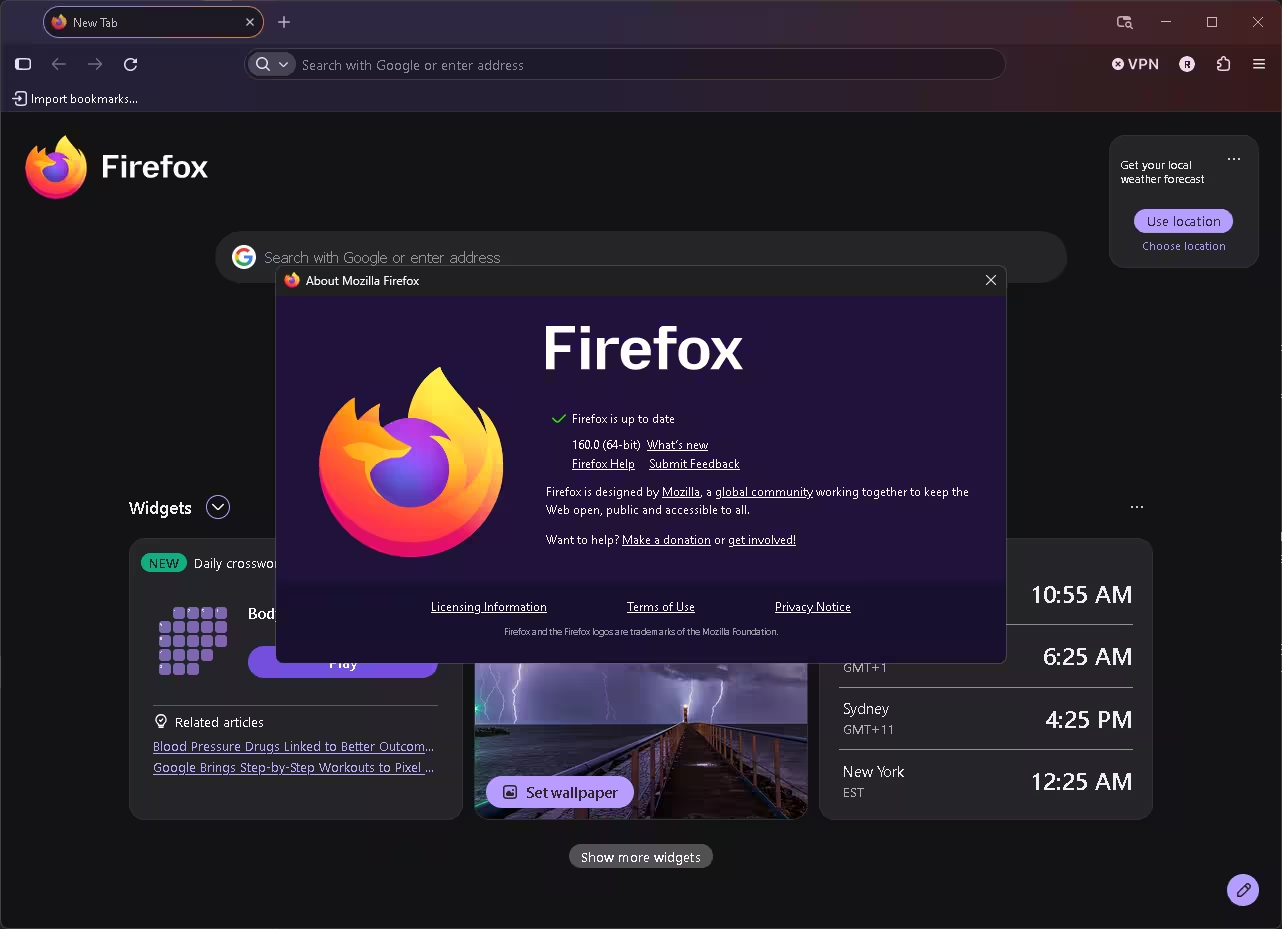
Open the menu (☰) and go to Help > About Firefox. I tested on Firefox 160.0 (64-bit), the current version at the time of writing.
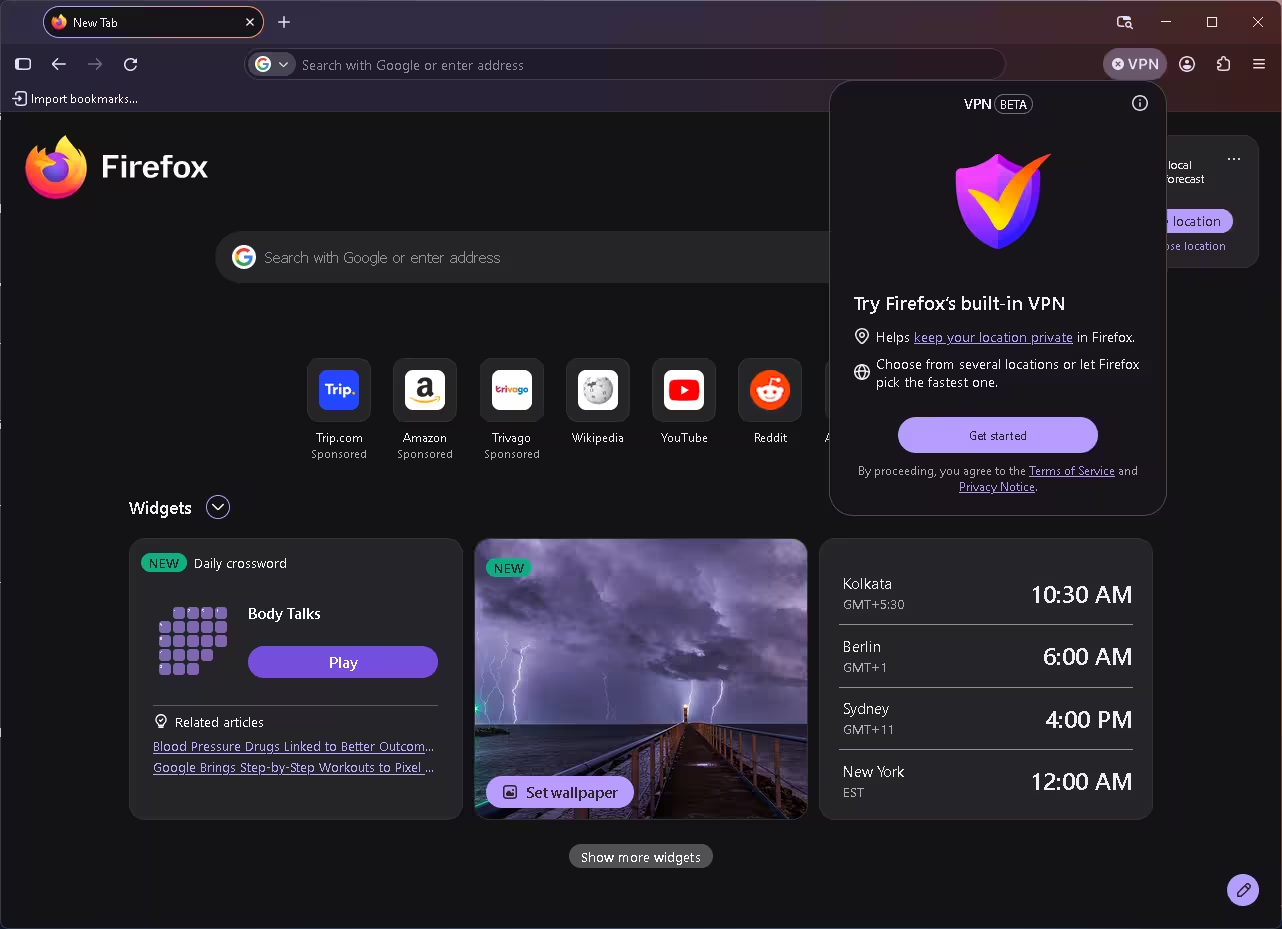
When the feature is available, a VPN button sits at the top right of the toolbar. Click it, and a panel marked VPN BETA opens. Click Get started.
Step 3: Sign in to a Mozilla account
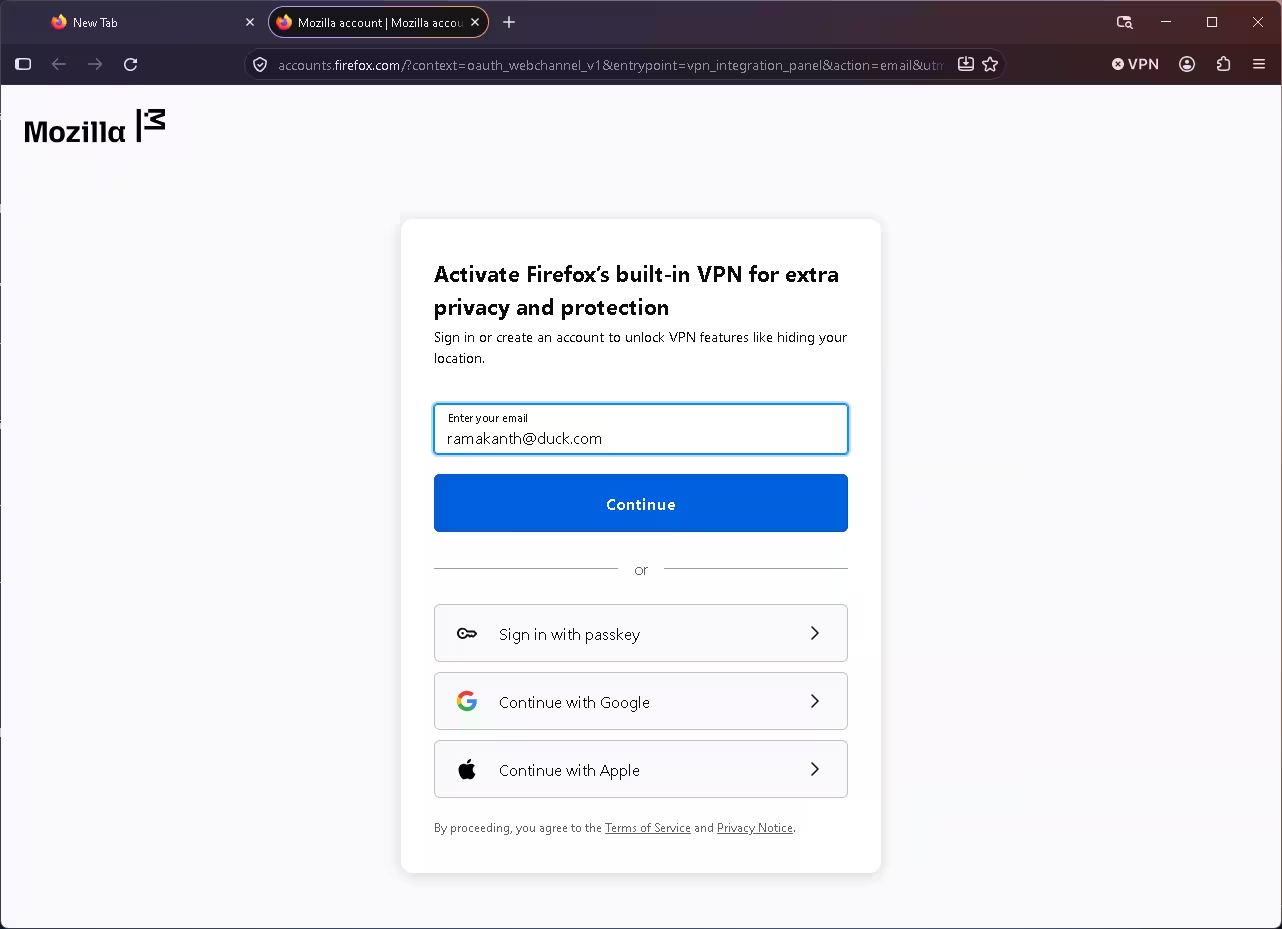
Firefox opens a sign-in page. Enter your email to sign in or create a free account. You can also use a passkey, Google or Apple. Mozilla uses the account to track your data allowance.
Step 4: Turn it on
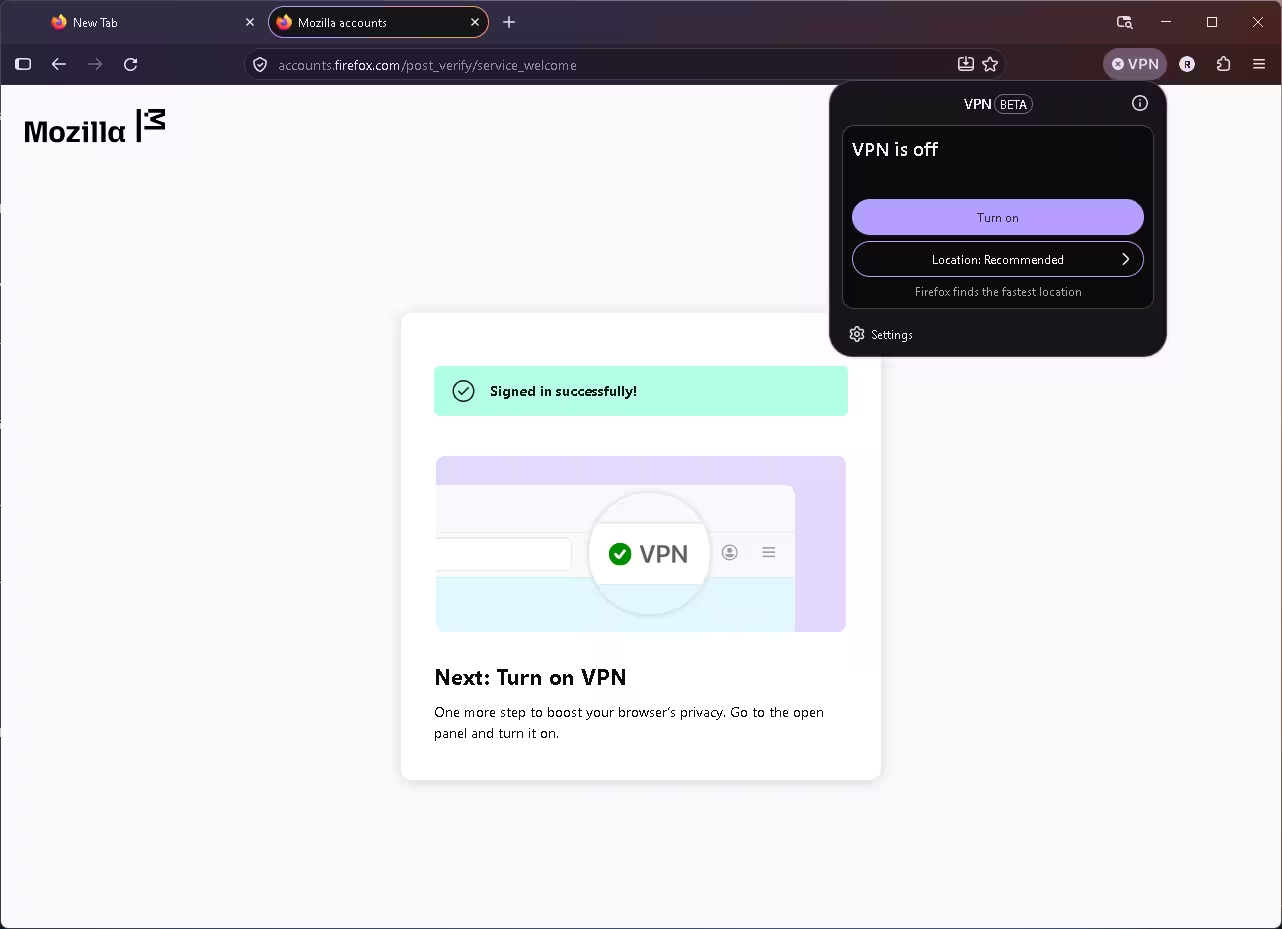
After you sign in, the VPN panel shows VPN is off with a Turn on button. Click it. The toolbar button gets a green tick when the VPN is active.
Step 5: Pick a location (optional)
By default Firefox uses Recommended, which picks the fastest location. Click Location to choose one yourself. My panel offered Argentina, Australia, Germany, Japan, South Africa and the United States.
To keep a site off the VPN, such as your bank, go to Settings > Privacy & Security > VPN > Manage website settings and add it to the exceptions list.
Mozilla’s troubleshooting page lists these reasons, even for supported countries:
- Old version: anything before Firefox 149 doesn’t have it.
- Remote improvements off: in Settings > Privacy & Security, under data collection, turn on “Allow Firefox to improve features, performance, and stability between updates”.
- Held back by a study: type about:studies in the address bar and look for “VPN – MVP Beta Holdback”.
- Work PC: it isn’t available where an enterprise policy blocks it. Check about:policies.
- Hidden button: right-click the toolbar, choose Customize, and see if the VPN button was removed.
Unsupported country? None of these settings will add the feature where Mozilla hasn’t rolled it out. Region eligibility is not the same as the Windows location setting: Mozilla doesn’t say how it decides your region. In my experiment, the connection Firefox used during installation may have affected whether the feature appeared, but it needs more testing to show whether IP-based region checks were responsible.
What it does and doesn’t protect
Firefox’s built-in VPN only covers what you do inside Firefox. Other apps, games and Windows itself still use your normal connection. Mozilla says the service doesn’t log the websites you visit or the content of your browsing, though it does collect some technical and usage data, such as how much data you used on a given day.
If you need a VPN for your whole PC, look at a full VPN app. In India, our tests of other free VPNs ran into similar regional limits: see our Avast Free VPN review. Our Psiphon review covers a free tool built to get past blocks. For the original launch details of this feature, see our earlier guide, Firefox Free VPN in Firefox 149: Everything You Need to Know.
📊 VERDICT
If you are in the UK, US or another supported country, there’s no reason not to switch it on before 31 January. It is free, it takes a minute, and for now there’s no data cap to watch.
In India, it isn’t officially available. In my experiment, a fresh install made while connected to a Singapore VPN server got the button, and the Firefox VPN then worked without that other VPN. That is an unsupported result from one PC, not a confirmed trick. Treat it as a bonus that may vanish, not something to rely on.
Frequently asked questions
Is Firefox’s built-in VPN really free?
Yes. It needs a free Mozilla account and no subscription. Mozilla’s paid product, Mozilla VPN, is a separate app that protects your whole device.
How long does the unlimited data last?
Until 31 January 2027, according to Mozilla’s announcement. Mozilla hasn’t said what happens after that, but after the summer offer the 50 GB monthly limit came back.
India isn’t on Mozilla’s list of supported regions. On a normal install in Chennai, the button didn’t appear for me. It did appear when I installed Firefox while connected to a Singapore VPN server, but that isn’t an official method.
Does it work on Android?
Yes. Mozilla says the offer covers desktop and Android, with iOS coming soon. I tested only on Windows.
Is it a real VPN or a proxy?
Mozilla calls it a VPN, but it works as a secure proxy for Firefox’s traffic only. It hides your IP address from websites but doesn’t cover other apps on your PC.
Discover more from Techno360
Subscribe to get the latest posts sent to your email.

You must be logged in to post a comment.