
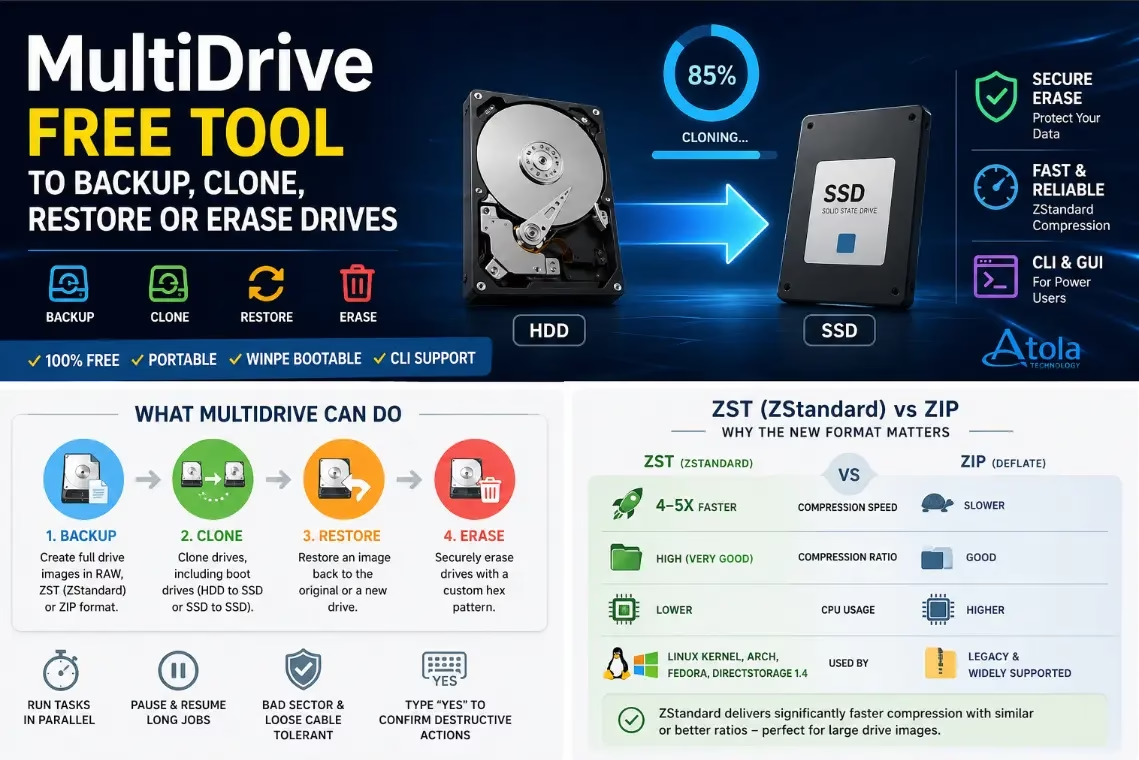
MultiDrive is a free Windows utility that lets you back up, restore, clone and securely erase entire drives — and it can run several of those jobs in parallel. Built by data-recovery specialists Atola Technology, it ships as both a regular installer and a portable build, and there is even a bootable WinPE image for cloning the active Windows drive. Here is what the tool does, what changed in version 1.4, and where to get it.
MultiDrive is a free Windows tool from Atola Technology that can back up, restore, clone and securely erase whole drives from one interface. It supports parallel jobs, includes CLI access and offers a bootable WinPE image for cloning the active Windows system drive.
What is MultiDrive?
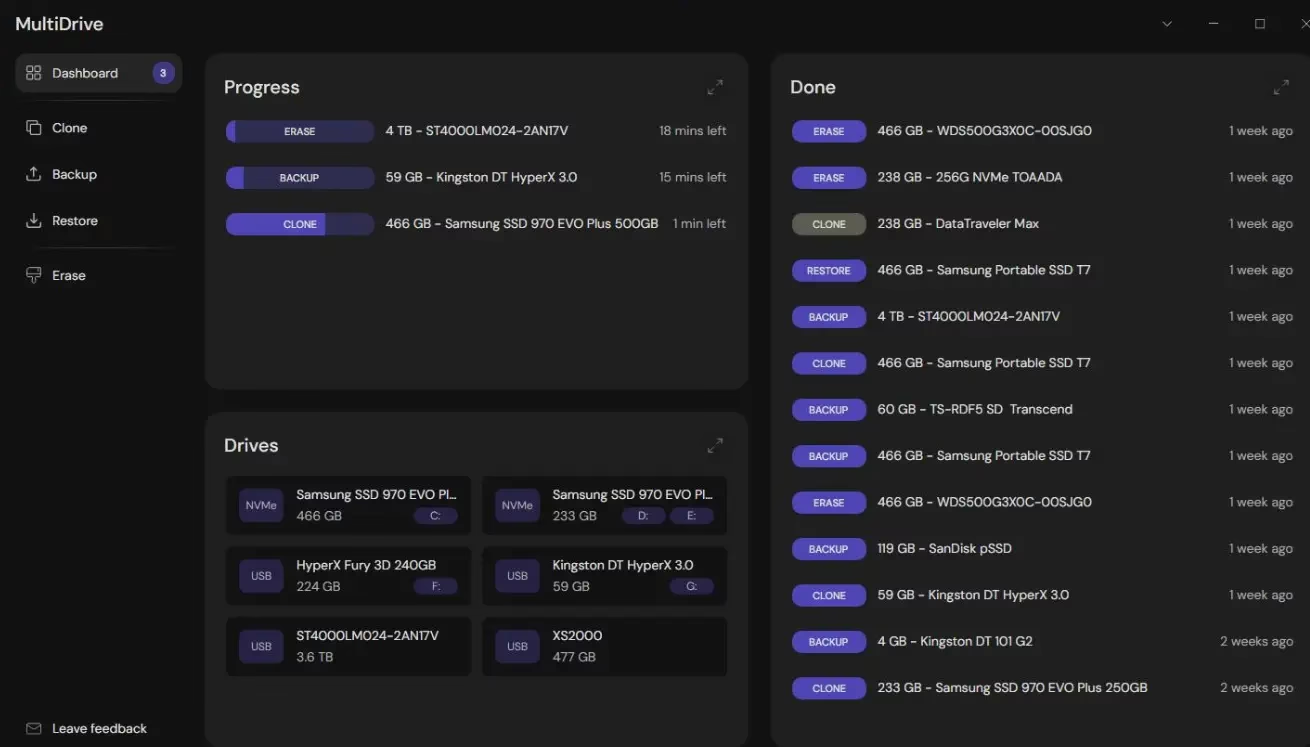
MultiDrive is a disk-management toolkit for 64-bit Windows 10, 11 and Server 2019 / 2022 / 2025. Think of it as a single app that handles the four jobs most people actually need from a drive utility: full-drive image backups, restore from those images, drive-to-drive cloning (HDD to SSD, for example), and a secure wipe for disks you are about to sell or recycle.
The interface is in English only, but the layout is clean enough that the language barrier is small. The same features are available through a command-line companion called mdcli, which is handy for scripting and Task Scheduler jobs.
Who makes it and why is it free?
MultiDrive comes from Atola Technology, a company that has been working in computer forensics and data recovery for more than two decades. Atola sells enterprise-grade forensic imagers like TaskForce 2 and Insight Forensic to corporate, law-enforcement and government clients, and the team has reused that engineering work to build a free consumer tool. Atola has stated that a paid Pro version may appear later, but the features available today will remain free.
Key features
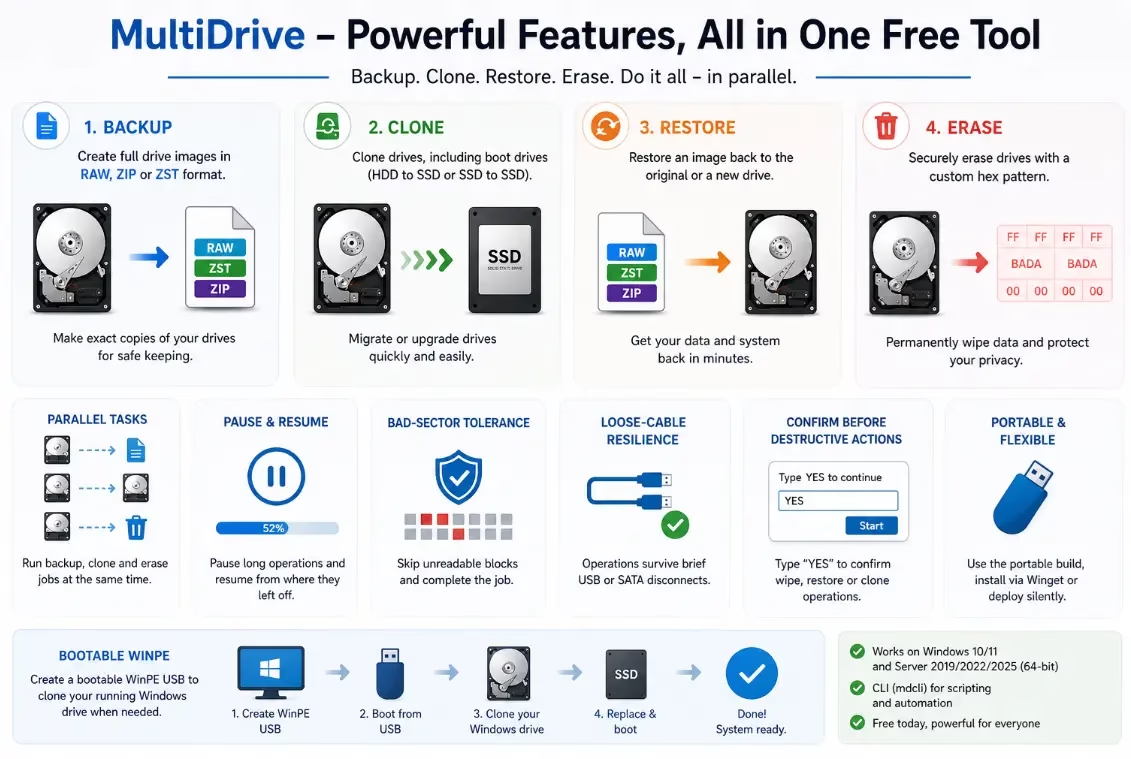
- Full-drive backup and restore in RAW, ZIP or the new ZST (ZStandard) format.
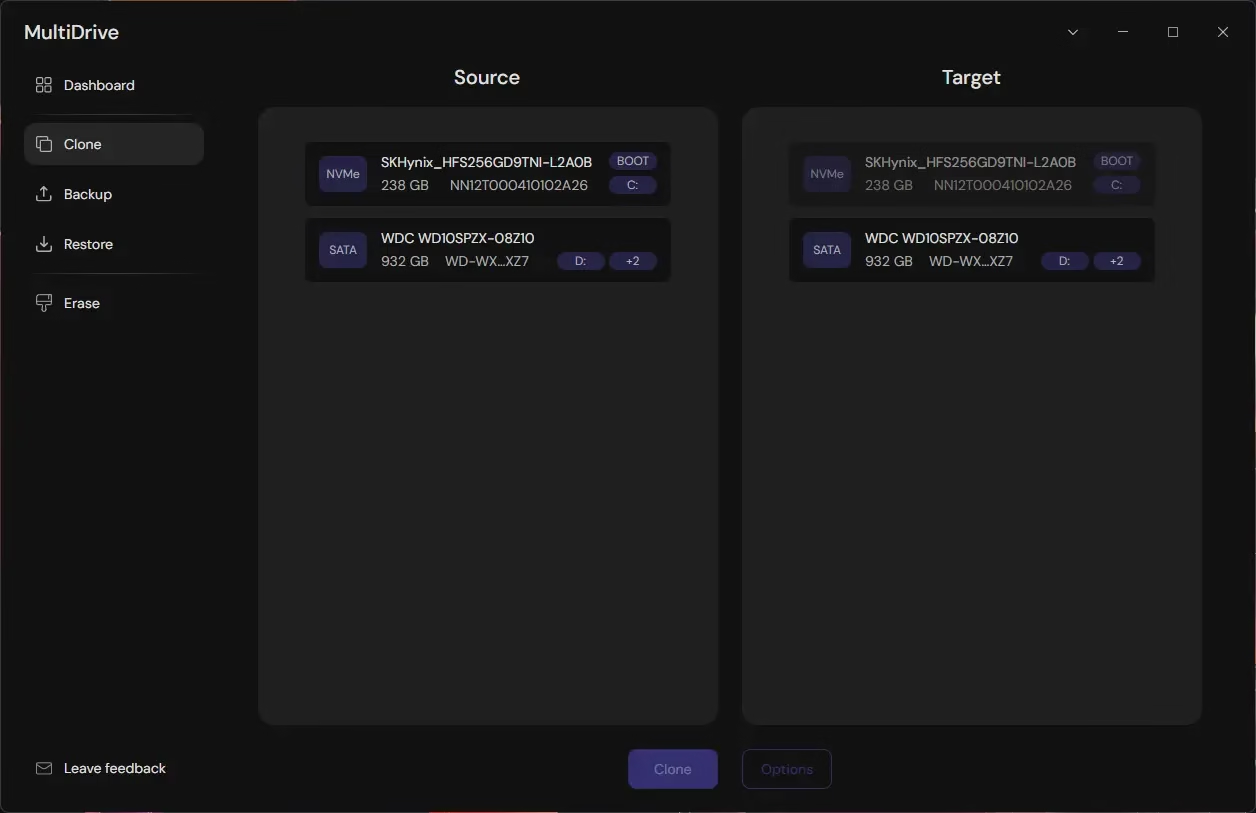
- Drive cloning, including boot drives, with 2 MB block sizes for SSD-friendly writes.
- Secure erase with a configurable hex pattern (for example,
FForBADA). - Parallel tasks — clone one drive while backing up a second and erasing a third, all from the same dashboard.
- Pause and resume long jobs, and a “Resume” button to continue from the failure point if a task is interrupted.
- Bad-sector tolerance — if Windows itself does not crash on the drive, MultiDrive can skip unreadable 256 KB blocks and finish the clone or backup.
- Loose-cable resilience — operations survive a brief USB or SATA disconnect.
- Destructive-action confirmation — every wipe, restore or clone job requires the user to type
YESin a text field before it starts, which makes it hard to nuke the wrong drive by accident. - Portable build available alongside the regular installer.
- Winget install:
winget install MultiDrive. - Silent deployment for IT admins:
MultiDriveSetup.exe /s /d=c:MyFolder. - Bootable WinPE image for cloning the running Windows boot drive.
What’s new in MultiDrive 1.4
The 1.4 update is the headline reason to grab a fresh copy:
- ZST replaces ZIP as the compressed image format. Atola says the new ZStandard-based format runs roughly four to five times faster than the old ZIP path, while still shrinking the image significantly compared with RAW.
- Show drive serial numbers — a new option in Preferences that helps you tell apart two drives of the same model, which is the kind of small detail that prevents very expensive mistakes.
- Password-protected network folders are now supported as a backup or restore target.
- Clearer UX when the source drive is larger than the target during a clone or restore.
- CLI improvements when writing to the target during clone, erase and restore operations.
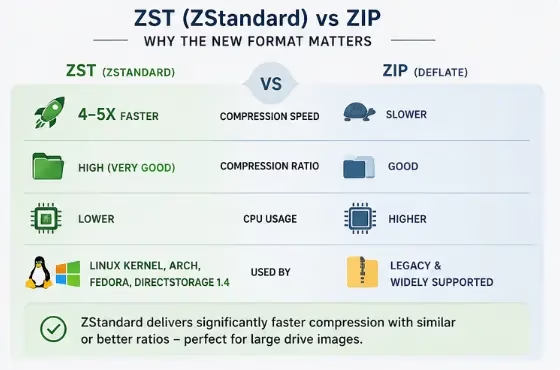
For context on why the format change matters: ZStandard is the same open compression algorithm used by the Linux kernel, Arch and Fedora package managers, and (more recently) Microsoft’s DirectStorage 1.4 for game assets. Compared with classic DEFLATE-based ZIP, it typically delivers similar or better compression at far higher throughput — exactly the trade-off you want when you are streaming hundreds of gigabytes off a disk.
The CLI version (mdcli)
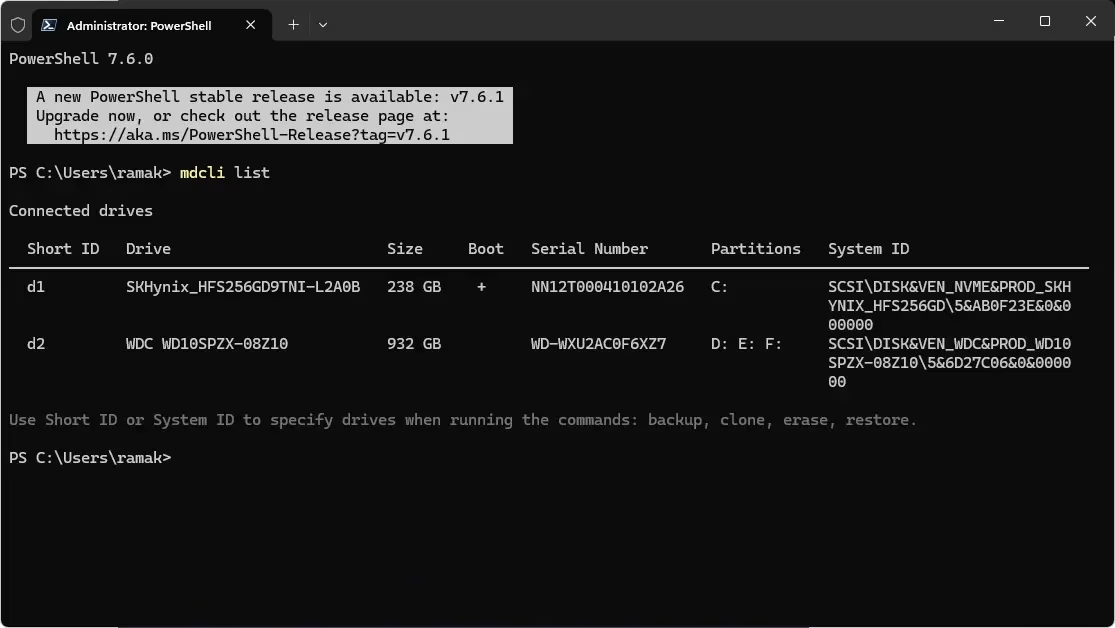
If you prefer scripts to clicks, the CLI exposes the same core operations. A typical session looks like this:
mdcli list                       :: show connected drives

mdcli backup d2 d:image.zip     :: back up the 2nd drive to a ZIP image

mdcli restore d:image.zip d2    :: restore that image to the 2nd drive

mdcli erase d3 --pattern FF      :: wipe the 3rd drive with the 0xFF pattern

mdcli clone d1 d3                :: clone the 1st drive to the 3rd
Short IDs (d1, d2, d3) can be swapped for full Windows system IDs if you need stable references inside a script. Each subcommand has its own --help.
Installation options
You have four ways to put MultiDrive on a machine:
- Run the regular installer from multidrive.io.
- Run the same installer in silent mode for unattended deployment.
- Download the portable build and run it from a USB stick — no install needed.
- Pull it through Windows Package Manager with
winget install MultiDrive.
The WinPE image is a separate download. You can either restore that image to a USB drive using MultiDrive itself or flash the ISO with Rufus or Ventoy.
Licensing and pricing
MultiDrive is free for both personal and commercial use, with no ads, no registration and no feature lock-out. Atola has committed to keeping the current feature set free even if a paid Premium tier appears later. The app is closed-source — fair to flag — but the developer has a long public track record in the recovery and forensics space, and the project lives on GitHub for releases and issue tracking.
Things to keep in mind
- It is full-image only. There is no file-level backup, no incremental backup and no scheduled-backup module. If you only want to back up a Documents folder, this is overkill — pick something like Restic or a sync tool instead.
- It is not a data-recovery tool. MultiDrive can clone a drive that has read errors, but if Windows itself bluescreens on the disk, no software running inside Windows will help.
- It does not use the ATA Secure Erase command for wiping; it overwrites with the chosen hex pattern instead.
- The UI is English only.
Verdict
If you need to upgrade an HDD to an SSD, image a drive before reinstalling Windows, or sanitise a disk before sending it out the door, MultiDrive is one of the easiest free options on Windows right now. The parallel-task dashboard, the typed-YES safety net, the WinPE image and the no-strings licence make it a sensible pick whether you are a home user upgrading one PC or an IT admin running a lab refresh. The new ZST format in 1.4 is a real, measurable upgrade rather than a cosmetic one, and it alone is worth grabbing the latest build for.
FAQ
Is MultiDrive really free?
Yes. It is free for personal and commercial use, with no ads or registration. Atola has said the current feature set will stay free even if a Pro tier is released later.
Which versions of Windows are supported?
MultiDrive runs on 64-bit Windows 10 and 11, plus Windows Server 2019, 2022 and 2025.
Can it clone the running Windows boot drive?
Yes, but for that case you should use the bootable WinPE image so the source drive is not in active use during the copy.
What is the new ZST format?
ZST is a compressed image format based on Facebook’s ZStandard algorithm. Atola reports it is around four to five times faster than the older ZIP option in MultiDrive while keeping comparable compression.
Does MultiDrive support incremental or file-level backups?
No. It only does full-drive image backups and restores. For file or folder backups you will need a different tool.
Is MultiDrive open-source?
The releases and issue tracker live on GitHub, but the application itself is closed-source.


Discover more from Techno360
Subscribe to get the latest posts sent to your email.
You must be logged in to post a comment.