
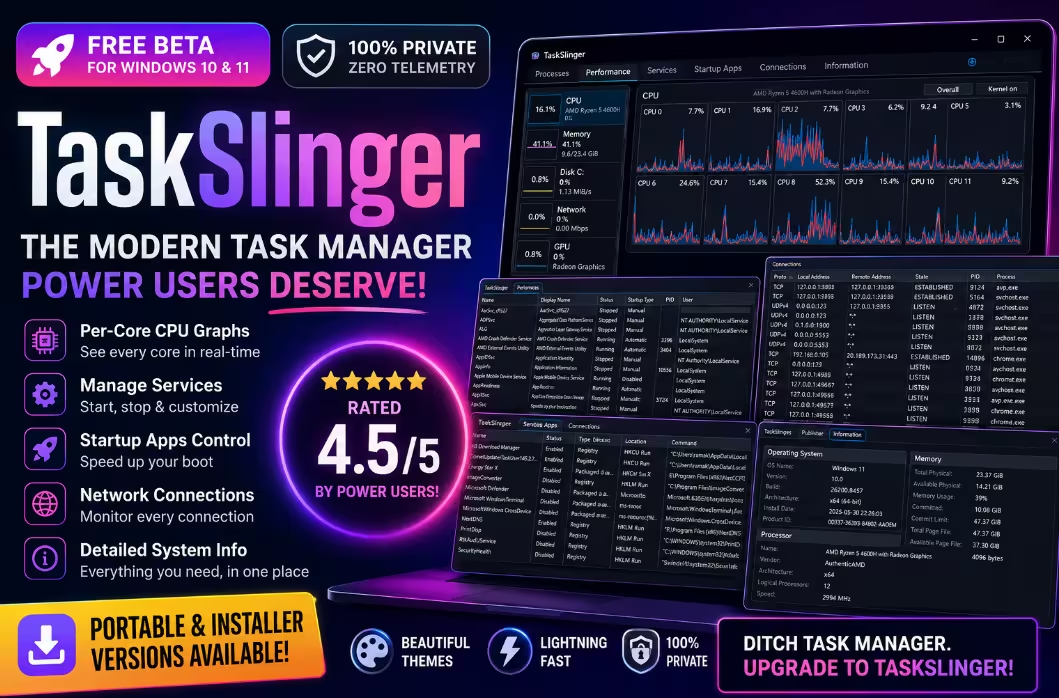
Meet TaskSlinger—A Task Manager That Finally Feels Modern
A fast, private, theme-rich Windows Task Manager replacement built for developers, IT pros, and power users—and right now it’s 100% free.
- ✅ What it is: A modern, lightweight Windows Task Manager alternative for power users.
- 🎨 Sleek UI: 11+ built-in themes including Dracula and all four Catppuccin variants.
- 📊 Deeper data: Per-core CPU graphs, services, startup apps, live connections, hardware info.
- 🔒 Privacy-first: Zero telemetry — nothing leaves your machine.
- 💸 Pricing: Free during beta; expected to go paid later — grab it now.
TaskSlinger: The Free, Modern Windows Task Manager Replacement Power Users Have Been Waiting For
If you’re the kind of person who keeps Task Manager pinned all day—debugging code, hunting zombie processes, or just keeping an eye on your rig while gaming — you’ve probably noticed Windows’ built-in tool hasn’t meaningfully evolved in years. It works, but it feels clunky, slow between tabs, and visually frozen somewhere around the Windows 8 era.
TaskSlinger sets out to fix exactly that. Currently in free beta, it’s a privacy-focused, performance-obsessed replacement for the Windows Task Manager — purpose-built for developers, sysadmins, IT support folks, and tweakers who demand more visibility into what’s actually running on their machines. After spending real time with it, I’ll say upfront: this is one of the most refreshing system utilities I’ve tried in a long time.
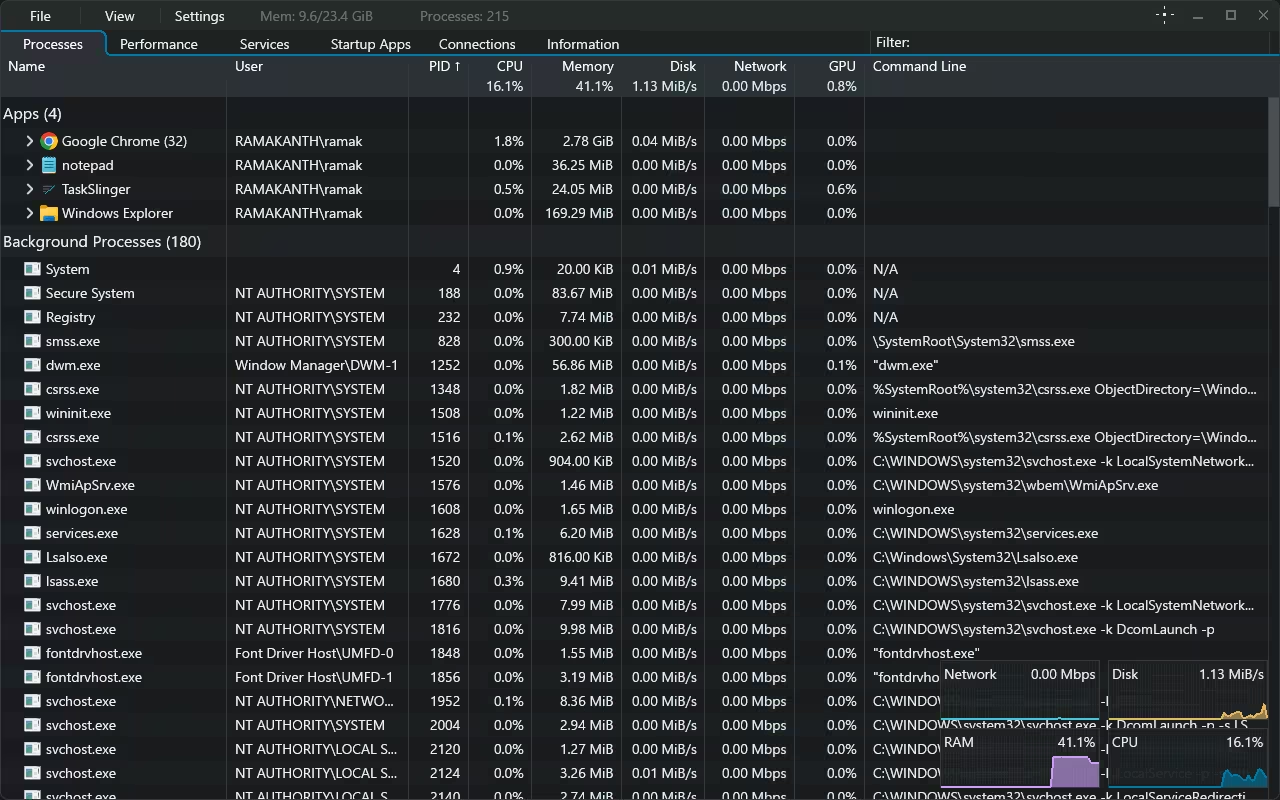
TaskSlinger main window—Processes tab with floating activity overlay
What Is TaskSlinger?
In short, TaskSlinger is a from-scratch Task Manager alternative for Windows 10 and 11. It does everything the default tool does—process listing, performance graphs, services, startup apps, network connections, system information—and then layers on a properly modern dark UI, custom themes, near-instant tab switching, and a real-time activity overlay that keeps your CPU, RAM, disk, and network charts visible even while you scroll through processes.
There’s no bloat, no install nag, and no account requirement. You can pick between a regular installer or a fully portable build that runs straight from a USB stick — handy for IT folks who hop between machines all day.
The Standout Features
A Genuinely Fast, Modern UI
The first thing you notice is how snappy it feels. Tabs switch with zero perceivable lag. The interface is dense enough for advanced users but clean enough that you can actually enjoy looking at it. A compact top bar keeps memory usage, total process count, and a filter box always visible — no matter which tab you’re on.
Per-Core CPU Monitoring with Kernel Time
The Performance tab is where TaskSlinger really flexes. Instead of squashing every core into one cluttered graph, it gives each logical processor its own live sparkline. On my 12-thread Ryzen 5 4600H, that’s 12 distinct charts updating in real time. You can toggle kernel time overlays on or off, and the side panel shows L1/L2/L3 cache sizes, base clock, uptime, threads, handles, sockets, and virtualization status — exactly the kind of granularity that gamers, devs, and benchmarkers love.
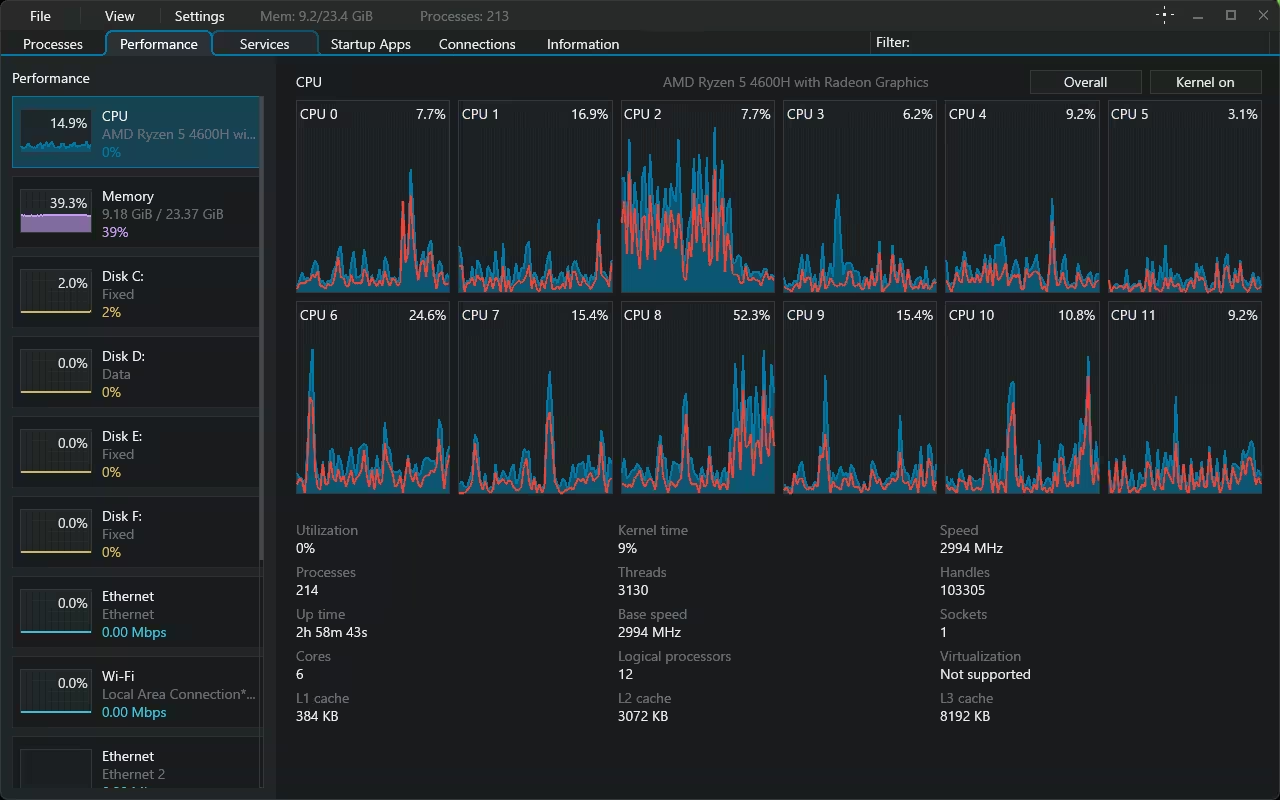
Performance tab — per-core CPU sparklines and detailed processor info
Services, Startup Apps & Live Connections
The Services tab gives you a sortable list of every Windows service—display name, status, startup type, PID, user, and full executable path—so you can audit and tame them without ever opening services.msc. The Startup Apps view goes deeper than what Windows shows: publisher info, registry vs packaged type, exact run location (HKCU Run, HKLM Run), and the full command for each entry. There’s also a dedicated Connections tab that tracks live TCP/UDP sockets in real time—gold for sniffing out shady network activity or noisy background apps.
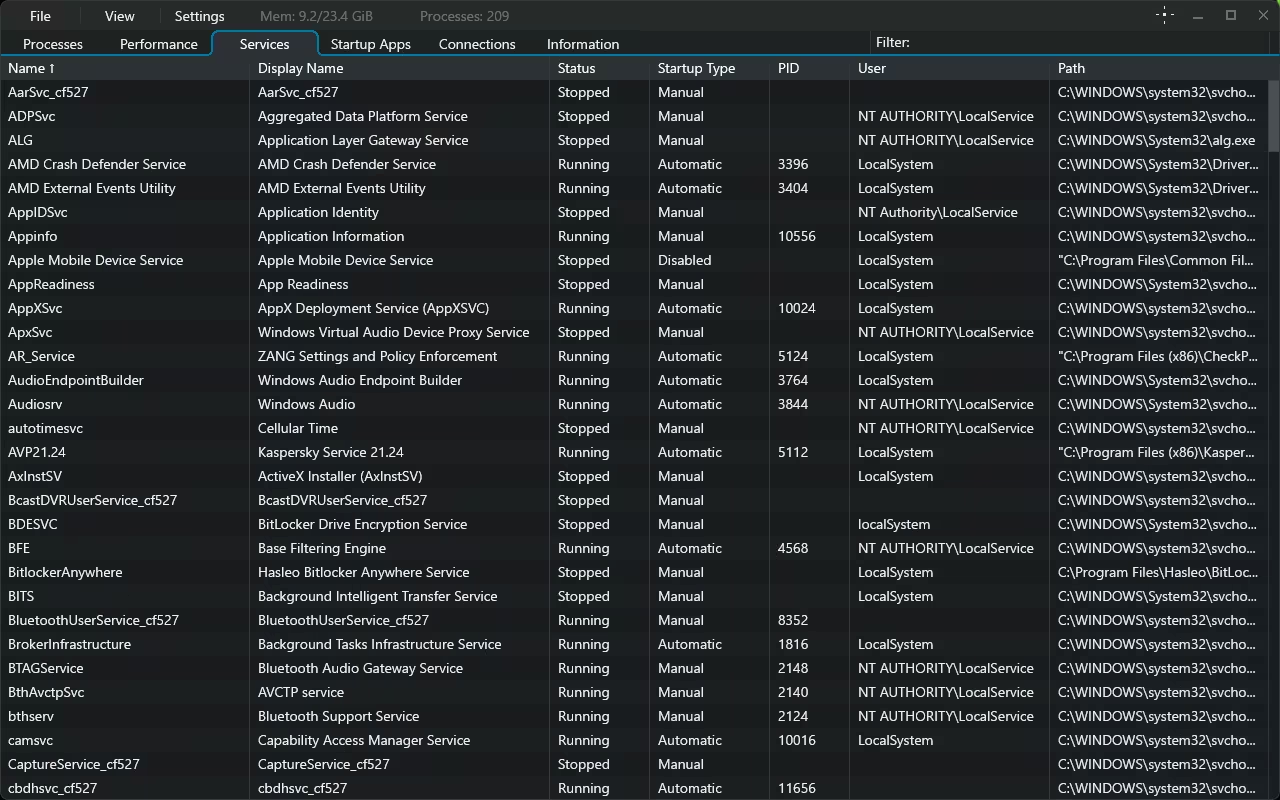
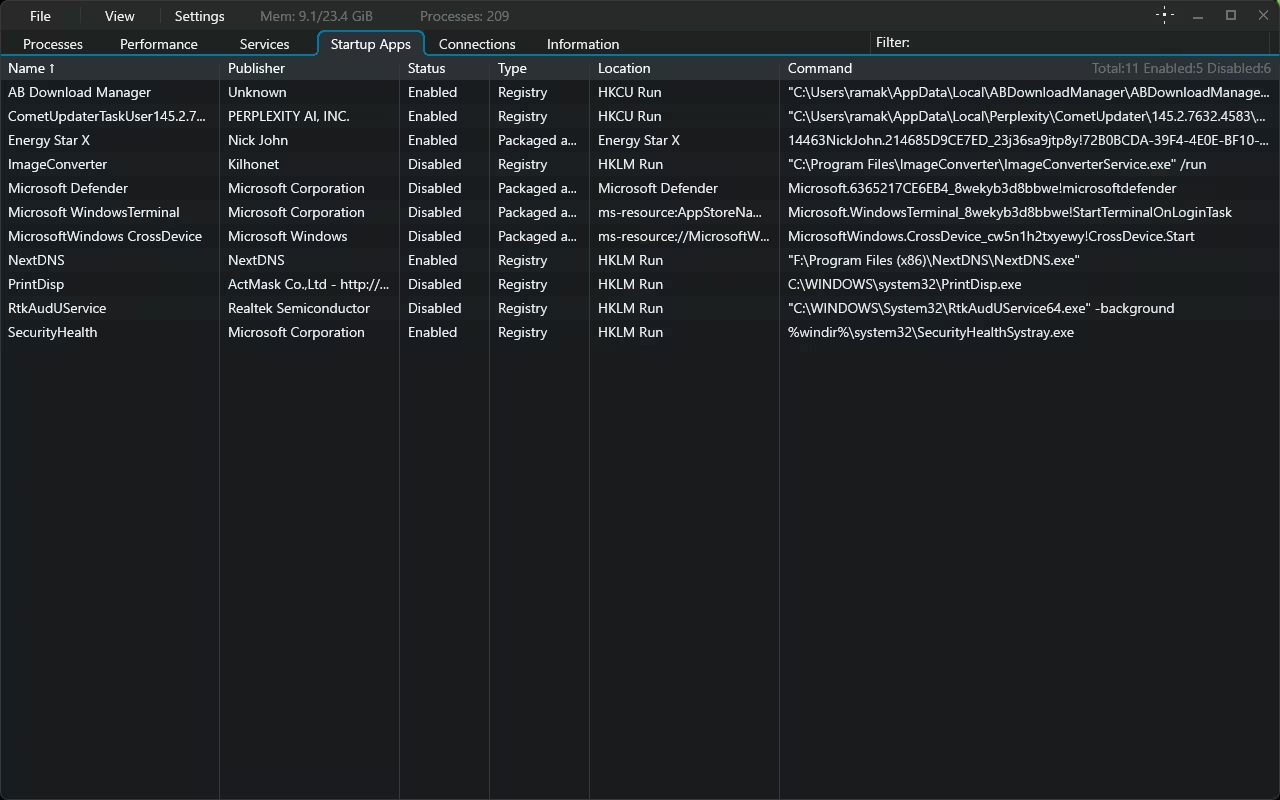
Services and Startup Apps tabs — granular control over what runs and when
Built-In Hardware & System Information
Jump to the Information tab, and you get a comprehensive hardware/software breakdown: OS build number, install date, processor identifier, BIOS firmware type, per-DIMM memory specs (manufacturer, part number, speed, and form factor), commit limits, page file size, and more. It effectively bundles a lightweight system info tool right in, so you can skip msinfo32 and CPU-Z for most quick checks.
Customization That Actually Matters
Themes are where TaskSlinger has real fun. Out of the box you get Default Dark, Default Light, Golden Summer Fields, Soft Pink Delight, Vivid Nightfall, all four Catppuccin flavors (Latte, Frappé, Macchiato, and Mocha), and the developer favorite Dracula. There’s also an “Open themes file” option so you can roll your own. On top of that, you can dial in UI scale, row height, refresh rate (down to 1 second), and animations to match your workflow exactly.
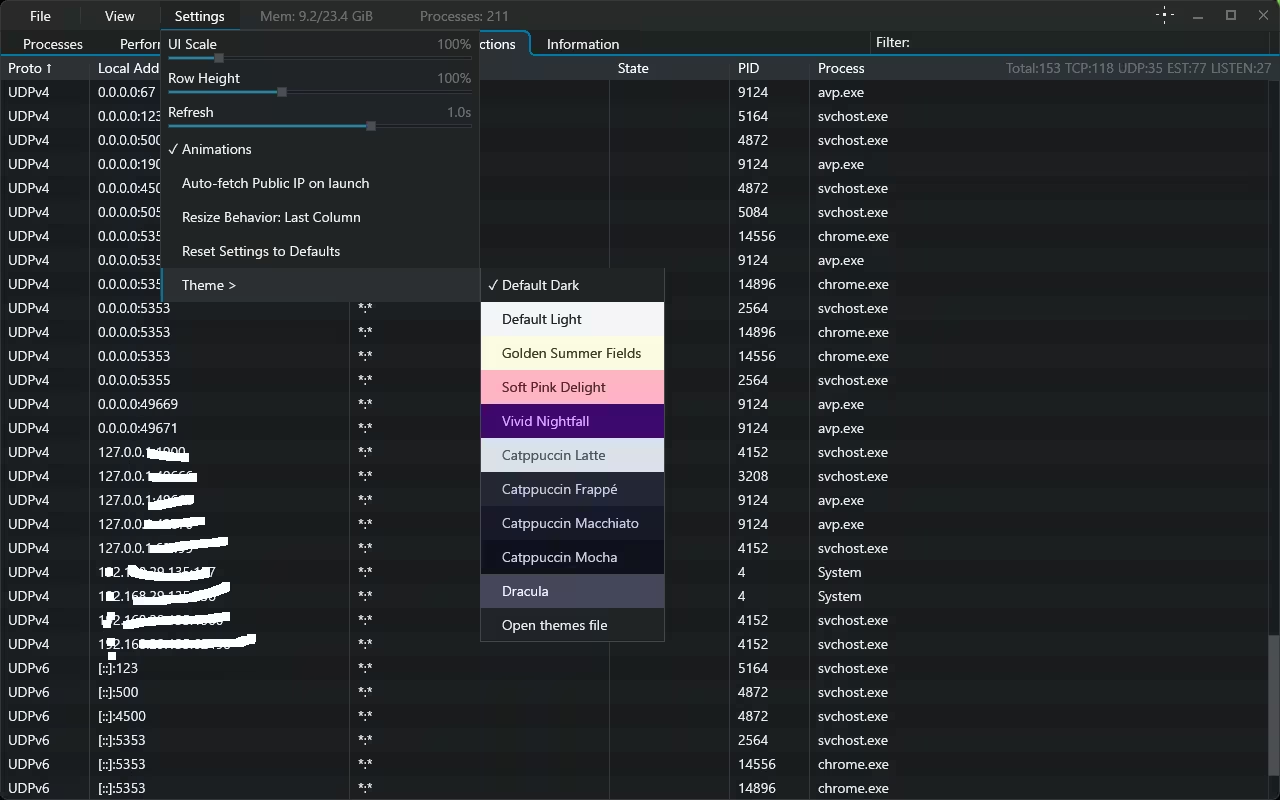
Settings menu — built-in themes including Catppuccin, Dracula, and more
Privacy: A Big Deal Here
TaskSlinger collects zero telemetry. Nothing phones home, no analytics SDKs are bundled, no logs are streamed to a remote server, and there are no opt-out toggles to hunt down because there’s nothing to opt out of. For a tool that has visibility into every running process on your machine, that’s exactly the level of restraint you want from the developer. There’s also an optional “Auto-fetch Public IP on launch” setting that’s off by default and clearly labeled in Settings—so you stay fully in control of what the app does, even at startup.
Who Should Use TaskSlinger?
- Developers who need quick visibility into stuck processes or runaway threads.
- IT and support staff who want a portable tool that runs from a USB drive without an admin install.
- System optimizers and tweakers who care about startup apps, services, and resource hogs.
- Gamers and benchmarkers who want per-core CPU graphs and detailed hardware specs in one place.
- Anyone who’s simply tired of the stock Windows Task Manager.
Pricing & Beta Status
Right now TaskSlinger is completely free while it’s in beta. The developer has indicated that a paid release will follow once the beta concludes, so this is a smart time to grab it, get familiar with the workflow, and decide whether it earns a permanent spot in your toolbox. If you snag the portable build now, you’ll have a copy that doesn’t depend on any future licensing changes mid-session.
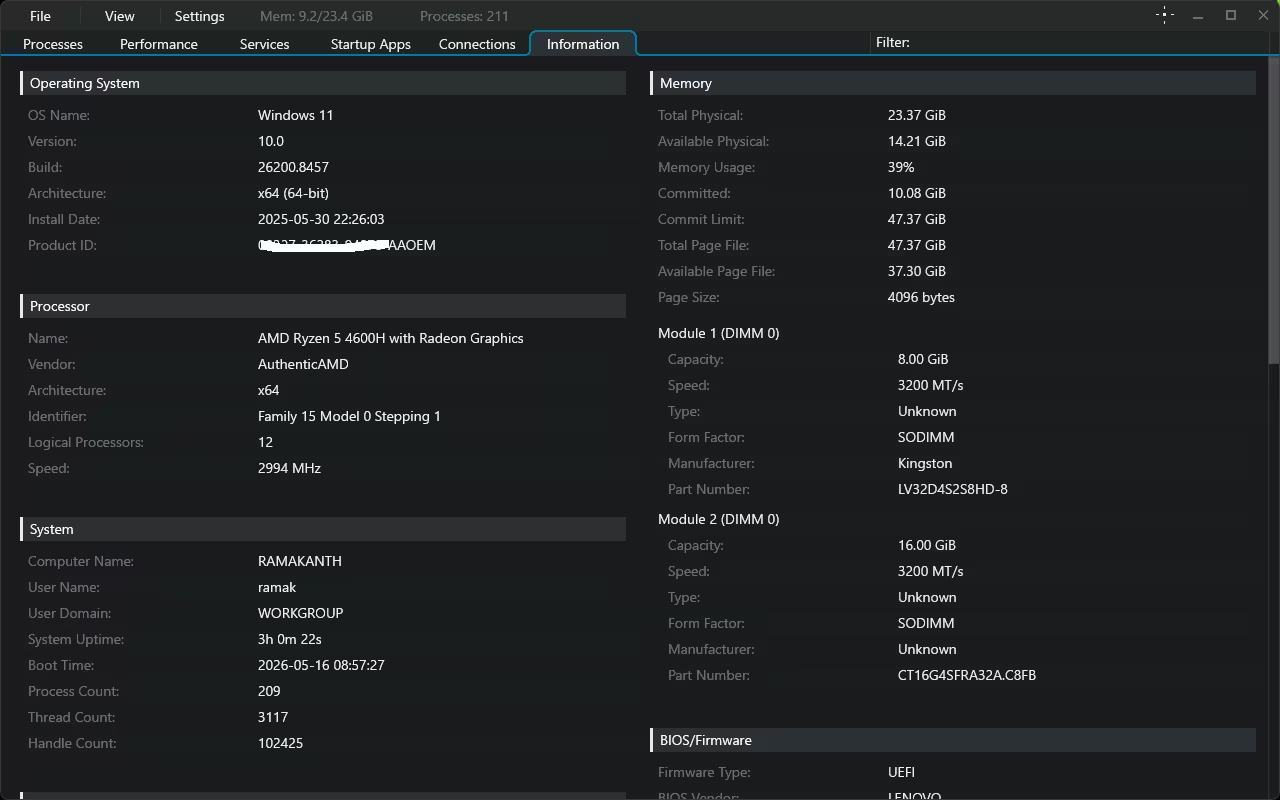
Information tab — OS, processor, memory modules, and BIOS details
How to Download TaskSlinger
Head over to the official site at taskslinger.net and scroll to the bottom of the homepage. You’ll find download buttons there for both the installer and the portable ZIP build. No account creation, no email signup, no checkout — just click and grab it.
Frequently Asked Questions
Is TaskSlinger free?
Yes—TaskSlinger is fully free during its beta period. The developer has hinted that a paid version will follow after the beta ends, but right now you get the entire app with no restrictions.
Does TaskSlinger collect any data?
No. TaskSlinger has zero telemetry—no analytics, no usage tracking, and no remote logging. Everything stays on your machine.
Does TaskSlinger work on Windows 10?
Yes, it runs on both Windows 10 and Windows 11. The portable build is especially useful for older or locked-down systems where you can’t install software.
Can TaskSlinger fully replace Windows Task Manager?
For most users, yes. It covers processes, performance, services, startup apps, network connections, and system information in one place — and adds features Task Manager doesn’t have, like per-core monitoring, themes, and adjustable refresh rates.
Is the portable version safe to run from a USB drive?
Yes. The portable build is self-contained and doesn’t write to the Windows registry, making it ideal for IT technicians who service multiple machines or anyone working on restricted systems.
🏆 Final Verdict
TaskSlinger nails what the default Windows Task Manager has been missing for a decade: speed, polish, configurability, and respect for your privacy. It’s already feature-complete enough to be a daily driver, and the fact that it’s free during beta makes this an easy recommendation.
- Snappy, modern UI
- Per-core CPU monitoring
- Zero telemetry
- Built-in themes
- Portable build available
- Free during beta
- Likely to become paid after beta
- Windows-only (no macOS/Linux)
- Still in active beta development


Discover more from Techno360
Subscribe to get the latest posts sent to your email.
You must be logged in to post a comment.