
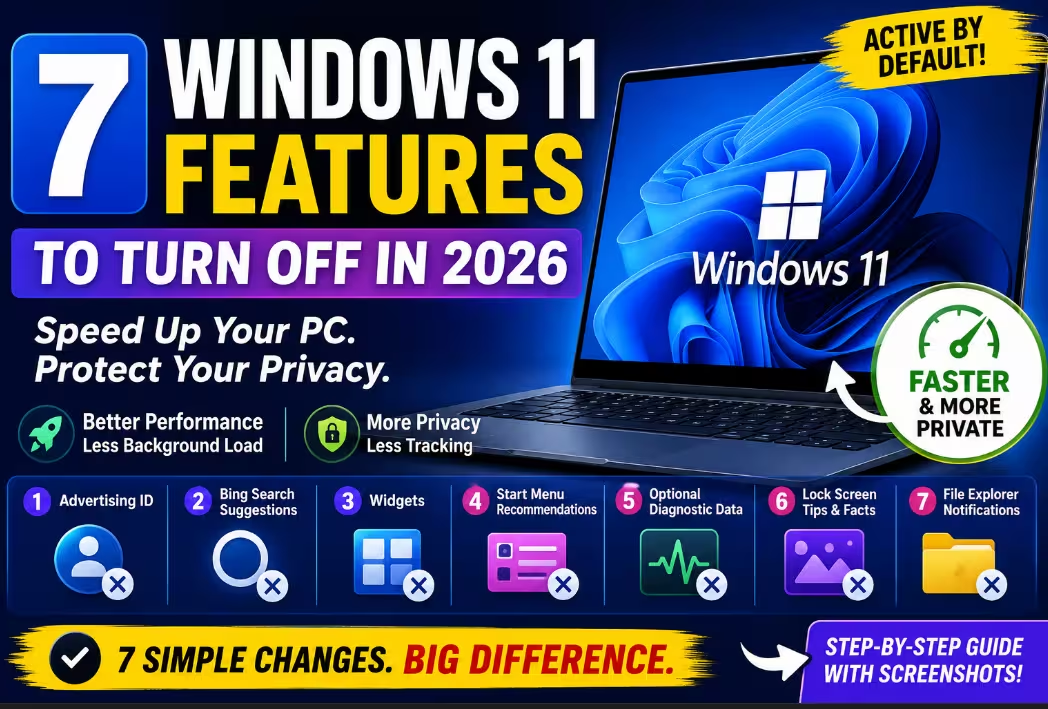
7 Windows 11 Features That Are Active by Default and That You Should Turn Off: Your PC Will Improve Immediately
Microsoft ships your laptop with a pile of stuff switched on that you never agreed to. Flip these seven toggles and your PC feels faster, quieter, and a lot more like yours.
Here’s the thing nobody tells you when you unbox a new laptop: a fresh Windows 11 install looks clean, but under the hood it’s wired to phone home, show you stuff, and run background services you never asked for.
None of it is dramatic on its own. A little telemetry here, a content feed there, a search box that pings Bing before it finds your own files. But it stacks up — and on a mid-range machine you actually feel it. The good news? Most of these are just toggles waiting to be flipped. This list of Windows 11 features to turn off takes about ten minutes total, needs zero paid tools, and won’t touch anything that keeps your PC secure.
I’ve sorted them roughly by impact. If you only do three, do the first three. Let’s go.
1 Turn Off the Advertising ID That Profiles You
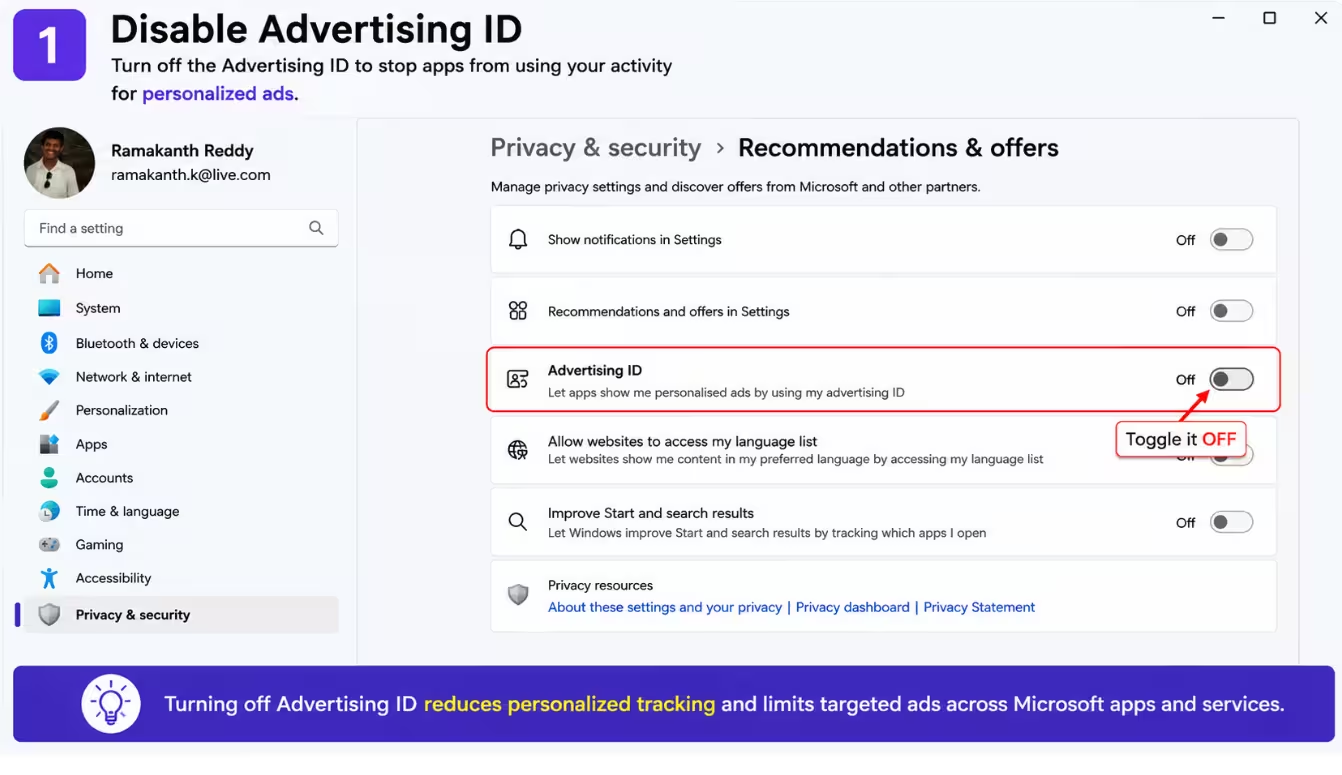
Every Windows 11 account gets handed a unique advertising ID the moment you sign in. Apps and the system use it to stitch together what you do across services and serve you “relevant” ads and recommendations. It’s the quiet engine behind a lot of the personalization you never opted into.
Why it’s a problem: It links your behavior to a trackable identifier. Disabling it won’t nuke every ad in Windows — let’s be real about that — but it cuts off the profiling that makes them targeted.
How to turn it off:
- Open Settings and go to Privacy & Security.
- Click Recommendations & Offers (or General on older builds).
- Toggle off Advertising ID.
- While you’re there, switch off Personalized offers and Show recommendations in Settings too.
2 Remove Bing Web Results From Start Search
When you tap the Start key and start typing, you probably want it to find your apps and files. Instead, Windows 11 mixes in Bing web suggestions — often pushing them right above the thing you were actually looking for. This one surprised me the most, honestly. Once you remove the web results, Start search feels twice as fast.
Why it’s a problem: Every search makes a network round-trip to Bing, so results lag behind your typing, and the web suggestions clutter what should be a fast launcher.
How to turn it off:
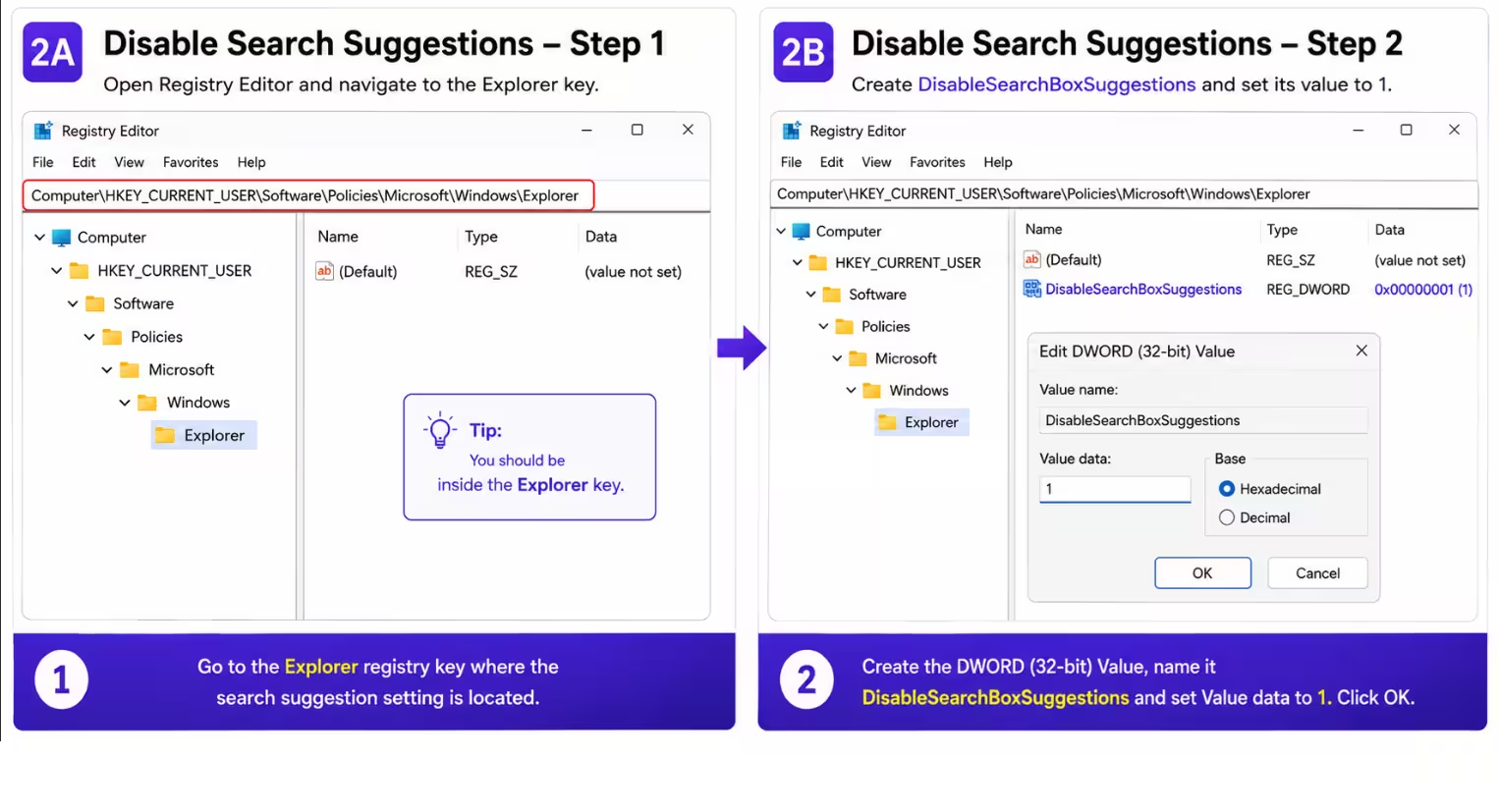
- Open Settings > Privacy & Security > Search Permissions and, if the option is present, switch off Show search highlights.
- To fully kill web results, press Win + R, type
regedit, and head toHKEY_CURRENT_USER\Software\Policies\Microsoft\Windows\Explorer(create the Explorer key if it’s missing). - Add a DWORD named DisableSearchBoxSuggestions and set it to 1, then restart.
- Not comfortable in the registry? A free tool like Winaero Tweaker does the exact same thing with a checkbox.
3 Disable the Widgets Panel Hogging Your Resources
The Widgets panel sits pinned to your taskbar from day one, serving up weather, sports scores, and a never-ending feed of headlines from Microsoft Start. Looks harmless. The catch is what happens when you’re not looking at it.
Why it’s a problem: Even closed, Widgets keeps background components alive and leans on the Edge WebView2 runtime — basically a lightweight browser idling in memory and sending telemetry. On a machine with 8GB of RAM, that’s headroom you’d rather keep.
How to turn it off:
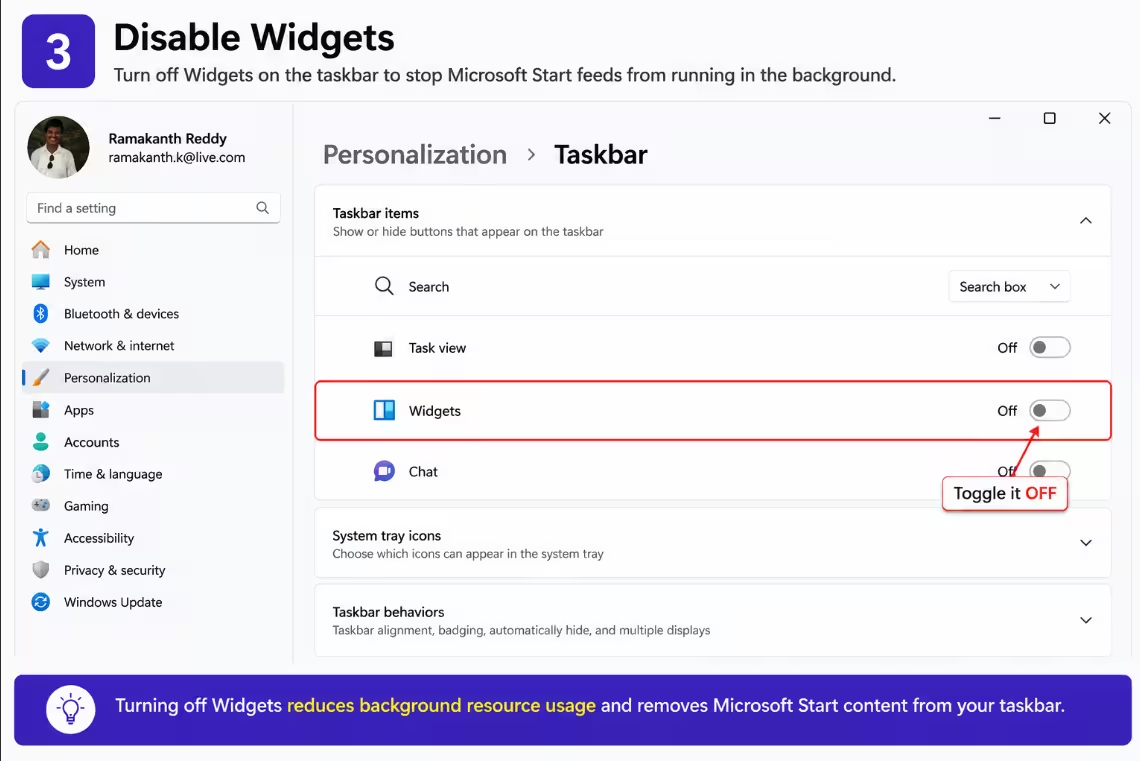
- Open Settings > Personalization > Taskbar.
- Switch the Widgets toggle off.
- Want it gone at a deeper level? Add a DWORD called AllowNewsAndInterests set to 0 under
HKEY_LOCAL_MACHINE\SOFTWARE\Policies\Microsoft\Dsh.
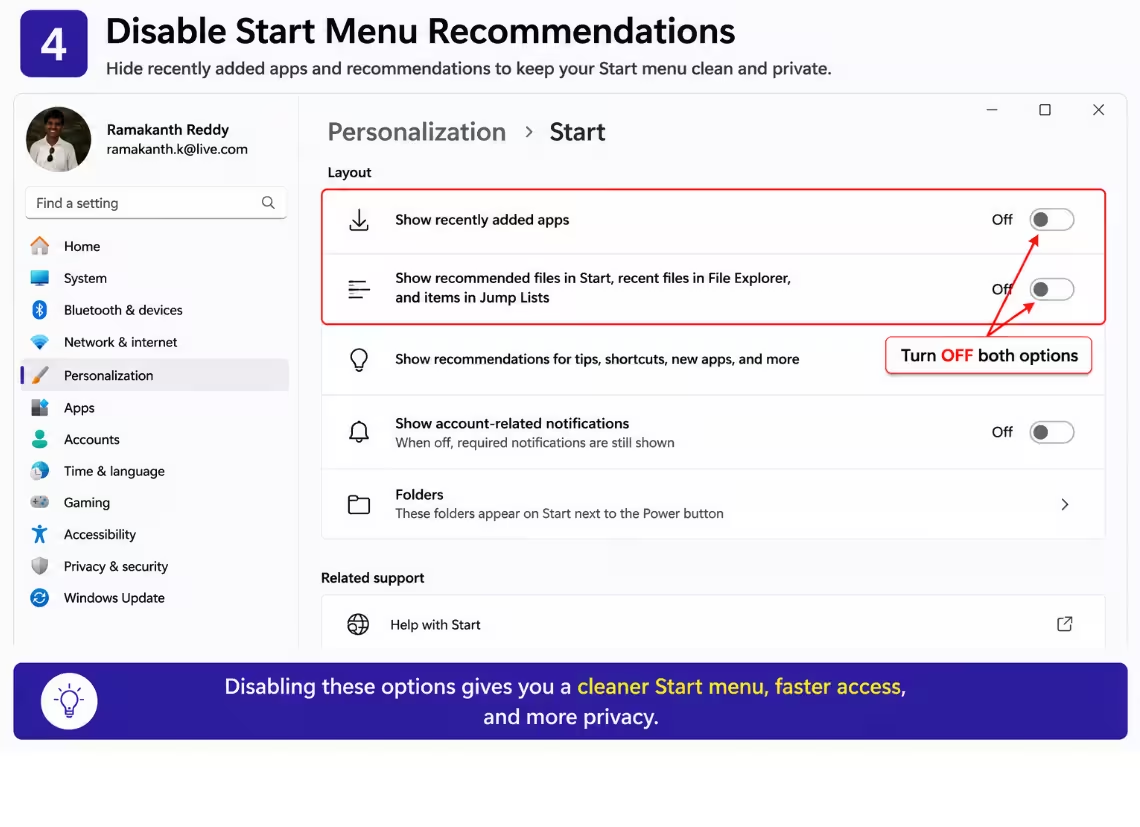
4 Clear the “Recommended” Clutter in the Start Menu
The bottom half of your Start menu is reserved for “Recommended” — recently opened files, freshly installed apps, and the odd Microsoft 365 nudge pulled from OneDrive. Microsoft calls it a productivity feature. Once your workflow is dialed in, it mostly just shows people what you last opened. Not ideal on a shared machine.
Why it’s a problem: It surfaces your recent activity right on the launcher (a small privacy leak), and the suggestion prompts are really just upsells dressed up as tips.
How to turn it off:
- Open Settings > Personalization > Start.
- Toggle off Show recently added apps.
- Toggle off Show recommended files in Start, recent files in File Explorer, and items in Jump Lists.
- Toggle off Show recommendations for tips, shortcuts, new apps, and more.
5 Stop Sending Optional Diagnostic Data
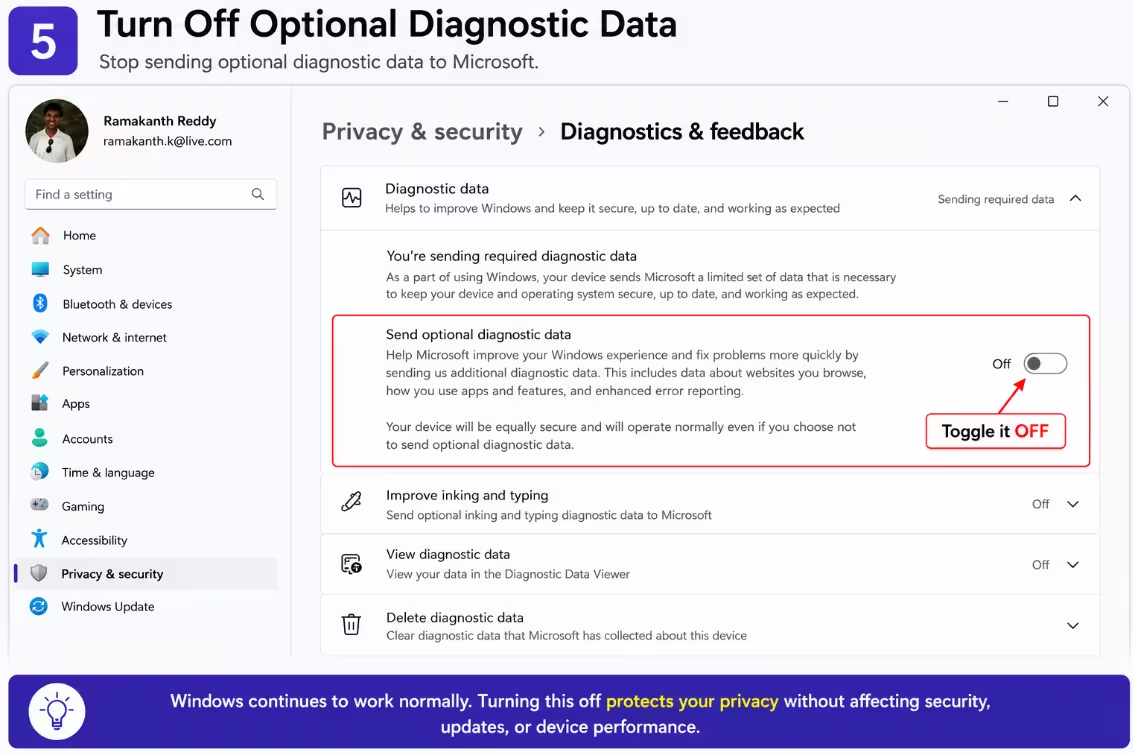
Windows 11 ships ready to send “optional” diagnostic data, and that label undersells what it covers. On top of the required baseline (hardware info and stability data that keeps updates working), the optional layer adds the websites you visit, how you use apps, and enhanced error reports. Honestly, I kept this off for months before I even noticed it changed nothing about how my PC ran.
Why it’s a problem: It’s a much broader data harvest than most people realize, and it’s on without a clear heads-up. The required tier alone is enough for Windows to stay patched and secure.
How to turn it off:
- Open Settings > Privacy & Security > Diagnostics & Feedback.
- Turn off Send optional diagnostic data.
- Turn off Improve inking and typing (this one feeds Microsoft your input data and ships enabled by default).
- Set Feedback frequency to Never, and hit Delete diagnostic data to wipe what’s already been collected.
6 Reclaim Your Lock Screen and Mute Tip Notifications
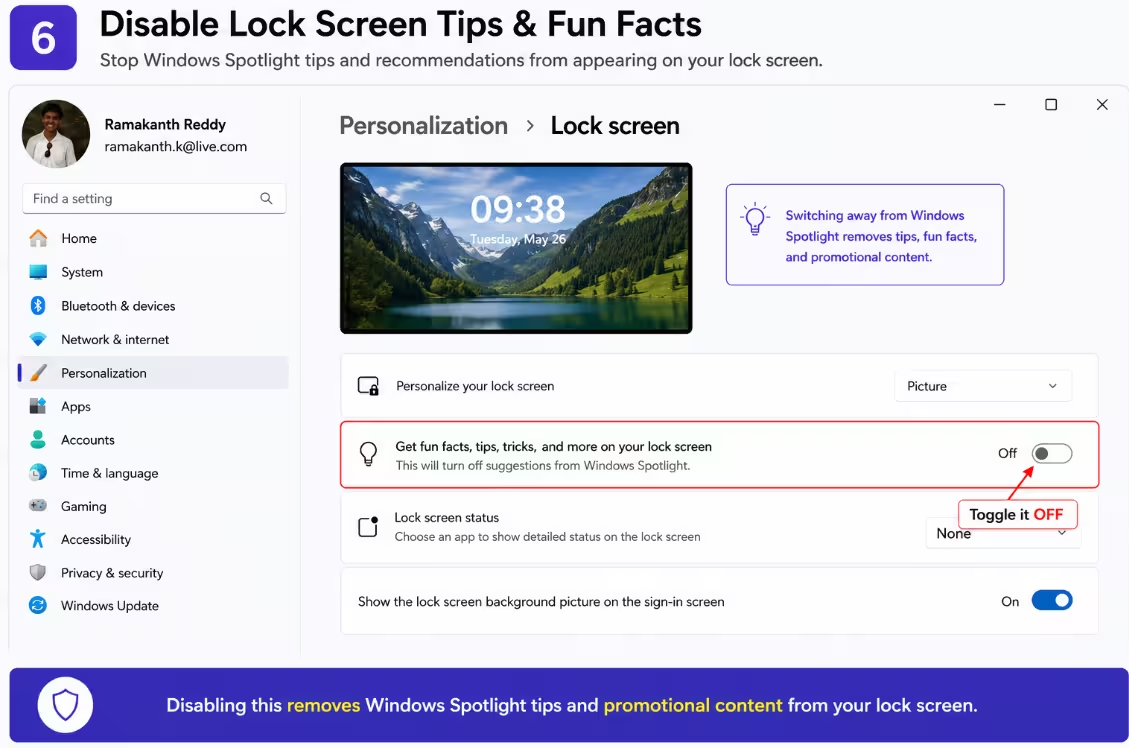
Your lock screen defaults to Windows Spotlight — rotating Bing images with little tips and “fun facts” layered on top. Some of those tips are thinly veiled ads and engagement nudges. The lock screen is the first thing you see when you sit down; it really doesn’t need to be a billboard.
Why it’s a problem: Spotlight pulls content (and the occasional promo) from Microsoft’s servers, and Windows pairs it with system-level “tips” notifications that nudge you deeper into its ecosystem.
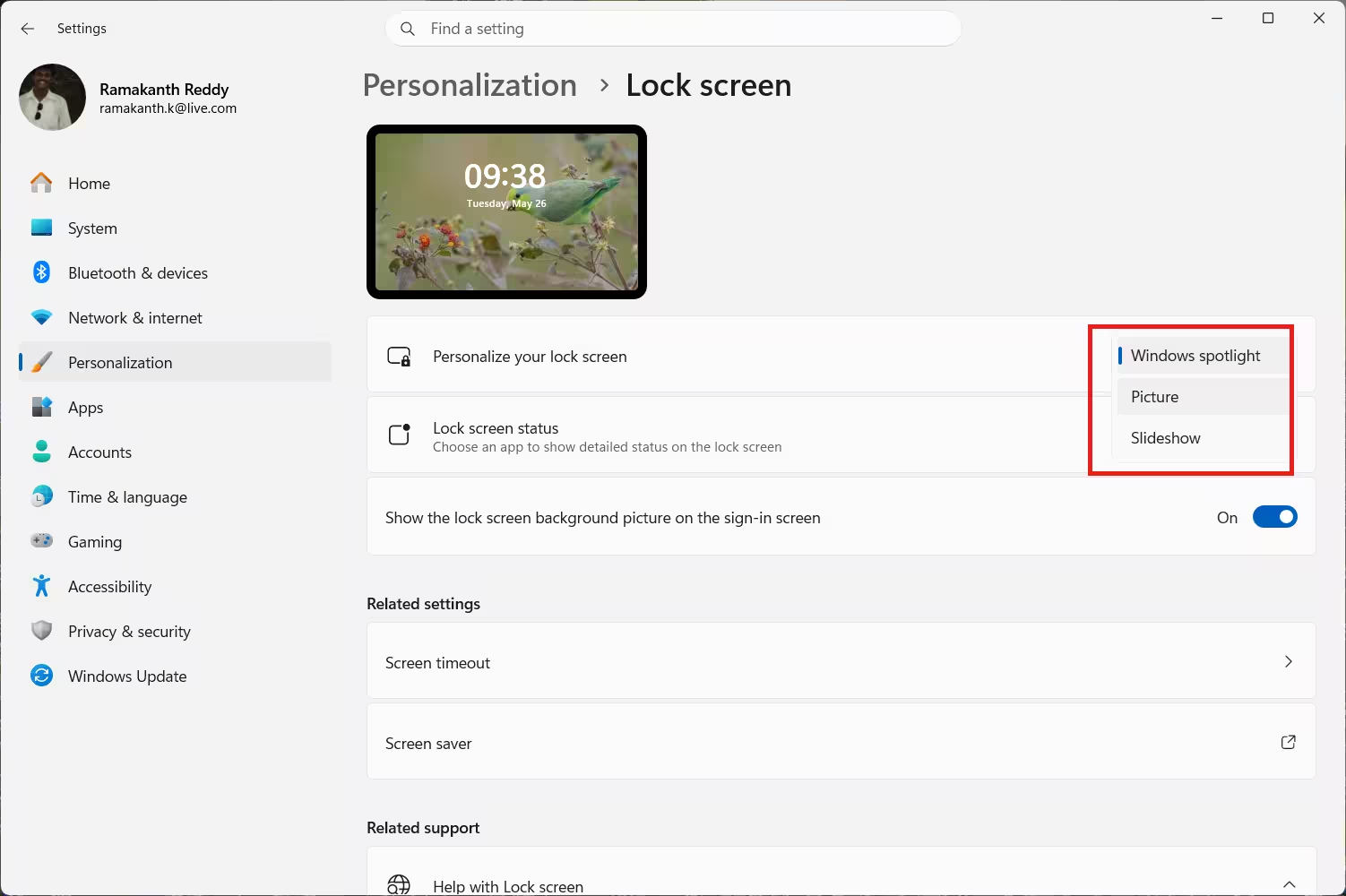
How to turn it off:
- Go to Settings > Personalization > Lock Screen and change the background from Windows Spotlight to Picture or Slideshow.
- Uncheck Get fun facts, tips, tricks, and more on your lock screen.
- Now open Settings > System > Notifications, scroll to the bottom, expand Additional settings.
- Uncheck Get tips and suggestions when using Windows (and any setup/welcome-experience prompts if they appear).
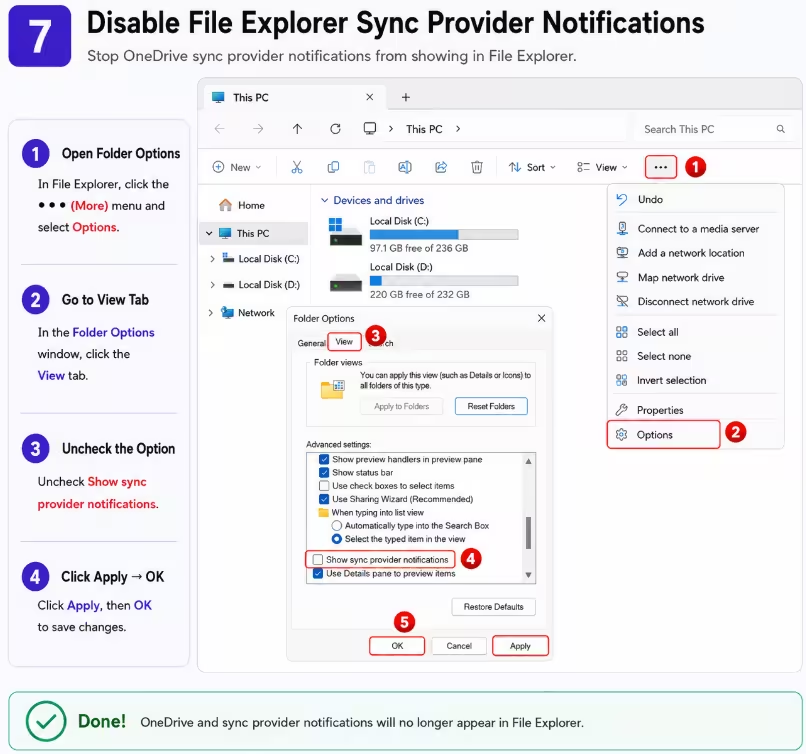
7 Mute File Explorer’s OneDrive Nag Prompts
File Explorer has one job: manage files. Yet Windows 11 sprinkles in “sync provider notifications” — banners pushing you to back up folders to OneDrive, upgrade your storage, or revisit cloud features you already declined. It’s marketing inside your file manager.
Why it’s a problem: The prompts interrupt your workflow and lean on you to adopt cloud features whether or not you want them. Pure noise for anyone who’s set on local storage.
How to turn it off:
- Open File Explorer, click the three-dot menu (⋯) in the toolbar, choose Options.
- Switch to the View tab.
- In Advanced settings, uncheck Show sync provider notifications.
- Click Apply, then OK. It takes effect immediately — no restart needed.
The Verdict: Which Windows 11 Features to Turn Off First
None of these defaults will wreck your PC, but together they pile on background load, recommendations, and data sharing you never signed up for. Spend ten minutes here and Windows feels lighter, more private, and genuinely yours. If you’re short on time, start with the first three — Advertising ID, web results in Start, and the Widgets panel — that’s where you’ll feel the biggest difference, fastest.
Everything on this list is reversible in seconds, so there’s zero risk in trying. Your move.
Frequently Asked Questions
Will turning off these Windows 11 features break anything?
No. Every setting here is a convenience or personalization feature, not a core service. You’re not touching Windows Update security patches, Defender, or drivers. Microsoft itself confirms your device stays equally secure with optional diagnostic data off. Worst case, you re-enable a toggle in ten seconds.
Are all 7 of these features really on by default in 2026?
Yes. As of the May 2026 Windows 11 build, the Advertising ID, web results in Start search, the Widgets panel, the Start “Recommended” section, Improve inking and typing, Windows Spotlight with tips, and File Explorer sync provider notifications all ship enabled out of the box. OEM laptops sometimes layer on even more.
Which setting gives the biggest performance boost?
On lower-spec machines, disabling Widgets makes the most noticeable difference because it stops the Edge WebView2 runtime running in the background. Removing web results from Start search is the next biggest win, since searches become instant instead of waiting on a network round-trip to Bing.
Will disabling the Advertising ID remove all ads from Windows 11?
No, and it’s worth being honest about that. Turning off the Advertising ID stops apps from profiling your behavior for personalized ads, but generic ads baked into the Start menu, Microsoft Store, and some built-in apps can still appear. It reduces tracking, not every single advertisement.
Do I need admin rights or third-party tools to change these?
Six of the seven are plain toggles in Settings that any standard user can change. Only the Start menu web-search removal may need a quick registry edit or a free tool like Winaero Tweaker on some builds. None of it requires paid software.
Will these settings come back after a Windows update?
Usually they stick. Most toggles survive cumulative updates fine. Occasionally a large feature update resets one or two personalization options, so a 30-second re-check after a major upgrade is smart. Registry-based changes tend to be the most durable.
Is it safe to turn off optional diagnostic data?
Completely safe. Required diagnostic data still flows, so updates and security work normally. The optional layer only adds browsing patterns, app usage, and enhanced error reports. Microsoft’s documentation states the device remains secure and fully functional without it.
Discover more from Techno360
Subscribe to get the latest posts sent to your email.

You must be logged in to post a comment.