
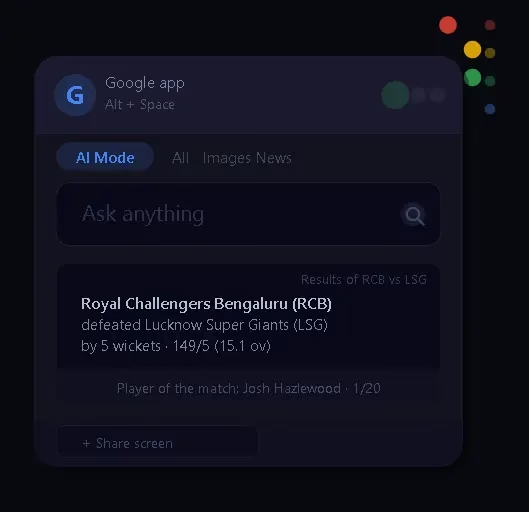
Quick Summary: Google has officially launched a free desktop app for Windows simply called the “Google App.” It brings Google Search, Gemini AI answers, and Google Lens visual search to any screen with a single Alt+Space keyboard shortcut—no browser needed. Available now for Windows 10 and Windows 11.
Google just quietly launched a new Windows app — and it might change how you use your PC.
No browser. No tabs. Just press Alt + Space, and Google appears instantly on top of everything you’re doing. You can search, ask AI questions, or even scan your screen without switching apps.
Sounds perfect… until you realize one thing.
This tiny floating bar is using over 1GB of RAM in the background.
So is this the future of search on Windows — or just another bloated Google experiment?
We installed it, tested it, and pushed it through real-world usage to find out if it’s actually worth your system resources.
📋 In This Article
What Is the Google App for Windows?
The Google App for Windows is a free desktop application that functions as an always-available search overlay. Instead of opening Chrome or Edge to search something, you press a keyboard shortcut and a compact floating window appears—right over whatever you’re working on.
Think of it as Google’s answer to macOS Spotlight, PowerToys Run, or Raycast on Windows. The key difference is that this is a Google-powered experience with three pillars built in:
- 🔍 Google Search — standard web results, news, and more
- 🤖 AI Mode (Gemini) — conversational AI-powered answers
- 📷 Google Lens — visual search from your screen
It’s the first time Google has shipped a dedicated standalone desktop search app for Windows, and it signals a clear intent to reduce dependence on the browser as the primary entry point to Google’s ecosystem.
How to Download & Install the Google App for Windows
Installing the Google App takes less than two minutes:
- Visit the official download page: search.google/google-app/desktop
- Click the Download button and run the installer
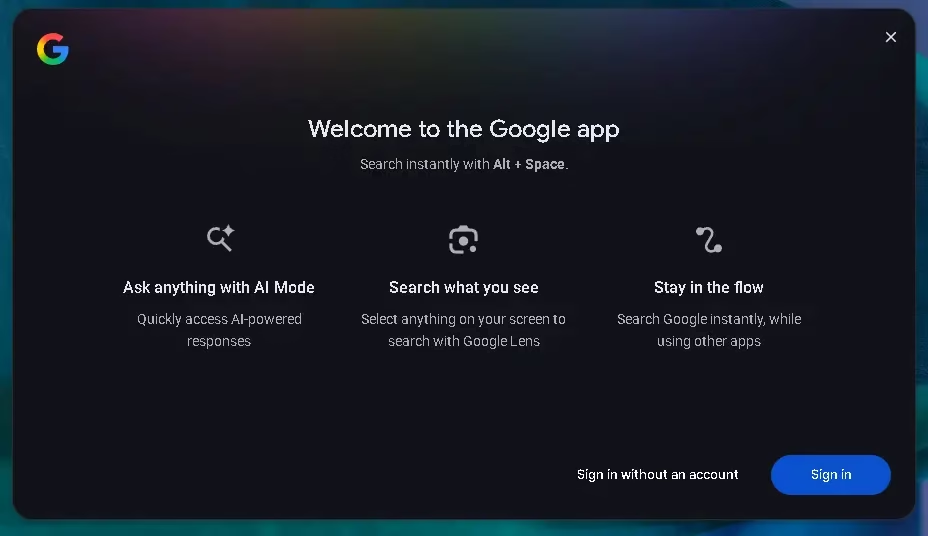
- Once installed, the welcome screen greets you with an overview of features
- Choose to Sign In with your Google account or continue without one
- Press Alt+Space anywhere on your PC to launch it
The app is compatible with Windows 10 and Windows 11 and is entirely free to use.
Key Features of the Google App for Windows
1. Instant Search with Alt+Space
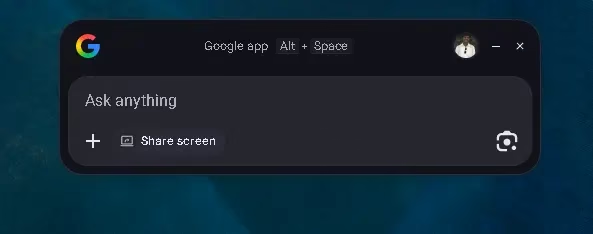
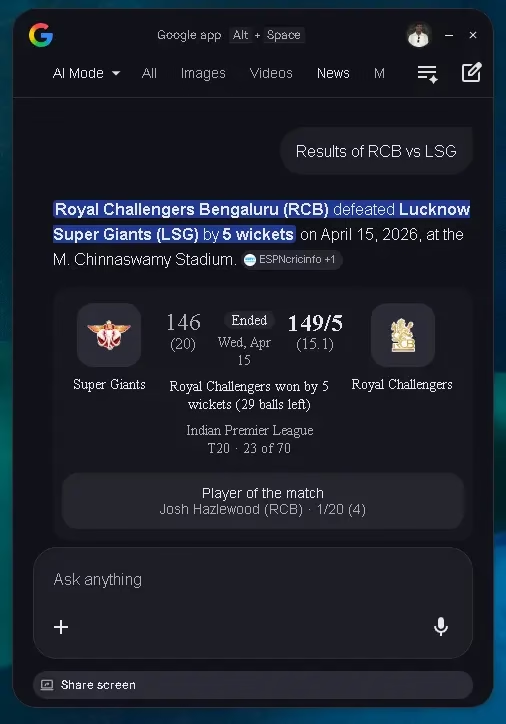
The app’s most important feature is also its simplest. The Alt+Space keyboard shortcut summons a floating search bar that overlays any open window. Type a query, and Google search results appear in the app’s own interface — complete with web links and rich cards for things like sports scores, weather, and news. No browser tab, no context switching.
2. AI Mode — Gemini-Powered Answers
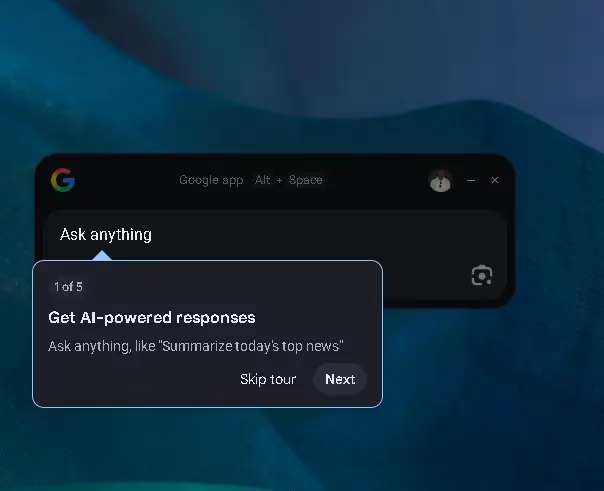
The Google App features a dedicated AI Mode powered by Google Gemini. Instead of ten blue links, you get a conversational AI answer — similar to asking something in Gemini.google.com but directly on your desktop. The onboarding tour illustrates this with examples like “Summarize today’s top news.”
This mode is available in select countries and languages. Where AI Mode isn’t supported yet, standard Google search results are displayed instead.
3. Google Lens — Search What’s on Your Screen
One of the most genuinely useful features is the Google Lens integration. Click the camera icon in the app, and your cursor turns into a selection tool. Draw a box around anything on your screen — a product image, text in a foreign language, a logo — and Google Lens performs a visual search on it instantly.
Common use-cases include:
- Translating text visible in an image or video frame
- Identifying a product or object on screen for price comparison
- Looking up an actor or landmark shown in a streaming video
- Researching a chart, graph, or infographic on a webpage
4. Screen Sharing for Contextual Questions
Beyond Lens, the app also has a Share Screen feature. You can share a specific window — or your entire desktop — so that Google’s AI can understand what you’re looking at and answer contextually relevant questions. Google explicitly states the app only processes what’s visible, not anything in the background.
Hands-On: What It’s Like to Use the Google App
After testing the app through a typical workday, a few things stand out.
The speed is impressive. Pressing Alt+Space and getting results takes under a second on a modern Windows 11 machine. For quick factual lookups — cricket scores, currency rates, news headlines — it’s noticeably faster than opening a browser tab.
Rich result cards are a highlight. When we searched for the latest IPL score (RCB vs LSG), the app returned a detailed cricket scorecard right inside the floating window — with innings totals, result, player of the match, and match number — without needing to visit ESPN Cricinfo. This is the kind of frictionless experience the app is built for.
The Lens feature works surprisingly well for on-screen text extraction and object identification. The ability to draw a selection on any part of your screen and get an instant visual search is something no existing Windows launcher offers out of the box.
The AI Mode onboarding is smooth. A five-step guided tour walks new users through the app’s features, starting with AI responses and ending with screen sharing. It’s concise and well-designed.
Performance & System Resource Usage
Here’s where things get less rosy. Despite looking like a lightweight floating panel, the Google App is anything but lightweight under the hood.
| Resource | Usage | Why |
|---|---|---|
| RAM | ~1.2 GB | WebView2 (Chromium-based rendering engine) |
| Background Processes | ~10 processes | WebView2 + Google app services |
| Framework | Microsoft WebView2 | Chromium-based, used by many modern Windows apps |
| Customisation | Minimal | Only the keyboard shortcut can be changed |
1.2 GB of RAM is a significant commitment for an app whose sole job is to pop up when you call it. On PCs with 8 GB RAM or less, this could noticeably affect multitasking performance. Users on budget or older machines should factor this in before installing.
Privacy: What Does the Google App Collect?
The Google App is governed by Google’s global privacy policy—the same policy that applies to Google Search and Chrome. Here’s what that means in practice:
- If you are signed in to a Google account, your searches within the app are linked to your account, just like on google.com
- If you use the app without signing in, searches are anonymised but still subject to Google’s standard data practices
- The screen sharing feature only processes what is visually displayed on screen at the time of sharing — not background processes, files, or clipboard content
For users already comfortable with Google Search and Chrome, there are no new privacy surprises here. If you’re privacy-conscious and prefer not to have search queries tied to your account, use the “Sign in without an account” option.
Limitations to Know Before You Install
⚠️ Important Limitations
- English only — The app currently supports only English; no regional language support yet
- AI Mode regional availability — Gemini’s AI Mode is not available in all countries; standard results shown as fallback
- High RAM usage — ~1.2 GB due to WebView2; not ideal for budget/older PCs
- Limited customisation — Only the keyboard shortcut can be changed; no theme or layout options
- No offline mode — Requires an active internet connection for all features
- Windows only — No macOS or Linux version announced yet
Our Verdict: Should You Install the Google App for Windows?
🏆 Techno360.in Rating: 3.8 / 5
A genuinely useful productivity shortcut for everyday web searches and quick AI answers — let down by heavy memory usage and limited customisation. Worth trying if you have 16 GB+ RAM and spend a lot of time switching between apps to search.
The Google App for Windows is a solid first version of something Google should have shipped years ago. The Alt+Space trigger is instantly habit-forming, the Lens integration is genuinely innovative for desktop use, and AI Mode (where available) changes how you get quick answers.
However, the 1.2 GB RAM footprint is hard to ignore — especially compared to leaner alternatives like PowerToys Run or the Windows Search bar. The lack of customisation options and English-only support also make it feel like an early beta in some respects.
Install it if: You have a well-specced PC, rely on Google Search daily, and want Gemini AI at your fingertips without opening a browser.
Skip it for now if: Your PC has limited RAM, you prefer privacy-first search tools, or you need non-English language support.
Download the Google App for Windows — Free
Compatible with Windows 10 and Windows 11 · No cost · Official Google release
Frequently Asked Questions (FAQ)
❓ What is the Google App for Windows?
The Google App for Windows is a free desktop application that gives you instant access to Google Search, Gemini AI-powered answers, and Google Lens visual search — all inside a lightweight floating window that appears over any application using the Alt+Space keyboard shortcut.
❓ How do I open the Google desktop app on Windows?
After installing the app, press Alt+Space on your keyboard. A small floating search bar appears on top of whatever you’re currently working on. You can change this shortcut to something else in the app’s settings.
❓ Is the Google App for Windows free to download?
Yes, completely free. Download it from Google’s official page: search.google/google-app/desktop. It works on both Windows 10 and Windows 11.
❓ Does the Google App work without signing in?
Yes. The welcome screen offers a “Sign in without an account” option. You can search and use most features without a Google account. Signing in enables personalised results, Google Drive file suggestions, and the full AI Mode experience.
❓ How much RAM does the Google desktop app use?
The Google App uses approximately 1.2 GB of RAM and spawns around ten background processes. It relies on Microsoft’s WebView2 (Chromium) component, making it heavier than traditional lightweight launchers. Recommended for PCs with 16 GB RAM or more.
❓ What is Google Lens integration in the desktop app?
The Google App includes a built-in Google Lens button. Click it, draw a selection around any area on your screen, and Google performs a visual search on it — identifying objects, translating text, finding products, or providing relevant information, all without leaving the app.
❓ Is Gemini AI Mode available in India?
Google’s AI Mode is available in select countries and languages. India is an active Gemini market, but in-app AI Mode availability may still be rolling out. Where not yet available, standard Google Search results are shown as a fallback.
❓ Is the Google App for Windows safe and private?
The app is governed by Google’s global privacy policy. If signed in, searches are linked to your Google account. The screen-sharing feature only processes what is visibly on screen and does not access background applications or files. There are no additional privacy risks compared to using Google Search in Chrome.
📌 You Might Also Like


Discover more from Techno360
Subscribe to get the latest posts sent to your email.
You must be logged in to post a comment.