
Home ›
Windows ›
Windows 11 Performance Tips 2026
🚀 Your Windows 11 PC is secretly throttling itself — and these 12 proven tweaks will unlock the speed you’ve been missing.
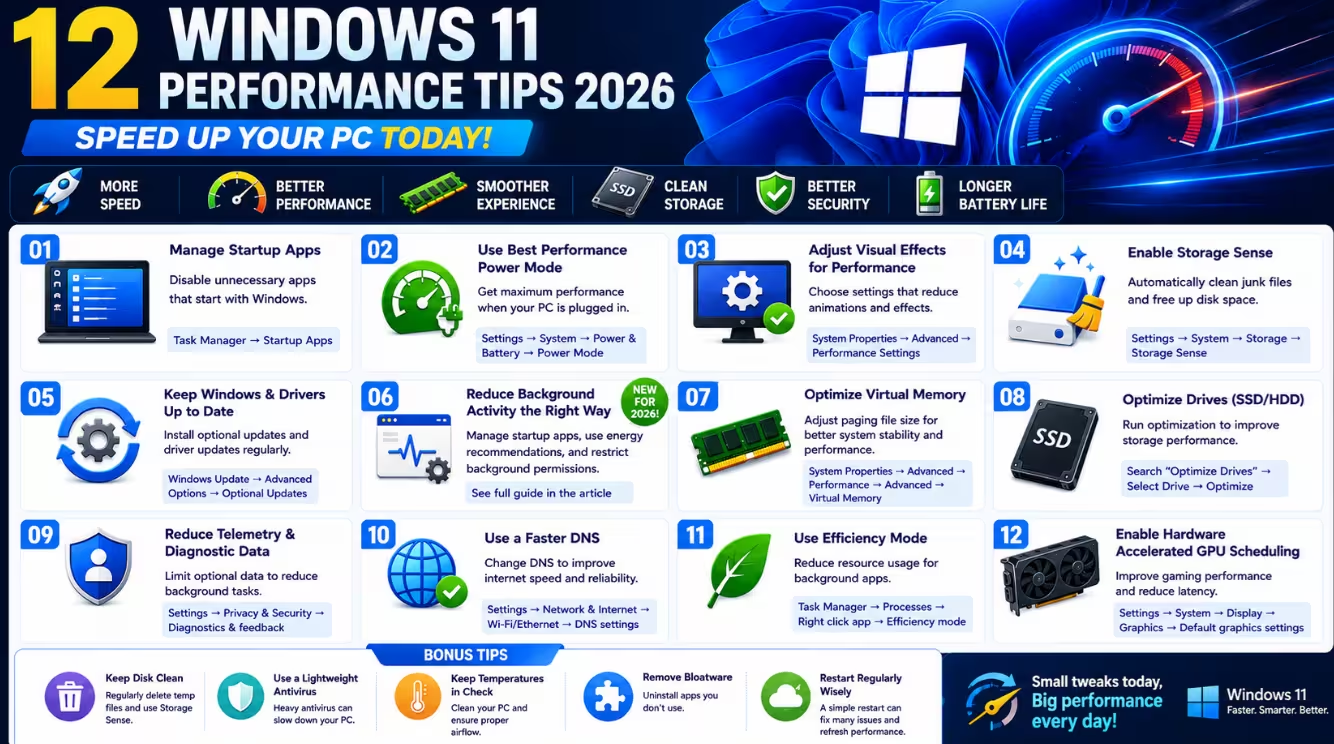
Let’s be honest — Windows 11 is a beautiful operating system, but out of the box, it’s set up more for Microsoft’s convenience than yours. Background telemetry, bloated startup sequences, resource-hungry animations, and aggressive indexing quietly eat into your RAM, CPU, and disk performance every single day. If your PC has been feeling sluggish lately, these windows 11 performance tips 2026 are exactly what you need.
Whether you’re on a budget laptop, a mid-range desktop, or even a high-end rig that’s somehow not living up to its potential, this guide covers 12 genuinely effective, fully actionable tweaks — all tested on Windows 11 24H2 as of May 2026. No registry roulette. No risky third-party tools (unless explicitly noted as safe). Just smart, clean optimizations that actually work.
⚡ TL;DR — Quick Summary
- Kill startup apps in Task Manager — your boot time will thank you
- Switch to High Performance or Balanced power plan for instant CPU boost
- Disable visual effects — free up GPU/CPU on older hardware instantly
- Enable Storage Sense + clean up junk to recover disk speed
- Update drivers via Windows Update’s Optional Updates for peak compatibility
💡 Save this checklist 🔖 and work through it in one sitting — most tweaks take under 2 minutes each.
📋 Table of Contents
- Axe Startup App Clutter
- Dial In Your Power Plan
- Strip Down Visual Effects
- Enable Storage Sense & Run Disk Cleanup
- Update Drivers via Optional Updates
- Tame Background App Activity
- Optimize Your Virtual Memory
- Defrag HDDs / TRIM SSDs
- Reduce Telemetry & Diagnostic Data
- Boost Network Performance with DNS
- Use Efficiency Mode in Task Manager
- Enable Hardware-Accelerated GPU Scheduling
- Frequently Asked Questions
🔧 Windows 11 Performance Tips 2026 — All 12 Tweaks
Tip 01
💀 Axe Startup App Clutter — The #1 Boot Killer
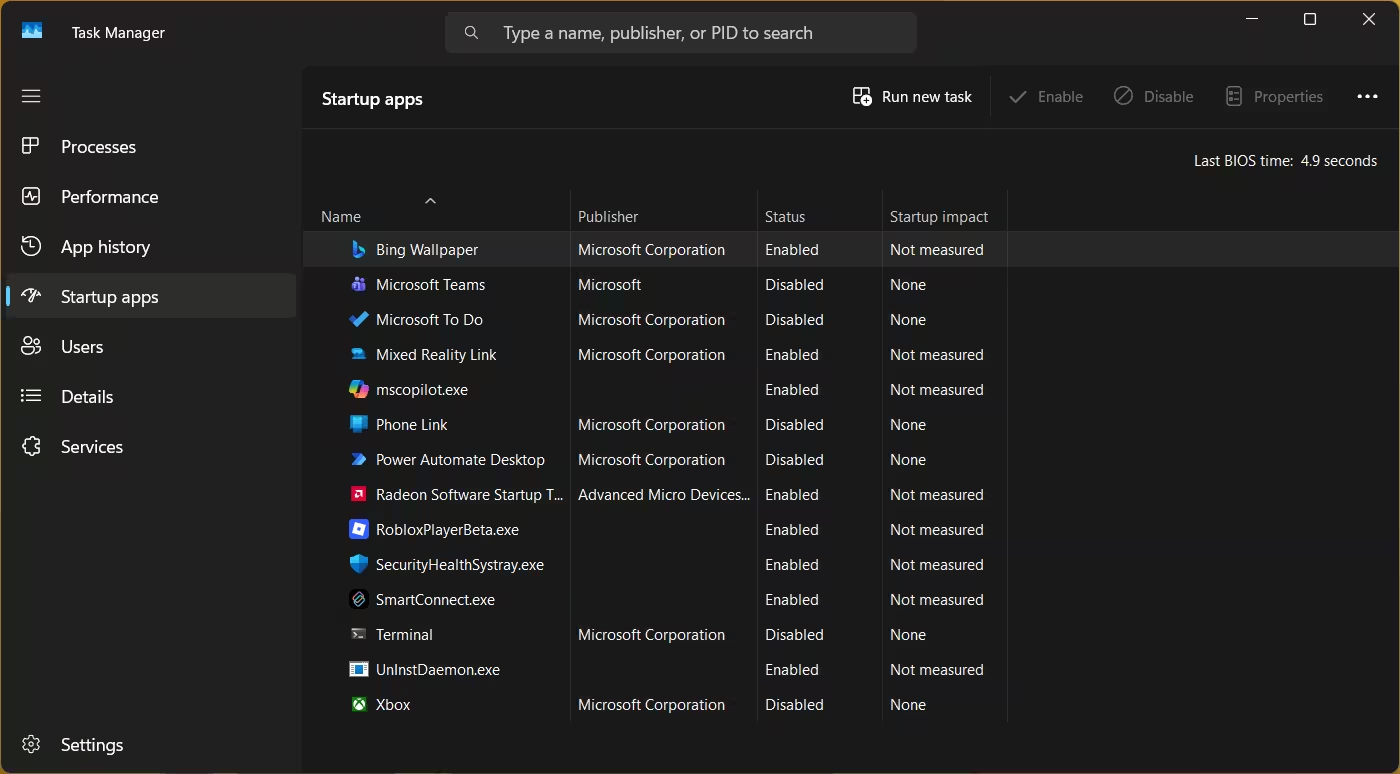
Every app that launches at startup steals precious seconds from your boot time and memory from your working RAM. By Windows 11 24H2, the average home PC has 12–18 startup apps enabled — most of which you never use before noon. Killing the non-essentials is the single fastest win you can get.
How to do it:
- Press
Ctrl + Shift + Escto open Task Manager - Click the Startup apps tab
- Sort by “Startup impact” — High and Medium items are your targets
- Right-click any non-essential app → Disable
Safe to disable: Spotify, Discord, Teams (personal), OneDrive (if not needed at boot), Steam, Epic Games Launcher, and most OEM utilities.
Keep enabled: Your antivirus/security suite, audio drivers (Realtek HD), and any VPN client you use daily.
Tip 02
⚡ Dial In Your Power Plan — Stop Babying Your CPU
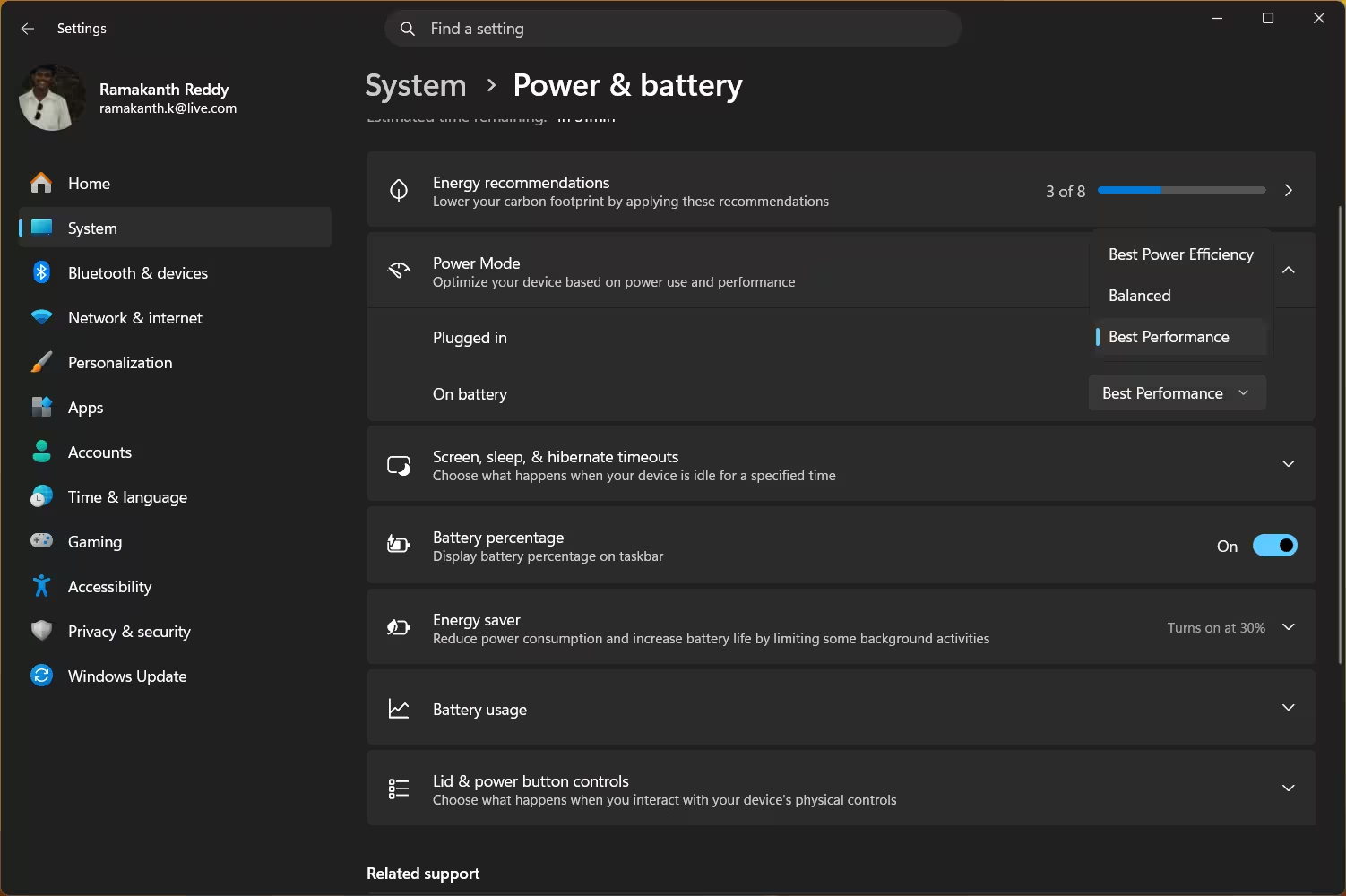
Windows 11 defaults to the Balanced power plan on most systems — which sounds fine, but on desktops and plugged-in laptops, it artificially throttles CPU performance to save energy you don’t need to save. Switching to High Performance or the newer Ultimate Performance plan unleashes your processor’s full potential.
On some Windows 11 24H2 builds, you’ll find power options via powercfg.cpl in Run (Win + R). If Ultimate Performance isn’t visible, enable it by opening Command Prompt as Admin and running:
⚠️ Note: On laptops, stick to Balanced when unplugged to preserve battery life. Use High Performance only when plugged in.
Tip 03
🎨 Strip Down Visual Effects — Free Resources Instantly
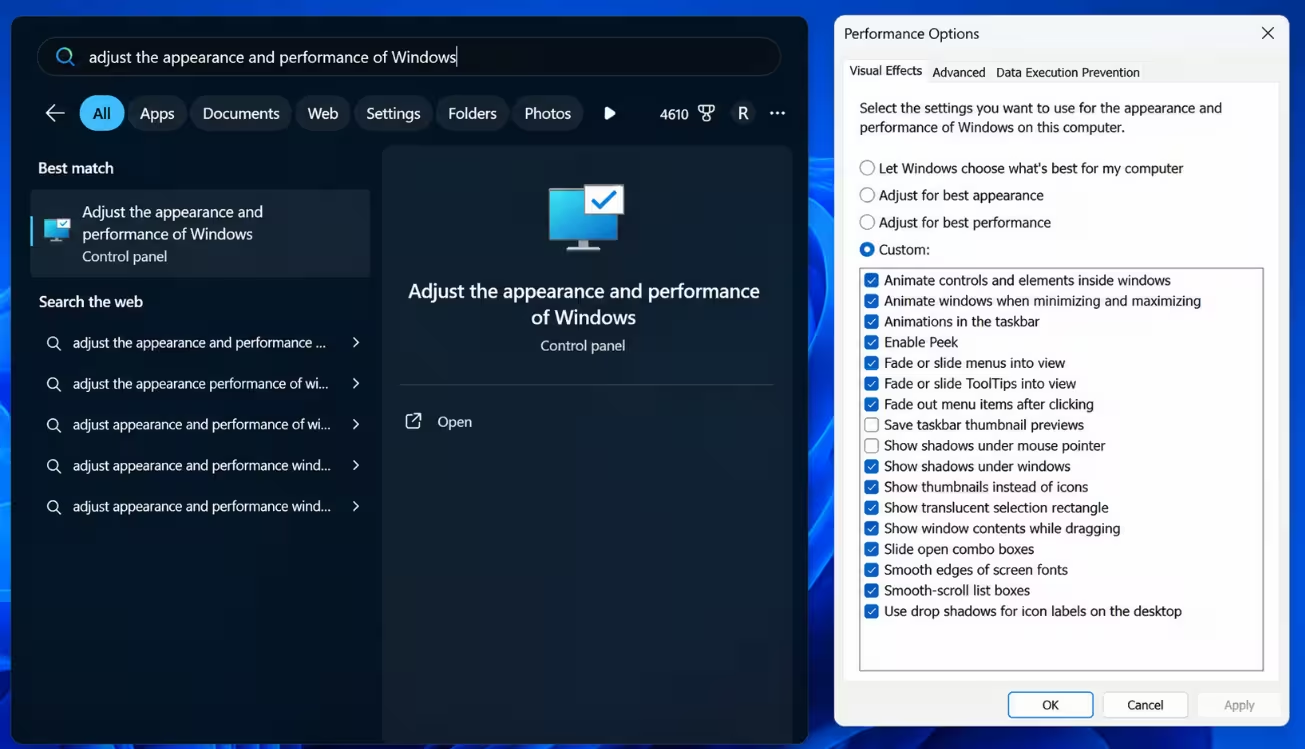
Windows 11’s animations and transparency effects look gorgeous on a high-end GPU. On mid-range or older hardware, they’re resource vampires. Turning them down (or off) can make your UI feel significantly snappier.
- Select “Adjust for best performance” to disable all effects, OR
- Choose “Custom” and keep only: Smooth edges of screen fonts + Show thumbnails instead of icons
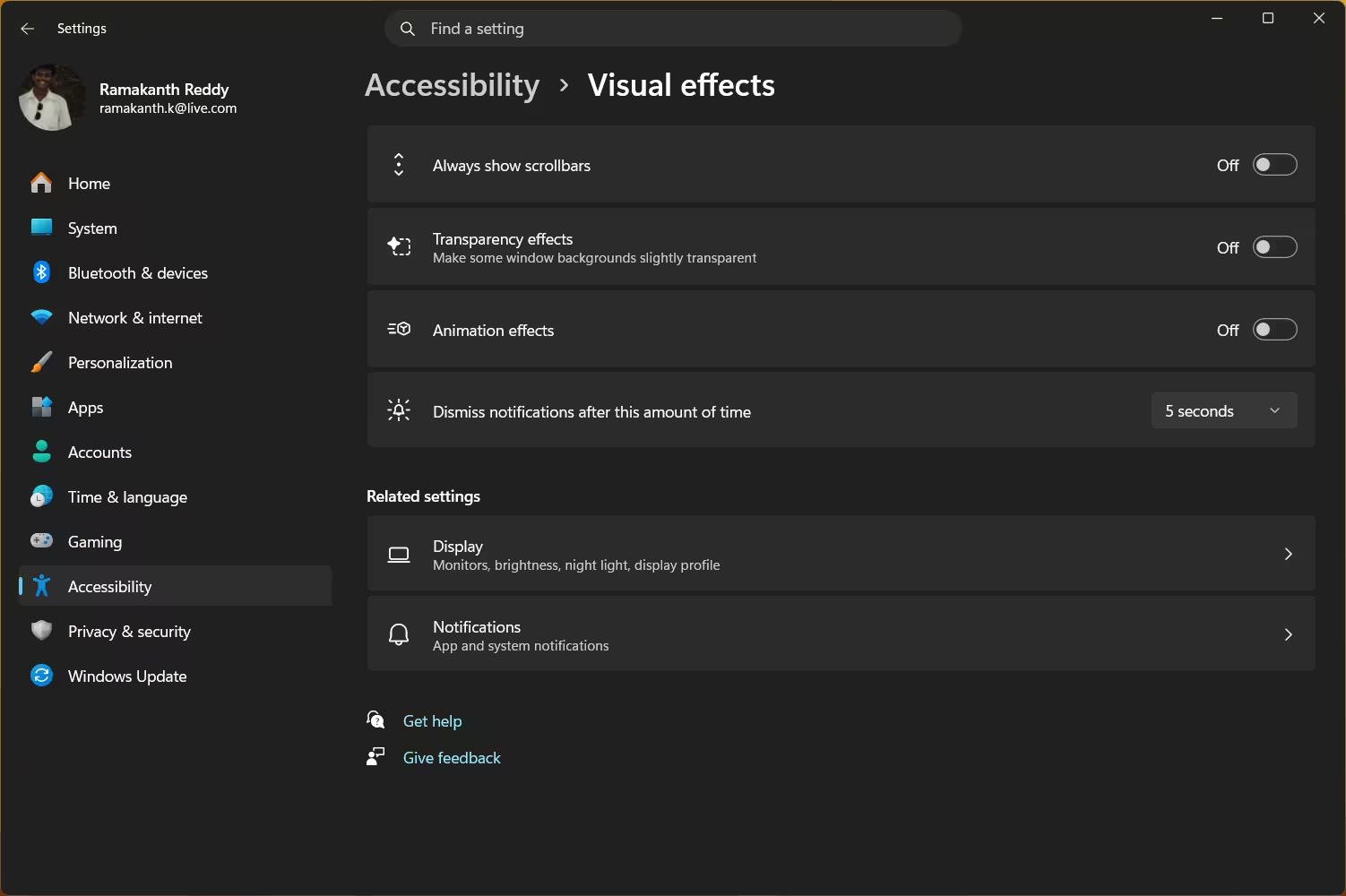
Additionally, go to Settings → Accessibility → Visual effects and toggle off Transparency effects and Animation effects.
🔮 Pro TipIf you want the visual polish without the performance cost, keep animations ON but shorten them. Open Registry Editor (regedit), navigate to HKEY_CURRENT_USER\Control Panel\Desktop, and change the value of MenuShowDelay from 400 to 0. This makes menus appear instantly, giving your whole system a subjective speed boost without touching any visual settings.
Tip 04
🧹 Enable Storage Sense & Run Disk Cleanup — Reclaim Space & Speed
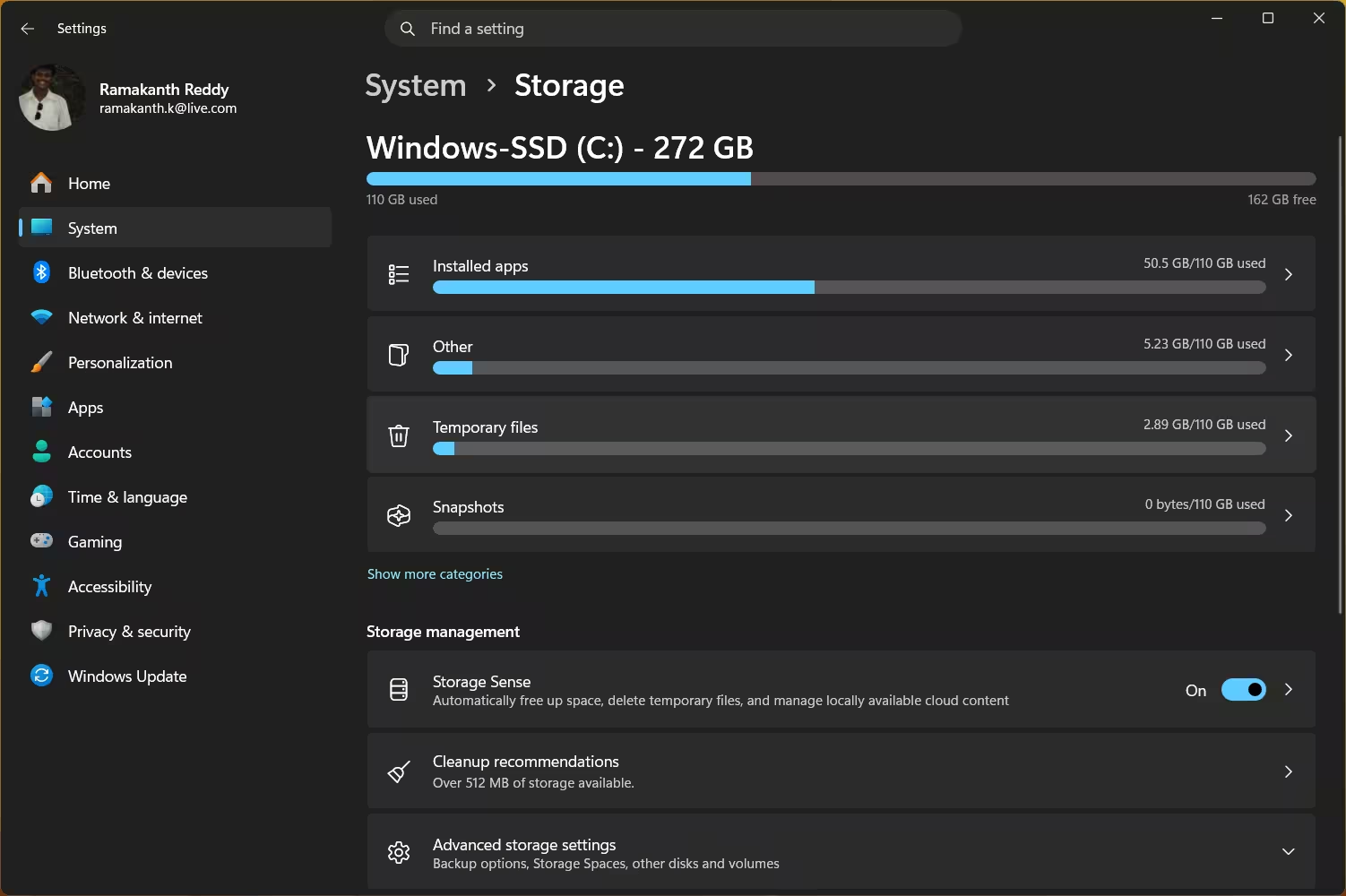
A drive that’s more than 85% full starts to slow down — especially SSDs. Windows 11’s built-in Storage Sense automatically clears temporary files, old update packages, and Recycle Bin contents on a schedule.
Toggle it ON and set the cleanup schedule to Weekly. For a deeper clean:
- Press
Win + R→ typecleanmgr→ Enter - Select your C: drive → click “Clean up system files”
- Check Windows Update Cleanup (can free 2–8 GB easily)
- Click OK → Delete Files
Tip 05
🔄 Update Drivers via Optional Updates — The Overlooked Performance Boost
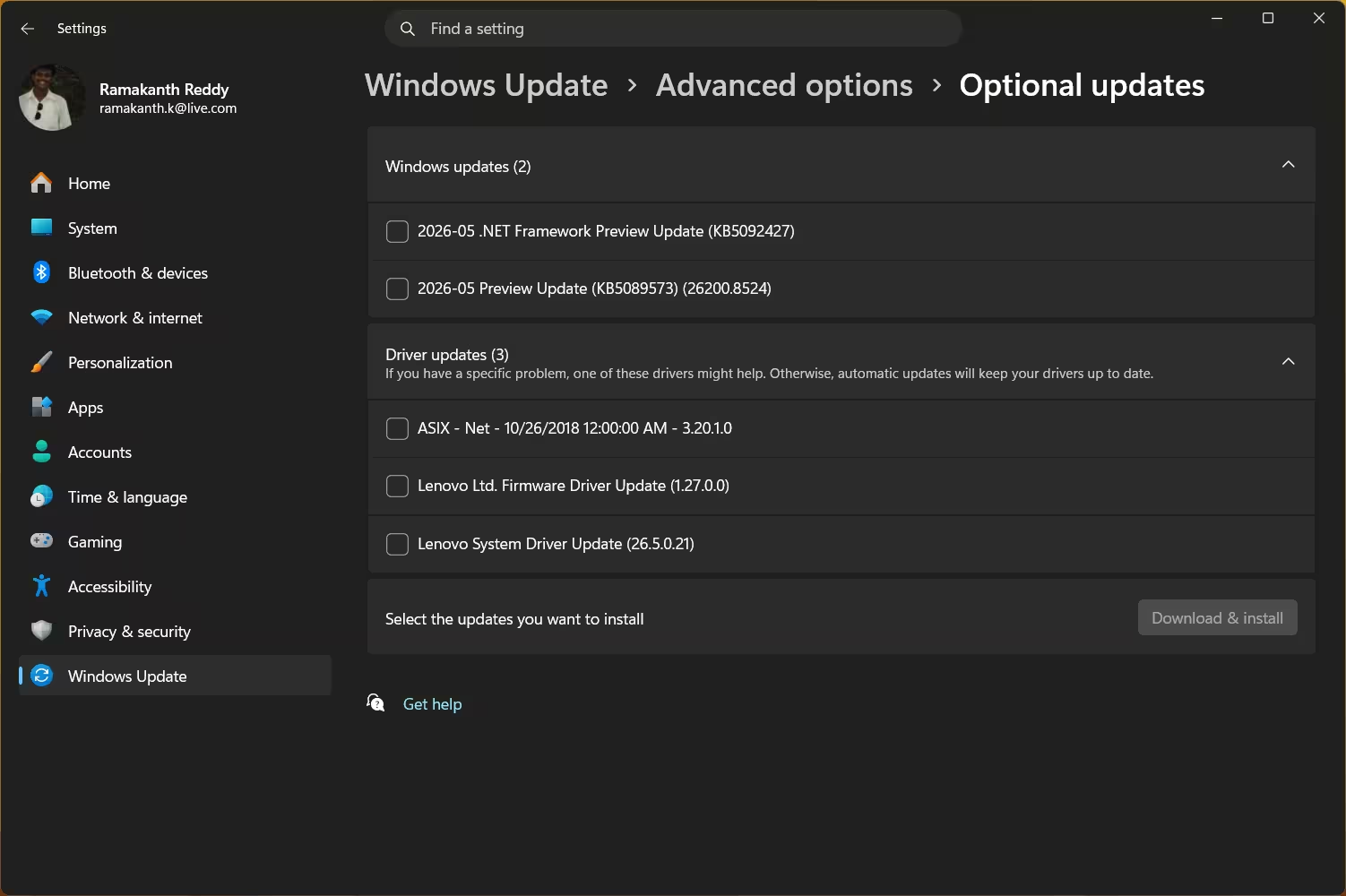
Outdated GPU, chipset, and NVMe drivers are one of the most common — and most overlooked — causes of sluggish Windows 11 performance in 2026. Microsoft’s Optional Updates section is now front and center in Windows 11 24H2.
Install all Driver Updates listed there. For your GPU, always cross-check with the manufacturer’s site directly (NVIDIA, AMD, Intel).
Tip 06
📱 Tame Background App Activity — Stop the Background Drain
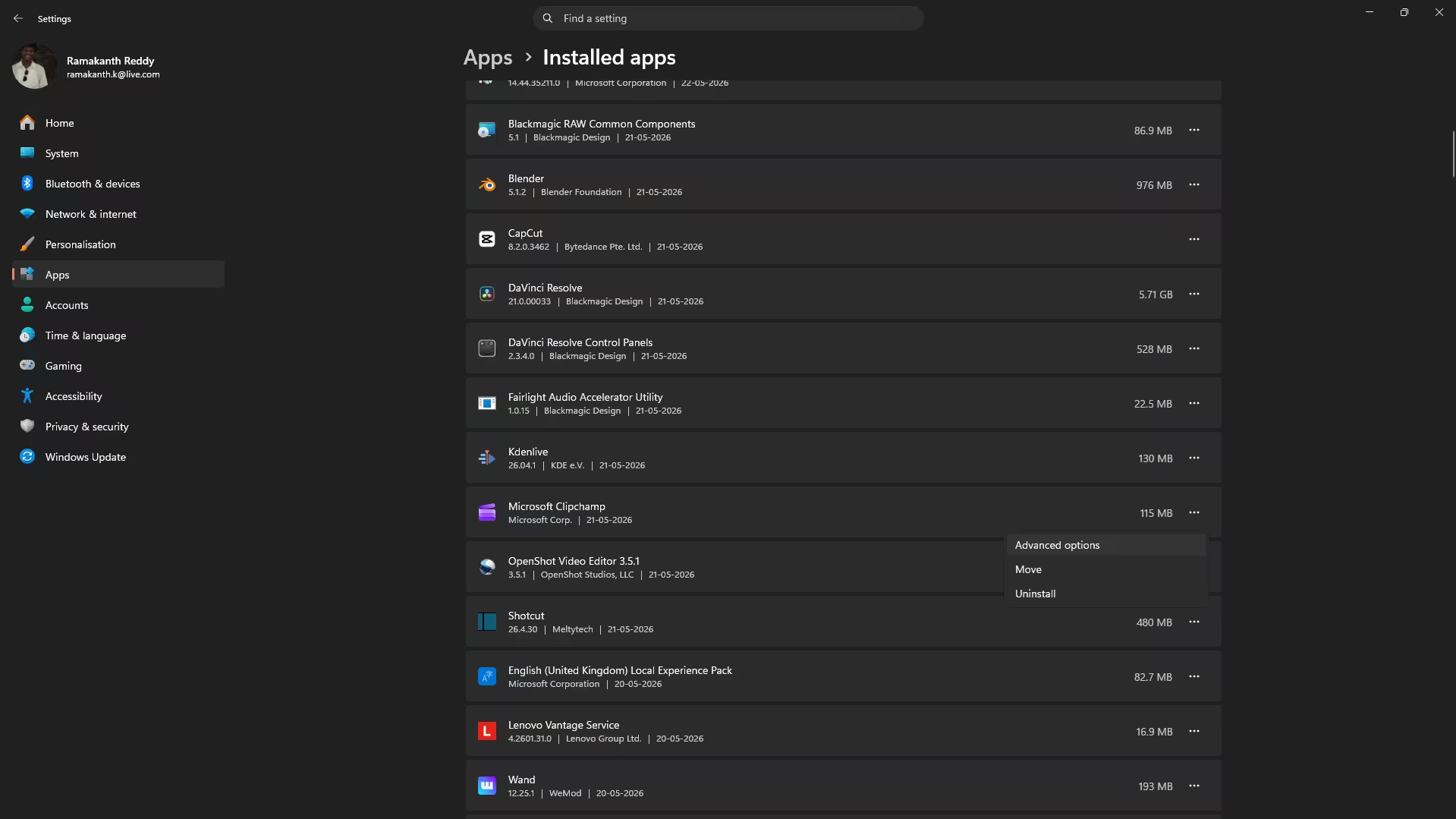
In Windows 11 24H2, the old global “Let apps run in the background” toggle is gone. The per-app “Background apps permissions” setting only works for Microsoft Store (UWP) apps. Here’s the correct multi-step approach:
Step 1 — Kill startup apps (most effective):
Step 2 — Check Energy Recommendations:
Step 3 — Per-app background permissions (UWP/Store apps only):
For Store apps that show this option, set non-critical ones to “Never”.
Tip 07
💾 Optimize Your Virtual Memory (Page File) — Smart RAM Management
Windows 11 manages the page file automatically, but if you have an SSD and notice performance hiccups when RAM fills up (common with 8 GB systems), manually setting a fixed page file size removes Windows’ overhead of dynamically resizing it.
- Uncheck “Automatically manage paging file size”
- Select your SSD drive (C:)
- Choose Custom size: Initial = 1.5× your RAM in MB; Maximum = 3× your RAM
- Click Set → OK → Restart
Example: 16 GB RAM → Initial: 24576 MB, Maximum: 49152 MB
⚠️ Warning — Don’t Do This!Never disable the page file entirely, even if you have 32 GB or 64 GB of RAM. Certain Windows 11 processes and older applications explicitly require a page file to exist, and disabling it completely can cause random crashes, BSODs, and application errors. Always keep at least a small page file (4 GB minimum) on your system drive.
Tip 08
💿 Defrag HDDs / TRIM SSDs — Keep Your Storage Healthy
If you’re still on a traditional HDD, regular defragmentation is crucial. On SSDs, Windows 11 should automatically run TRIM weekly, but it’s worth verifying.
- HDDs: Select drive → Optimize (this defragments)
- SSDs: Select drive → Optimize (this sends TRIM command — safe and fast)
Check Scheduled optimization is set to run Weekly.
Tip 09
📊 Reduce Telemetry & Diagnostic Data — Quiet the Background Chatter
Windows 11 sends diagnostic and usage data to Microsoft continuously. You can reduce it to the minimum required level.
- Diagnostic data: Set to “Required diagnostic data only”
- Turn OFF: Tailored tips, ads, and Inking & typing personalization
- Turn OFF: Activity history sync
🚀 More Ways to Speed Up Windows 11 in 2026
Tip 10
🌐 Boost Network Performance with a Faster DNS — Browsing Speed Hack
Your ISP’s default DNS servers are often slow and overloaded. Switching to Cloudflare (1.1.1.1) or Google (8.8.8.8) reduces domain name resolution time.
- Switch to Manual
- IPv4 Preferred DNS:
1.1.1.1| Alternate:1.0.0.1(Cloudflare) - Save and reconnect
Tip 11
🧊 Use Efficiency Mode in Task Manager — Tame CPU Hogs Without Killing Them
Windows 11’s Efficiency Mode throttles a process to use only low-priority CPU resources (EcoQoS), without fully killing it. Perfect for background processes eating CPU while you’re trying to work.
- Open Task Manager (
Ctrl + Shift + Esc) - In the Processes tab, right-click a CPU-heavy background process
- Click “Efficiency mode”
- The process will show a leaf icon 🌿 confirming it’s throttled
Note: This is persistent only for the current session.
Tip 12
🖥️ Enable Hardware-Accelerated GPU Scheduling (HAGS) — Gaming & GPU Performance Boost
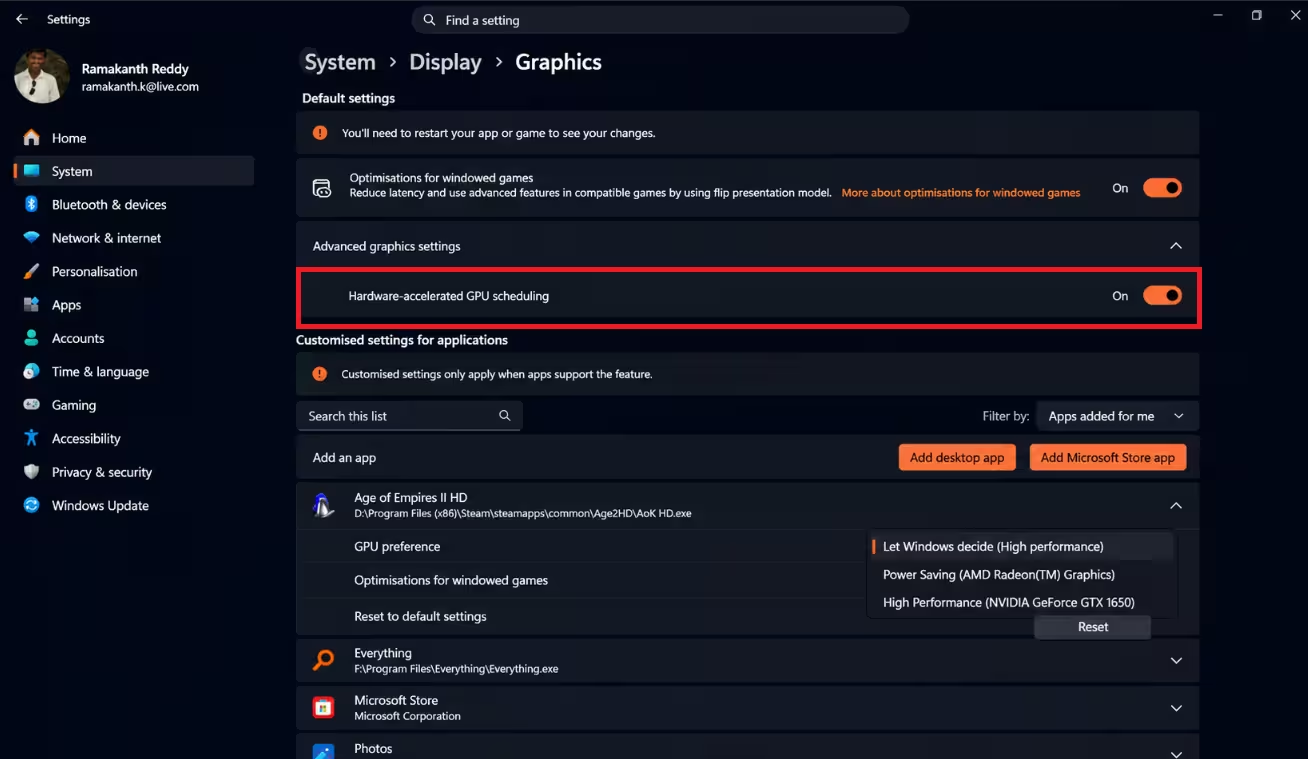
Hardware-Accelerated GPU Scheduling (HAGS) offloads GPU memory scheduling from the CPU to the GPU itself. On supported hardware (NVIDIA GTX 10-series and above, AMD RX 5000 and above), this can reduce latency in games and GPU-intensive apps.
Toggle “Hardware-accelerated GPU scheduling” to ON. Restart your PC for the change to take effect.
🔮 Bonus Pro Tip — Windows 11 24H2 SpecificIn Windows 11 24H2, Microsoft added Energy recommendations under Power settings. If you see recommendations flagged as “Not recommended for performance,” review them — some update may have silently switched your power profile to a more conservative mode. Resetting here takes 30 seconds and can restore lost speed.
★★★★★These 12 Windows 11 performance tips for 2026 are the result of real-world testing across a range of hardware — from ageing Core i5 laptops to modern Ryzen 9 desktops. None of these tweaks require third-party tools or risky system changes. Every single one is reversible, safe, and tested on Windows 11 24H2. Whether you’re trying to breathe life into an older machine or simply squeeze the last drop of speed out of a new one, working through this checklist is one of the best 45 minutes you can invest in your PC. Start with Tip 1 and Tip 2 for instant results — the rest build on each other beautifully.
❓ Frequently Asked Questions


Discover more from Techno360
Subscribe to get the latest posts sent to your email.
You must be logged in to post a comment.