

One window. Dozens of switches. A Windows PC that finally listens to you.
Fresh Windows installs now arrive stuffed with Copilot, Recall, Bing-flavoured search and a pile of apps nobody asked for. Winhance rolls all the clean-up, privacy and speed tweaks into a single free app — no scripts to memorise, no registry spelunking.
Get Winhance →
⚡ Quick Read
- What it is: a free, open-source Windows 10 & 11 tuner that debloats, hardens privacy and reshapes the UI from one screen.
- Built by: Marco du Plessis (you’ll see it credited in-app as “by Memory”) — the full code sits on GitHub for anyone to inspect.
- Star trick: it can wipe Copilot, Recall and Click to Do — and keep them gone even after Windows Update tries to sneak them back.
- How to run it: a one-line PowerShell command, a normal installer, or a portable build off a USB stick.
- Safety net: makes a config backup on launch and labels every toggle as Recommended, Default or Custom so you’re never guessing.
- Cost: ₹0. No account, no ads, no premium wall. 64-bit Windows only.
If you’ve set up a Windows PC lately, you already know the drill. You spend the first evening turning things off — the suggested apps, the lock-screen tips, the AI assistant that pinned itself to your taskbar without asking. It’s tedious, and half those settings hide three menus deep.
Winhance takes that whole chore and puts it under one roof. I’ve been testing Winhance v26.06.12, and it’s grown into one of the most complete free tuning tools I’ve tried this year. Here’s what it does, how to run it, and whether it deserves a spot on your PC.

So what is Winhance, really?
Winhance is short for Windows Enhancement Utility. It’s a free, fully open-source app that bundles four jobs into one interface: removing junk apps, tightening privacy, squeezing out extra performance, and letting you restyle the desktop. Instead of bouncing between Settings, Control Panel, Group Policy and a dozen forum PowerShell snippets, you do it all from a clean, modern window.
That window looks the part now. An earlier version was built on the older WPF framework; the developer rebuilt it on Microsoft’s WinUI 3, giving it a cleaner, more modern interface that sits comfortably next to the real Windows Settings app.
The layout splits into three big rooms you’ll switch between using the left rail: Software & Apps, Optimize, and Customize. More on each below.
Who’s behind it — and why that matters
Winhance is the work of Marco du Plessis, better known online as memstechtips. Inside the app it’s simply credited “by Memory.” Because the entire codebase is public on GitHub, you don’t have to take anyone’s word for what it changes — a security-minded user can read exactly which registry keys and scripts get touched before running a thing. For a tool that pokes at system-level settings, that transparency is the whole point.
Getting Winhance running
There are three ways in, and they all land you at the same place:
- The PowerShell one-liner. Right-click Start, open Terminal (Admin), and run
irm "https://get.winhance.net" | iex. It fetches and launches the app for you. - The regular installer. Prefer a normal setup wizard? The installer offers Desktop and Start-menu shortcuts, exactly like any other app.
- Portable mode. Pick “portable installation” during setup and you can carry it on a USB stick with nothing left behind on the host machine.
Whichever route you take, run it as administrator — system-level changes need those rights — and let it finish the configuration backup it creates on first launch. That backup is your undo button if a tweak doesn’t sit right.

Three modes: Normal, Builder and Config Review
Along the top you’ll spot a mode switch. Normal applies changes straight to the PC you’re on. Builder is the clever one — it lets you assemble a Winhance config file, or even a full autounattend.xml answer file, without touching the current machine. That’s gold if you set up lots of PCs and want the same lean, no-nonsense Windows on every one. Config Review lets you look over a saved setup before you commit to it.
Software & Apps: clearing out what you never chose
This tab is the bloatware broom. Winhance scans your machine and lists everything from App Installer and Calculator to Clipchamp, Edge, the Microsoft Store, Notepad and Paint. Tick what you don’t want, hit Uninstall Selected Items, and it runs the removal for you. A separate External Software tab lets you batch-install the apps you actually want on a fresh setup — browsers, media players, document viewers and the like.
Two touches stand out. First, clear badges tell you when something is Permanent — a warning that a removal can’t be undone — so you don’t nuke anything you’ll miss. Second, and this is the killer feature: Winhance can save removal scripts and a scheduled task, so when Windows Update tries to quietly reinstall an app you already binned, it gets swept out again at the next startup. Anyone who’s watched OneDrive or Copilot crawl back after an update will appreciate that.

Optimize: the real control room
Click Optimize and you get a stack of categories — Privacy & Security, Power, Gaming & Performance, Update, Notifications and Sound — each showing how many settings are set to Recommended versus Default. It’s a lot, but it’s organised, and every switch carries a plain-English description of what it does.

Privacy & Security
This is the section people come for. In one place you can cut off the advertising ID, kill personalised “tailored experiences,” stop diagnostic data heading to Microsoft, and switch off the endless suggestions scattered across Windows. There’s a neat cascade view too: flipping “Ads, Suggestions and Promotional Content” tells you upfront which other settings it also controls — lock-screen Spotlight, suggested content, notification-centre pitches and more — so you understand the ripple effect before you commit. Content Delivery, Subscribed Content and OEM pre-installed junk all get their own toggles.

Power
The Power section splits neatly into Plugged In and On Battery columns, which laptop owners will love. You can tune the wireless adapter’s power-saving behaviour, decide when (or whether) the machine sleeps, control wake timers so background tasks stop rousing your PC at 3 a.m., and manage hibernation. Desktop users can mostly ignore the battery column; laptop users get proper granular control.

Gaming & Performance
Gamers get their own playground: a Game Mode toggle, a switch to disable Enhance Pointer Precision (mouse acceleration — most FPS players kill it for consistent aim), a Mouse Hover Time control that makes tooltips and menus snap open faster, an optional startup delay for background apps so Windows becomes usable sooner after boot, and a Background App Permissions control to stop apps running when you’re not using them. Small tweaks individually, but together they take the sluggish edge off day-to-day use.

Customize: make Windows look and behave your way
The Customize tab is where Winhance stops being a janitor and starts being a decorator. It’s split into Windows Theme, Taskbar, Start Menu and Explorer, each stacked with options.
Taskbar
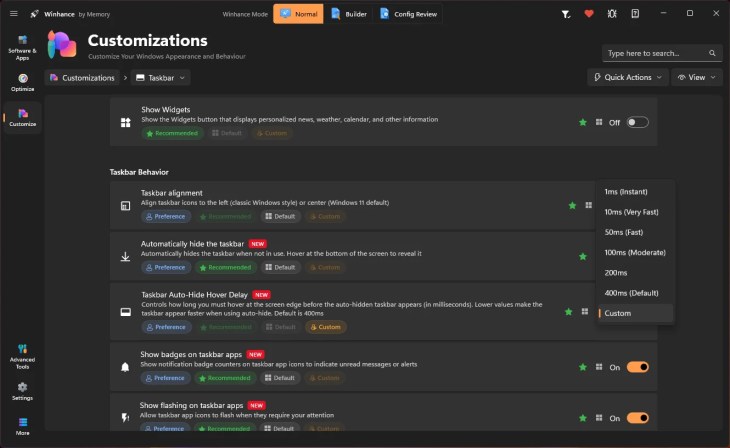
Shift the taskbar icons back to the classic left alignment, hide the Widgets button, switch on auto-hide, and — a nice detail — set exactly how fast the auto-hidden taskbar reappears, from an instant 1ms up to the default 400ms. You can also control notification badges and whether app icons flash for attention.
Start Menu
Tired of the Start menu recommending files, tips and Store apps you’ll never open? Winhance lets you switch off recently added apps, most-used apps, recommended files, tips-and-shortcuts suggestions, account notifications and — the big one — Bing web results inside Start menu search. The result is a Start menu that shows your stuff and only your stuff.

Explorer & Theme
Explorer carries the deepest set of tweaks — dozens of switches across the desktop, context menu, peripherals and general behaviour — while the Theme section handles dark/light mode and transparency. This is where you’d restore a cleaner right-click menu or tidy up the desktop clutter.

Killing the AI creep: Copilot, Recall and Click to Do
Microsoft has spent the last year quietly stitching AI into every corner of Windows, and not everyone wants it. Winhance gives you a clean way out. It can disable or remove Copilot, Windows Recall (the feature that snapshots your screen so it can be searched later) and Click to Do, plus AI bits baked into Edge and Paint. Pair that with the “keep it removed” scheduled task and these features stay gone rather than reappearing after the next big update. If AI features are your main gripe, this alone justifies the download.
Quick Actions and the safety net
Not in the mood to read every description? The Quick Actions menu lets you apply all of Winhance’s recommended settings in one go, or roll everything back to Windows defaults just as fast. And because every toggle is tagged Recommended, Default or Custom, you always know how far you’ve strayed from a stock setup — and how to get back. Combined with the config backup made at launch, it’s hard to paint yourself into a corner.
Is Winhance safe to use?
Broadly, yes — with the usual common sense. It’s open-source, so the changes are auditable; it’s non-destructive where it can be, with reversible toggles for most tweaks; and it flags the handful of removals that can’t be undone. The catch is the same as with any debloat tool: read each description before you flip it, and don’t blanket-remove apps you might actually need (Teams, Zoom or WhatsApp, for instance, rely on background permissions). Let it make that first backup, and you’ve got a way home if something feels off.
👍 What’s great
- Completely free, open-source, no account needed
- Removes Copilot, Recall & Click to Do — and keeps them off
- Modern WinUI 3 interface that’s easy to read
- Portable option and Builder mode for repeat setups
- Clear Recommended / Default / Custom labels
👎 Keep in mind
- 64-bit Windows 10 / 11 only
- Some app removals are permanent
- Sheer number of toggles can overwhelm beginners
- Needs admin rights to do its job
Who should install Winhance?
If you’re setting up a new PC, reviving an older laptop that’s crawling, or you simply want Windows to stop nagging and tracking, Winhance is an easy recommendation. Power users will enjoy Builder mode; privacy-conscious folks will head straight for the AI and telemetry switches; everyone else can lean on Quick Actions and be done in five minutes. If you never touch settings and are perfectly happy with a stock install, you probably don’t need it — but you’re likely not reading this far either.
Winhance vs the other Windows tuners
Winhance isn’t the only game in town, and the right pick depends on how hands-on you want to be. If you’d rather run a script than an app, our walkthrough of the Win11Debloat PowerShell tool is a great starting point. Want a heavier toggle-driven optimizer? Compare it against WinScript and the 80-plus one-click tweaks in FluentTweaker. For a lightweight, portable option there’s Sparkle. And since a lot of the privacy fuss starts with your login, our guide on setting up a local account in Windows 11 pairs nicely with anything Winhance does.
| Tool | Type | Removes bloatware | Privacy controls | UI tweaks | Portable | Best for |
|---|---|---|---|---|---|---|
| Winhance | GUI (WinUI 3) | Yes | Yes | Yes | Yes | All-in-one Windows control |
| Win11Debloat | PowerShell script | Yes | Yes | Yes | Yes (no install) | Fast, repeatable cleanups |
| WinScript | GUI | Yes | Yes | Yes | — | Granular, toggle-heavy control |
| FluentTweaker | GUI | Tweaks-focused | Yes | Yes | — | Killing ads, AI & Edge nags |
| Sparkle | GUI (portable) | Yes | Yes | Some | Yes | Lightweight portable tuning |
“—” means the feature isn’t documented or confirmed for this comparison, not that it’s necessarily missing. Feature sets shift between versions, so check each tool’s page for the latest.
How to download Winhance
Grab it from the official site — winhance.net — where you’ll find the PowerShell command, the installer and the portable build, along with the developer’s own documentation. Only download from the official page or its GitHub project; a system tool is exactly the kind of thing you don’t want a shady mirror version of.
Frequently Asked Questions
Is Winhance free?
Yes. Winhance is completely free and open-source. There are no subscriptions, premium unlocks, ads or bundled software, and it doesn’t require an account.
Does Winhance work on Windows 10?
It does. Winhance supports both Windows 10 and Windows 11, but only 64-bit versions. It’s regularly updated to stay compatible with the latest Windows builds.
Can Winhance remove Copilot and Windows Recall for good?
Yes. It can disable or remove Copilot, Recall and Click to Do, and it can save a removal script plus a scheduled task so those features don’t return after a Windows update reinstalls them.
Are the changes reversible?
Most of them. Many settings are simple toggles you can flip back, and Quick Actions can restore Windows defaults in one click. A few app removals are permanent, but Winhance clearly labels those before you proceed, and it makes a config backup when it launches.
Do I need to be tech-savvy to use it?
Not really. Every setting has a plain description, and the Quick Actions menu applies the recommended set in one go. Beginners can stick to Quick Actions; advanced users can dig into Builder mode and autounattend files.
Where should I download Winhance from?
Only from the official website, winhance.net, or its GitHub project. Avoid third-party mirrors for system-level tools like this one.
✅ The Verdict
Winhance has quietly become one of the most useful free Windows tools around. It folds debloating, privacy control, performance tuning and UI tweaks into a single, good-looking window — and its ability to keep AI features and bloatware from creeping back after updates is genuinely rare. Read each toggle before you flip it, let it make that first backup, and you’ve got a fast, safe way to make Windows 10 or 11 feel like your own again.
For new PC setups, tired old laptops, or anyone fed up with Copilot and constant suggestions, it’s an easy install.


Discover more from Techno360
Subscribe to get the latest posts sent to your email.