
Your PC Has Secrets — Portmaster Tells You All of Them
Right now, apps on your Windows PC are quietly phoning home. Portmaster is the free, open-source tool that catches them in the act — no tech expertise required.
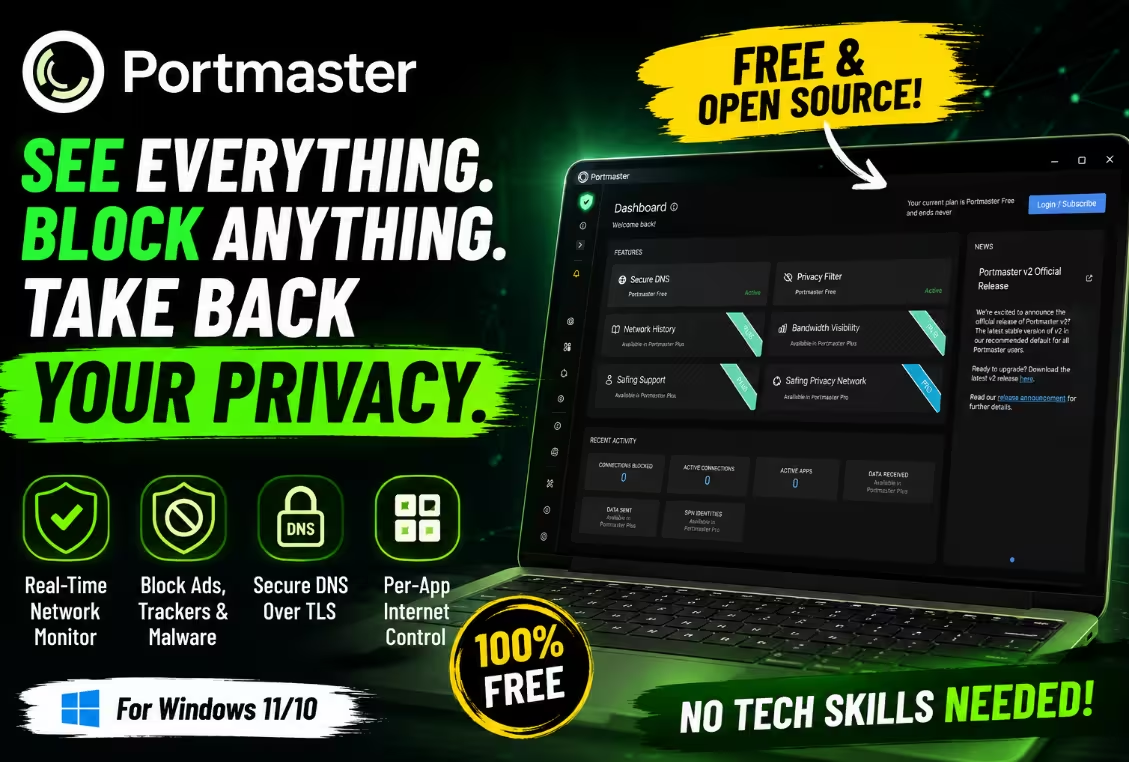
- Portmaster shows every app on your PC that is connecting to the internet, in real time
- The free version blocks ads, trackers, and malware domains system-wide — out of the box
- All DNS queries are automatically encrypted using DNS-over-TLS — no setup needed
- You can block or allow individual apps from accessing the internet with one click
- 100% open-source, no data collection, no ads — built by Austrian privacy company Safing
- Not a VPN — IP masking belongs to the paid SPN tier; free version handles monitoring & blocking
- Works on all modern Windows versions and major Linux distros (Debian, Ubuntu, Fedora)
Think about it for a moment: how many apps are installed on your PC right now? Twenty? Fifty? And how many of those do you think are silently reaching out to remote servers while you type, game, or stream — without ever telling you?
The honest answer is: more than you’d like. Windows telemetry, background updaters, cloud sync tools, antivirus dashboards, and even apps you opened once and forgot about — they’re all chattier than their marketing materials admit. And until you actually see the traffic, it’s impossible to know what’s going out, and where it’s going.
That’s precisely the gap Portmaster fills. Developed by Austrian privacy company Safing ICS Technologies GmbH, Portmaster is a free, open-source application firewall that gives you a live window into every network connection your PC makes. Think of it as a control room for your internet traffic — one that’s been deliberately designed to work brilliantly with zero configuration, while still offering deep customisation for those who want it.
🔍 What Exactly Is Portmaster?
Portmaster sits at the kernel level of your Windows or Linux system and intercepts every outgoing (and incoming) network connection. It then presents all of this activity in a clean, readable dashboard where you can see which application is connecting, what server it’s reaching, which country that server is in, and whether the connection was allowed or blocked.
Unlike browser extensions that only protect you inside Chrome or Firefox, Portmaster watches all applications system-wide — your games, your desktop apps, your background services, everything. That’s a fundamentally different level of visibility. If you want to compare it with other options, take a look at our roundup of the best free firewall software for Windows.
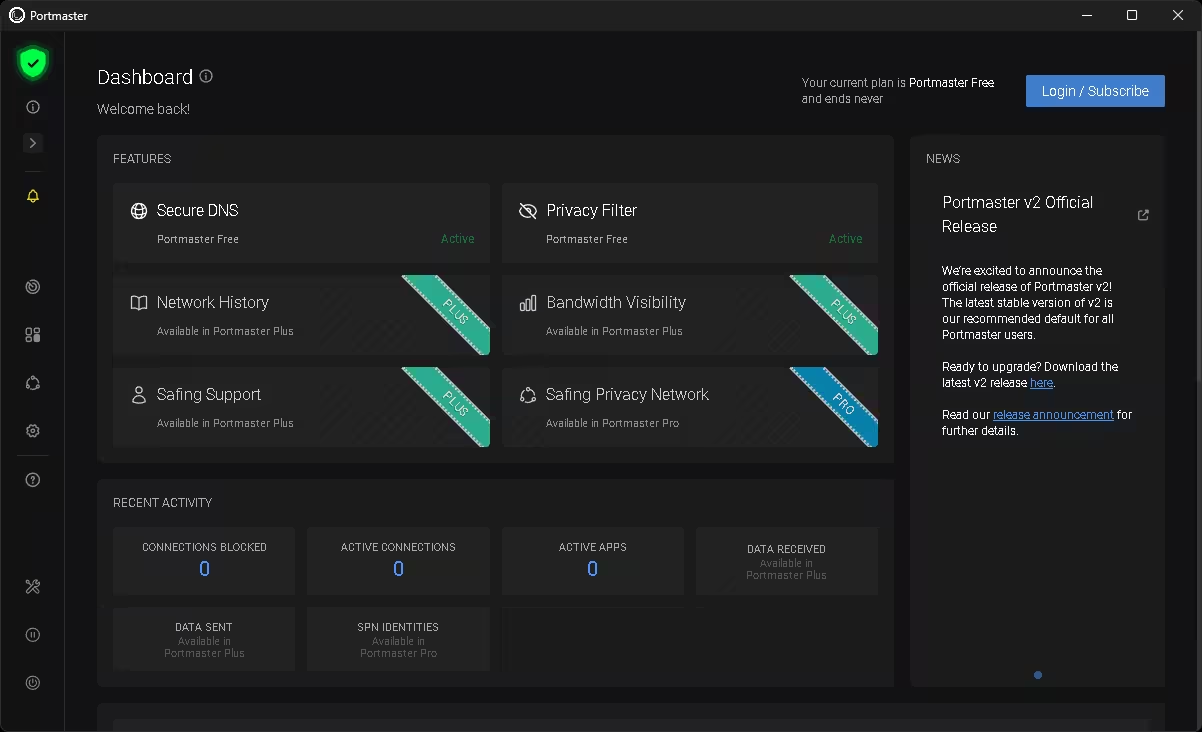
✨ Core Features (Free Tier)
Real-Time Network Monitor
Watch every connection as it happens. See the app, destination, country flag, and port — live.
System-Wide Ad & Tracker Blocking
Block tracking scripts and ad networks across every app on your PC, not just your browser.
Encrypted DNS (DNS-over-TLS)
Your DNS queries are encrypted by default, so your ISP can’t see which sites you visit.
Per-App Rules
Grant or revoke internet access on an app-by-app basis. Cut off one app without affecting others.
Malware Domain Blocking
Uses trusted filter lists to block known malware and phishing domains before they can connect.
Fully Open-Source
Every line of code is public on GitHub. Audit it, fork it, or contribute — total transparency.
🚀 Getting Started: First Launch Experience
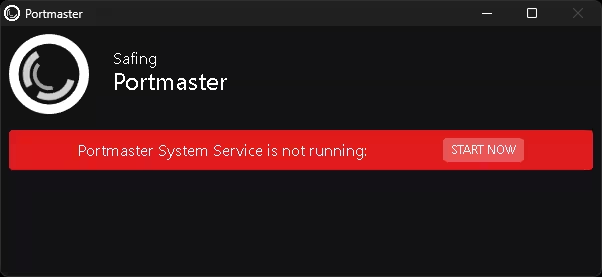
Installing Portmaster is as straightforward as any Windows app — download the installer from safing.io/download, run it, and the system service kicks in automatically. The first thing you’ll see when the app opens is a system service check.
If the system service isn’t running yet, you’ll see a red banner with a “Start Now” button. This is completely normal on first run. One click, and you’re up. The service runs silently in the background and doesn’t require you to keep the interface open.
Download & Install
Grab the Windows installer (95 MB) from safing.io/download and run it. Administrator permissions required.
Start the System Service
On first launch, click “Start Now” if prompted. This enables the kernel-level traffic monitoring.
Run Quick Setup
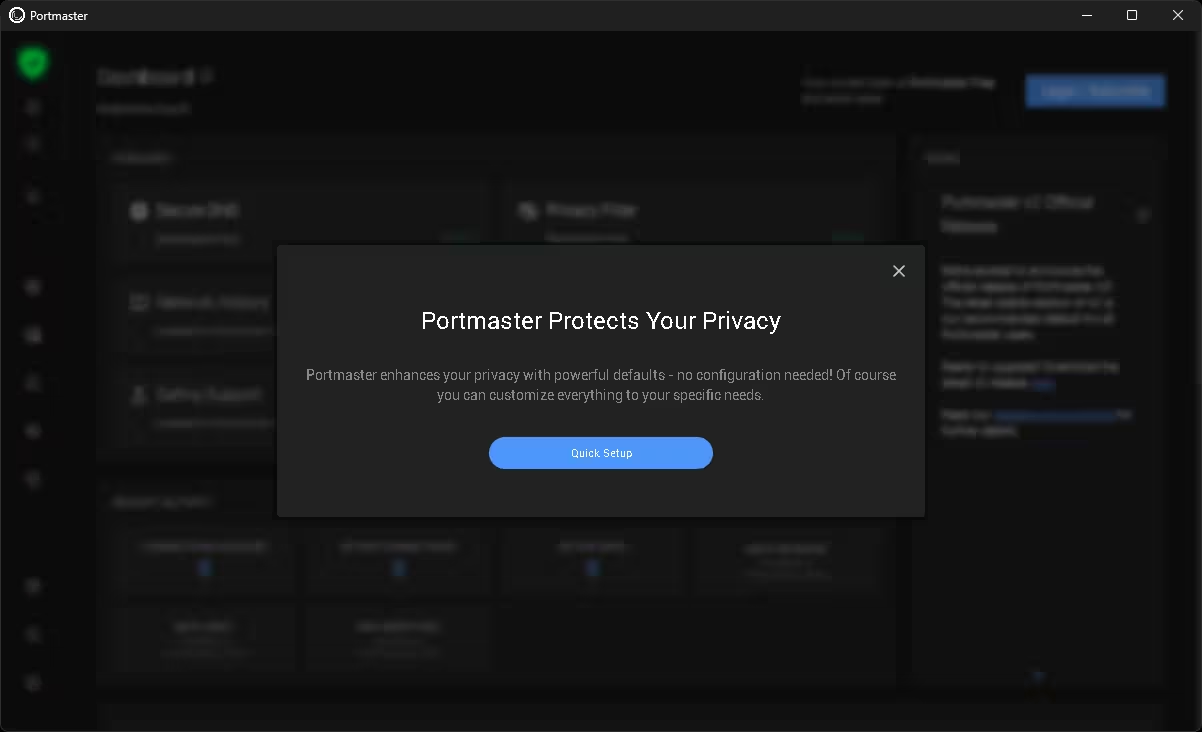
A welcome dialog walks you through the initial configuration. Choose your privacy preferences in under two minutes.
Configure Secure DNS
Pick a DNS provider (Cloudflare, Quad9, AdGuard, and more). Portmaster encrypts all queries automatically.
Set Your Filter Lists
Choose what to block: ads & trackers, malware domains, mixed threat lists. Defaults are sensible for most users.
🛡️ Setting Up Your Privacy Filter
The setup wizard presents you with a choice of filter categories to enable. Portmaster uses curated blocklists — the same ones popular browser ad-blockers rely on — to identify and stop unwanted domains before they ever receive your data.
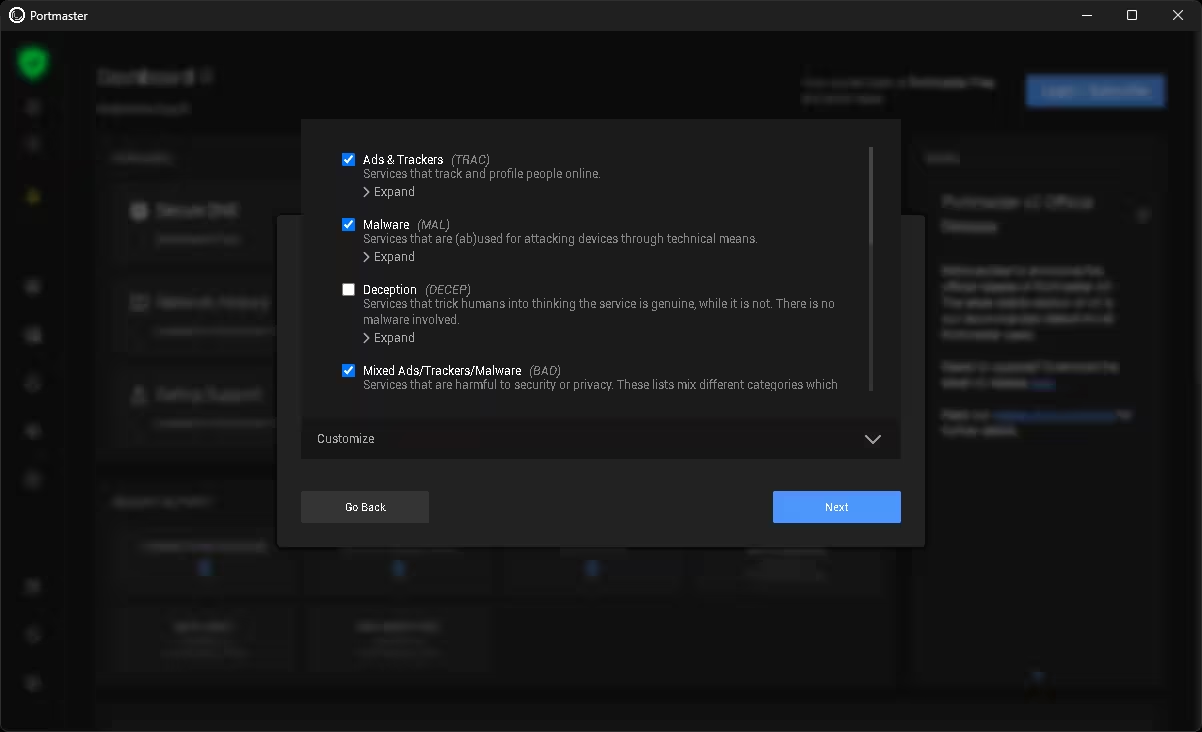
Here’s what each category means in plain language:
- Ads & Trackers (TRAC) — Blocks services that track and profile your behaviour across the web. Enabled by default and recommended for everyone.
- Malware (MAL) — Blocks domains used in cyberattacks and malware distribution. Always a good idea to keep this on.
- Deception (DECEP) — Catches fake or impersonator services designed to trick users. Not enabled by default but worth turning on.
- Mixed Ads/Trackers/Malware (BAD) — Broader catch-all lists that cover multiple threat types. Enabled by default.
🌐 Securing Your DNS — A Feature You’ll Actually Notice
One of the most impactful things Portmaster does silently is encrypt every single DNS query your PC makes. Normally, when your computer looks up a website address, that query travels in plain text over the network — your ISP (and anyone monitoring the connection) can see every domain you resolve.
Portmaster replaces this with DNS-over-TLS, wrapping those queries in encryption so they’re invisible to network observers. You choose the provider during setup, and it’s just one click.
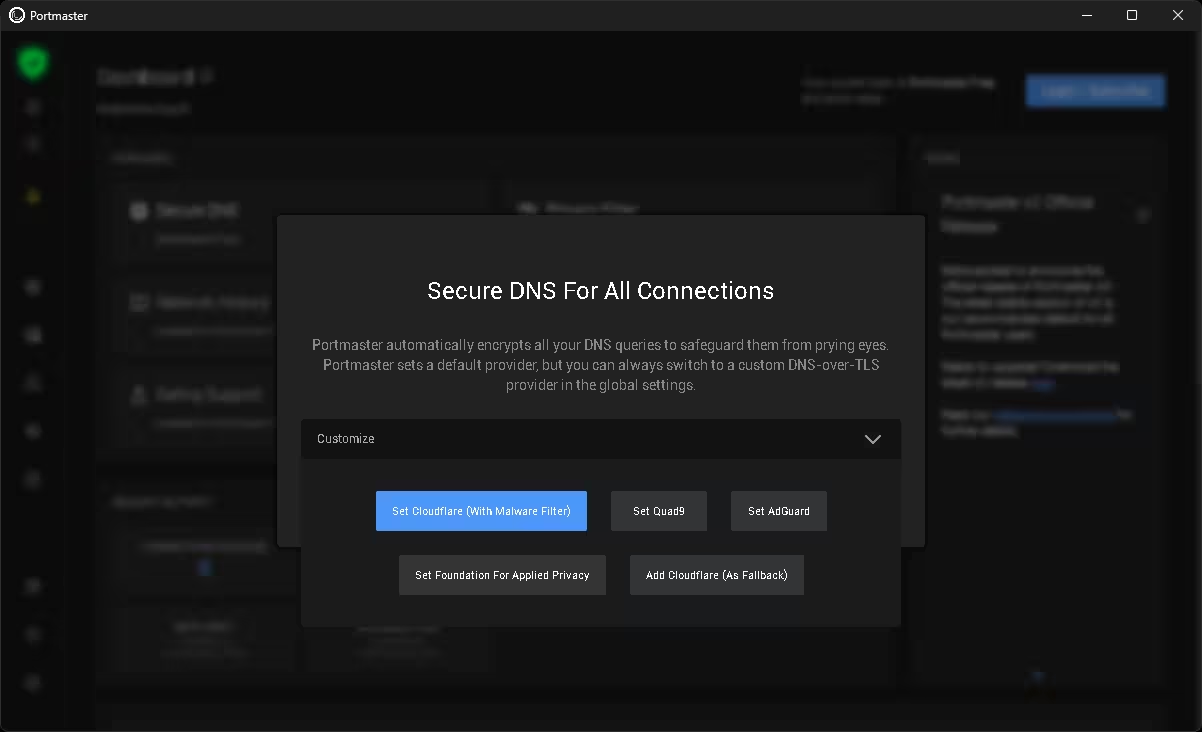
The available providers during setup include:
- Cloudflare (with Malware Filter) — Fast, globally distributed, with optional threat filtering
- Quad9 — Security-focused resolver that blocks malicious domains by default
- AdGuard — Privacy-focused with built-in ad and tracker DNS blocking
- Foundation for Applied Privacy — Non-profit European resolver focused on no-logging
- Cloudflare (as Fallback) — Add alongside another primary resolver for redundancy
You can also enter a custom DNS-over-TLS server address in the global settings if you have a preferred provider or run your own resolver. If you also want this kind of protection on your phone, our guide on Private DNS on Android to block malware and trackers covers the mobile side.
📊 The Network Activity View — Where Things Get Interesting
The Network Activity screen is where Portmaster really earns its keep. Every connection your PC makes is logged here for the last 10 minutes — you can filter by application, country, domain, or connection type, and group or sort results any way you like.
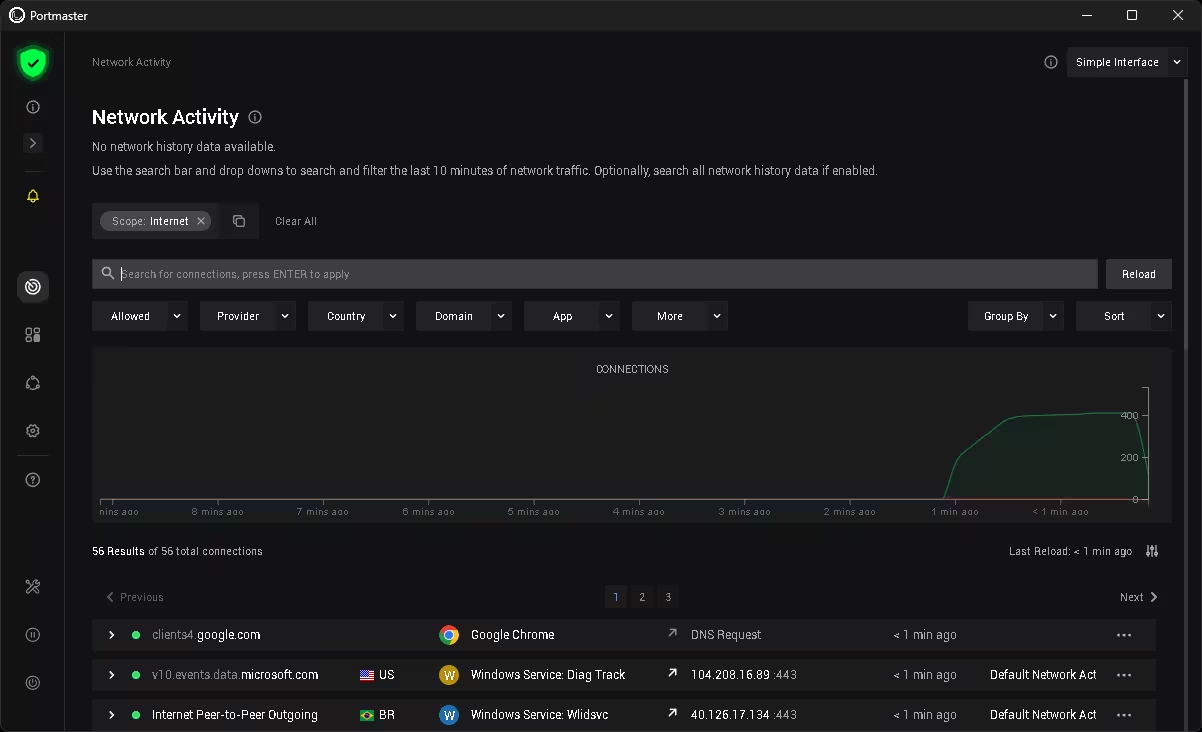
In the screenshot above, you can see Portmaster tracking connections from Google Chrome to Google’s servers, Windows Service: Diag Track phoning home to Microsoft (with a US flag indicating the server location), and even Windows’ WPN service connecting to a Brazilian IP. That last one is worth knowing about — would you have noticed it otherwise?
📱 The App List — Per-App Control at a Glance
The left panel in Portmaster’s interface shows every application that has made a network connection, along with a connection count and a colour-coded indicator of whether connections are being allowed. Clicking on any app lets you set custom rules just for that app — completely independent of global settings.
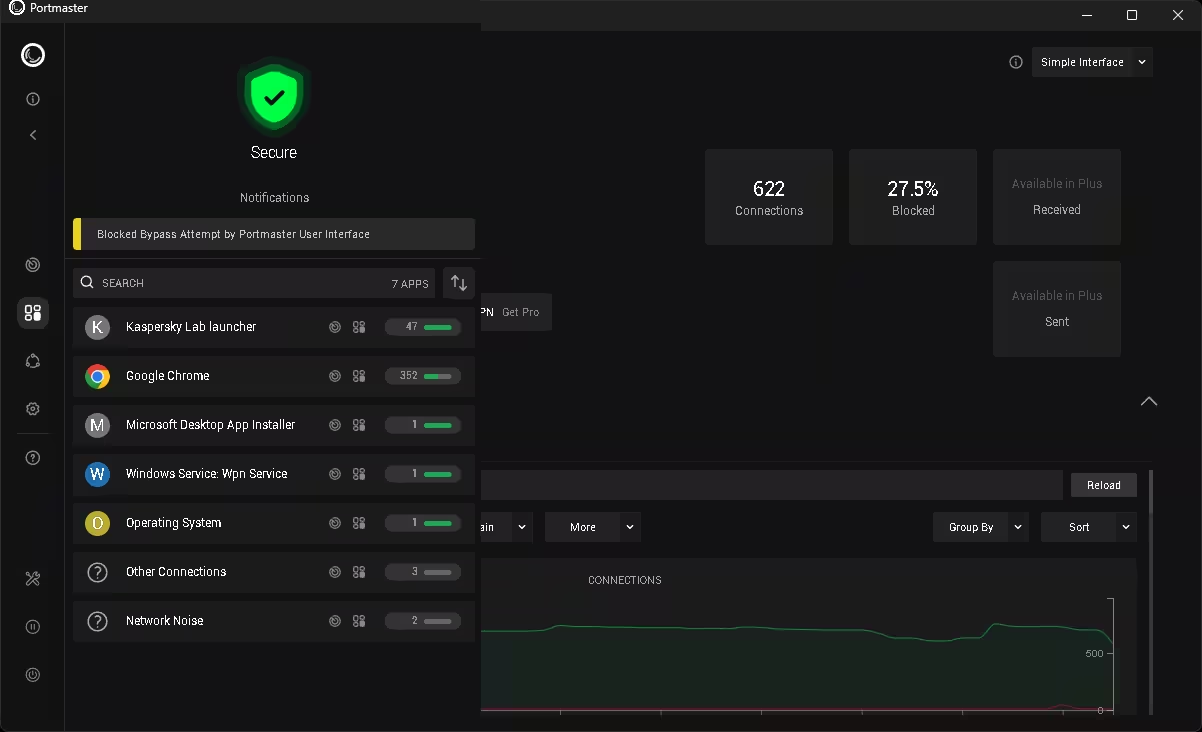
One detail in this screenshot is worth highlighting: the notification reads “Blocked Bypass Attempt by Portmaster User Interface.” Yes — Portmaster even monitors its own components and blocks attempts by its own UI to circumvent its rules. That’s a level of self-consistency you don’t often see in security software.
The summary bar also shows 622 total connections monitored with 27.5% blocked. That’s nearly 3 in every 10 connection attempts being quietly stopped — most of which the average user would never know were happening.
💎 Free vs. Plus vs. Pro — What’s the Difference?
| Feature | Free | Plus | Pro |
|---|---|---|---|
| Real-Time Network Monitor | ✓ Free | ✓ | ✓ |
| System-Wide Ad & Tracker Blocking | ✓ Free | ✓ | ✓ |
| Secure DNS (DNS-over-TLS) | ✓ Free | ✓ | ✓ |
| Per-App Firewall Rules | ✓ Free | ✓ | ✓ |
| Network History (extended logs) | — | Plus | ✓ |
| Bandwidth Visibility | — | Plus | ✓ |
| Safing Support (priority) | — | Plus | ✓ |
| SPN (Safing Privacy Network / IP masking) | — | — | Pro |
For the vast majority of everyday users, the free tier delivers genuine, meaningful privacy protection. The paid tiers are for power users who want historical logs, bandwidth data, or an alternative to conventional VPNs via the SPN. You may also want to read our guide on Windows privacy tools and our pick of the best free antivirus for Windows 11 to round out your setup.
✅ Pros & Cons
👍 What We Love
- Completely free core with no feature crippling
- System-wide protection, not browser-only
- DNS encryption works silently out of the box
- Beautiful, readable interface for a firewall tool
- Fully open-source with active development
- No data collection, no ads, no telemetry to Safing
- Catches what you never knew was happening
⚠️ A Few Caveats
- Requires a system service (admin install)
- No IP masking in the free version (need Pro for SPN)
- Network History limited to 10 minutes on free tier
- Linux support exists but Windows experience is smoother
- Learning curve if you want advanced custom rules
❓ Frequently Asked Questions
Portmaster is one of the most genuinely useful free security tools available for Windows right now. It doesn’t ask you to trust it blindly — it shows you exactly what it’s doing, and more importantly, it shows you exactly what every other app on your PC is doing too.
The free version isn’t a stripped-down demo. It’s a fully functional application firewall with encrypted DNS, system-wide tracker blocking, and per-app control — features most paid security suites charge for. For anyone who’s ever wondered what their computer is doing in the background, Portmaster answers that question definitively, and gives you the tools to act on what you find.
Discover more from Techno360
Subscribe to get the latest posts sent to your email.

You must be logged in to post a comment.